xTool M2 Review
The xTool M2 is an impressive machine with not only 20w laser engraving and cutting abilities, interchangeable laser modules with a 3w IR option, but print capabilities as well! This makes the M2 an inexpensive major player in the laser world! The 20w is a diode laser that is powerful enough for 1/4″ plywood to be cut like butter! Let’s take a look at what we can accomplish with this fancy new tool!
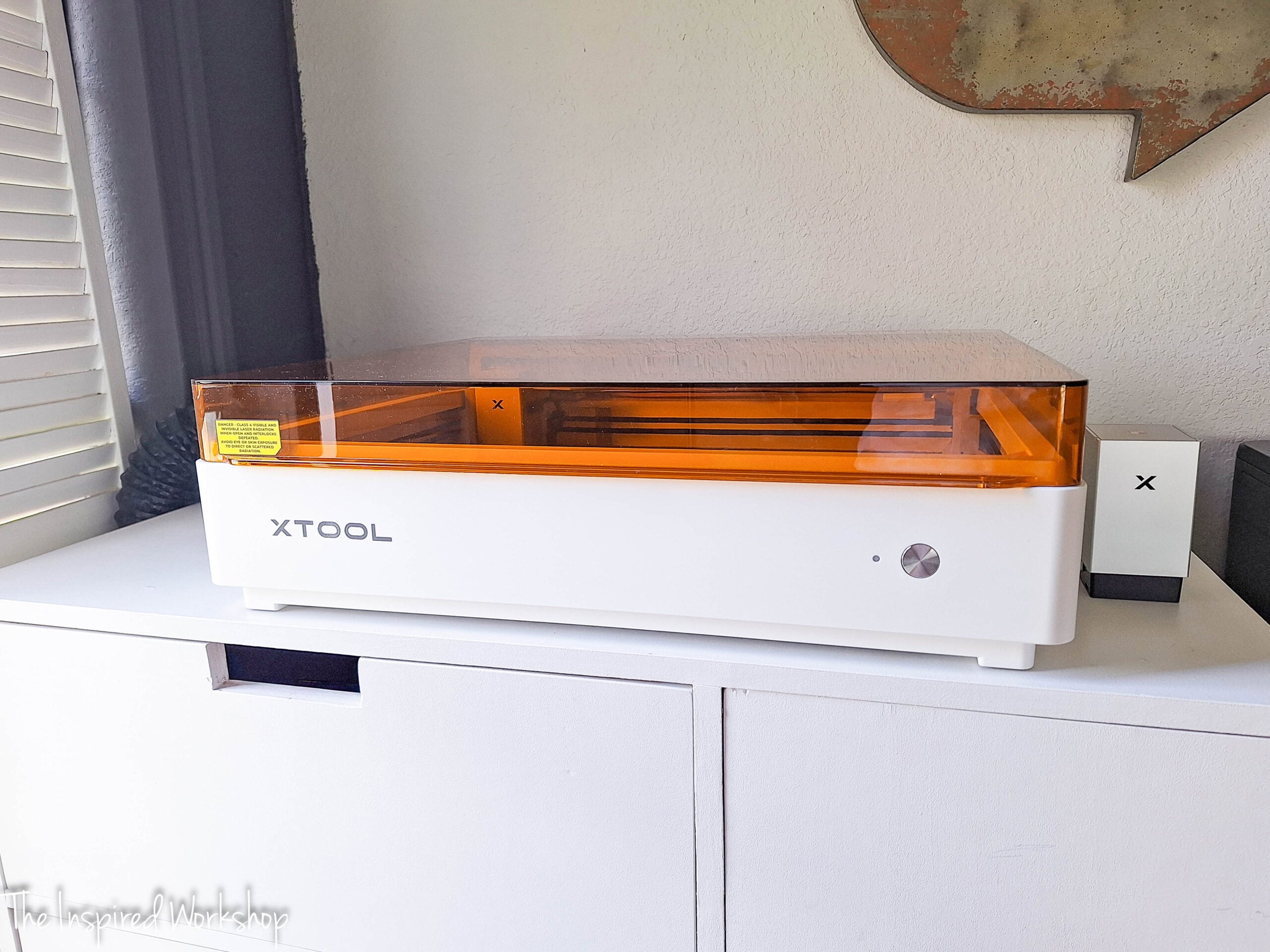
Unboxing the xTool M2
I have to say, I have had the honor of testing out the xTool M1 10w, xTool S1 20w, and the screen printer from xTool, and every time I am just as excited as the very first time! There is something to be said about xTool packaging — I am a sucker for good packaging, and they knock it out of the park!
They sent me a couple of extras as well, some colored MDF and shimmer paper for printing on, and they did not disappoint! I LOVE the thought that goes into xTool accessories even, there is a qr code on the materials that gives you the settings for each product, which is incredibly convenient (when you aren’t recording with your phone, LOL)! You can tell they really spend time trying to create the best products that are easy to use even for an absolute beginner!
What I Noticed Right Away About the xTool M2
Alright, straight out of the box, I noticed a couple of things, first one — there is no external air assist, it is in the machine, and I don’t even see it! This is awesome for someone who moves their machine around a lot and physically picks it up, this is incredibly helpful as there is not a chunky box that can slide or fall while you are carrying it! Also, this means the settings are set within the xTool software versus on the separate device, which is really neat!
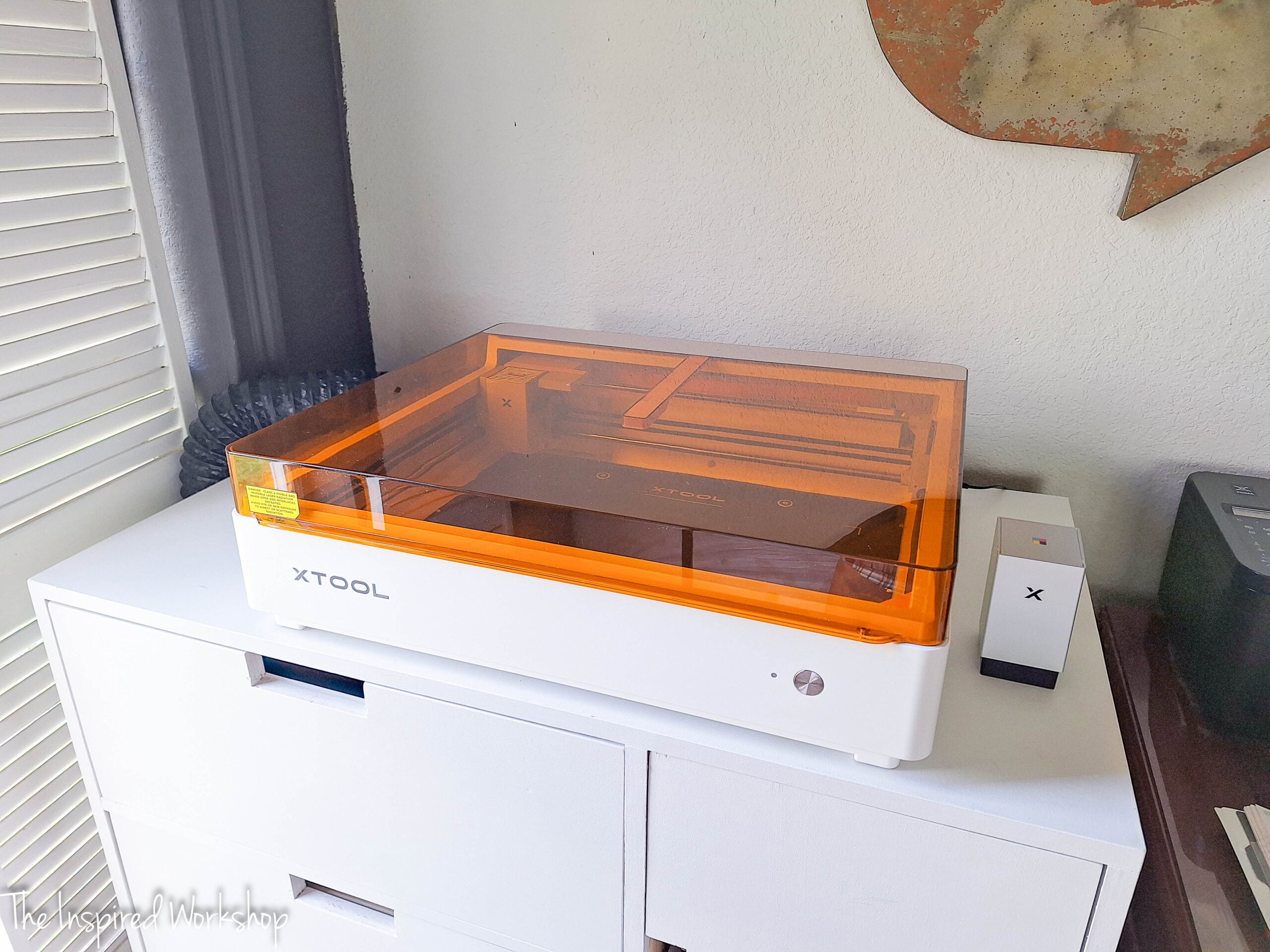
Second thing I noticed, it is a shorter height than other machines I have, which means it could be more limited on what it can cut/engrave height wise! We will circle back to this as we are testing different items!
Overall Summary of My Impression
Alright, if you want my opinion without wading through all the fun I had, here it is! I LOVE the laser cutting and engraving, honestly, every machine of xTool that I have had the pleasure of testing have been really awesome, but the camera on this model is truly AMAZING! Being able to line a file on my screen back up perfectly with the actual material in the machine, is INSANE! I could not do that with the M1 or S1, so call me IMPRESSED with that.
Now, the printing was not as impressive for me, unfortunately, the main projects I was so excited about, I was not actually able to accomplish, but I should have known I wouldn’t be able to as they don’t claim anything about being able to print on clothing, Lol! But, I wanted so badly to print on a sweatshirt and it just wasn’t possible, I was able to print on a regular shirt though, the sweatshirt was just too thick (I ended up using the screen printing ability of the machine to make a screen instead which is pretty cool, as well)!
I also wanted to print on a small makeup bag, but it was too thick at the edges, 1″ clearance is not that much when you start putting stuff under that ink module! Lol! Now, if you have something specific in mind that you would like to print on, for instance, something that I thought was so cool was printing paint by number canvases, EXCELLENT machine for the job! You can only go up to a 9×12 canvas though so you are limited on the types of images you are printing on the canvases. If you are wanting to do stickers, EXCELLENT machine for this as the print and cut function works really well for stickers!
The interchangeability of the modules (there is a 3w IR laser module available for this machine as well, I did not test it, but it is great for engraving/marking metal) is INSANELY EASY! All you do is unplug one cable and pull the module off of a magnet, set your new module on the magnet, and plug it in! Absolutely, the simplest thing ever, which makes it worth having the options of modules since you will absolutely use them all since it is so easy to swap them out!
I would ABSOLUTELY purchase this machine for the laser module, I honestly thought I wasn’t interested in this machine since it is a 20w just like my S1, so I didn’t feel like there was any reason to try this one…but boy was I WRONG, this one is so much better with the dang camera!
The price point on this machine truly makes it so valuable! The S1 in 20w only has a slightly larger workspace, the M2 is roughly 12″x16″ whereas the S1 has a workspace of 15″x23″! The price difference between the two machines is pretty large for this extra space! If I were going to purchase an S1, I would go with the 40W to get the higher power and larger workspace, but I would go with the M2 20w over the S1 20w, because of price and camera!
Before purchasing a machine, I would say, really think about what you want to make, are you wanting to make wood Christmas ornaments, engrave glass, make acrylic keychains, or cut wood templates for building furniture? Once you know what you want to do with the machine, then you can compare the machines!
***NOTE: ALL links are AFFILIATE LINKS! Affiliate links are links that pay me a small commission (at no extra cost to you) should you make a purchase after clicking one! I always appreciate you shopping my links as it helps me continue to bring you free content! So, thanks in advance if you shop my links!***
- 10w M2 – PROS: perfect for small wood crafts, Christmas ornaments, birth announcements, and engraving pretty much any items except for metal (you can mark on stainless but it doesn’t actually engrave). If you are a hobbyist, or you plan on only doing a local market or two each year, this machine will get you through! You can engrave on cylindrical objects (tumblers, balls, etc) without removing the base plate or having to use risers. CONS: Not good for acrylic, it is diode laser and although it can cut some colors, it is not reliable unless you are cutting black or a couple of other colors. You are limited on the size of cylindrical object you can engrave on since it must fit within the machine.
- 20w M2 – PROS: perfect to do anything the 10W can do, it just does it faster and can cut thicker materials with less passes (so less time, and better cuts with less burning)! So if you want to do more than 2 markets a year, or you want to sell online, you will want a faster machine to keep inventory at higher levels. CONS: Same as the 10w, not good for acrylic as it is a diode laser and just isn’t reliable enough unless you are cutting black or a couple of other colors, and the limit on cylindrical objects.
- Ink Jet module – PROS: Great if you want to print small pieces of your own designs on fabric, create your own paint by number canvases, printing on paper that is slightly larger than a standard printer, or using the print to cut function making stuff like stickers. CONS: Not good for wood, the wood needs to be sealed to keep the ink from bleeding, but once you seal the wood the ink can’t soak in, so it will wipe right off. The colors vary vastly between prints. **I think this inkjet module has A LOT of potential and I hope xTool keeps working to make this even better because it is such a cool feature to offer!
- 20w S1 or 40w S1 – PROS: Can do anything the M2 can do, but you have a larger workspace, coming in at a little over 23″x15″, you can cut larger stuff! These come with the honeycomb panel so less burning when wood, paper, etc is laying flat. CONS: Same as the M2, it is a diode laser, so you cannot reliably cut acrylic except for black and a couple of other colors, and it uses a different positioning system than a camera, so you can not come back and line things up as easily if they get moved.
- F Series – PROS: Great machines known for their speed and portability, awesome to take with you for engraving at events/markets! This line up has a multitude of options from diodes, fiber, UV, to MOPA which is available in the F2 Ultra and can cut metal up to 2mm thick! That’s crazy cool! CONS: Smaller workspaces, 8.7″x8.7″ even with the conveyor the workspace is 8.7″x19.6″ and some within the F series are more on the pricey side.
- 55w P2S or 80w P3 – PROS: Great machines if you want to cut acrylic, you can cut any and all acrylic with these as they are CO2 lasers, they can cut up to 3/4″ materials, and the P2S has a 26″x14″ workspace and the P3 has the largest work space out of all the machines at 36″x18″! Both of these machines can expand their workspace to 118″ length with the conveyor! CONS: The P3 is the most expensive machine! Lol! These machines aren’t as good at tiny, intricate engravings as the 10w and 20w diodes are and they aren’t as good as the F series for metal engraving.
Head over to xTool and explore all of the lasers to find the best laser for you or your business!
Okay, now that you got the gist of it, if you would like to hear the in depth review and see all the stuff I tested, read on!
Setting Up the xTool M2
Setting up the machine is so simple, and xTool does a great job at giving THOROUGH instructions by scanning the QR code that comes in the box!
I’ll give a quick run down though just to show what all it entails.
Once the box is open, the machine nicely houses all the parts that are needed!
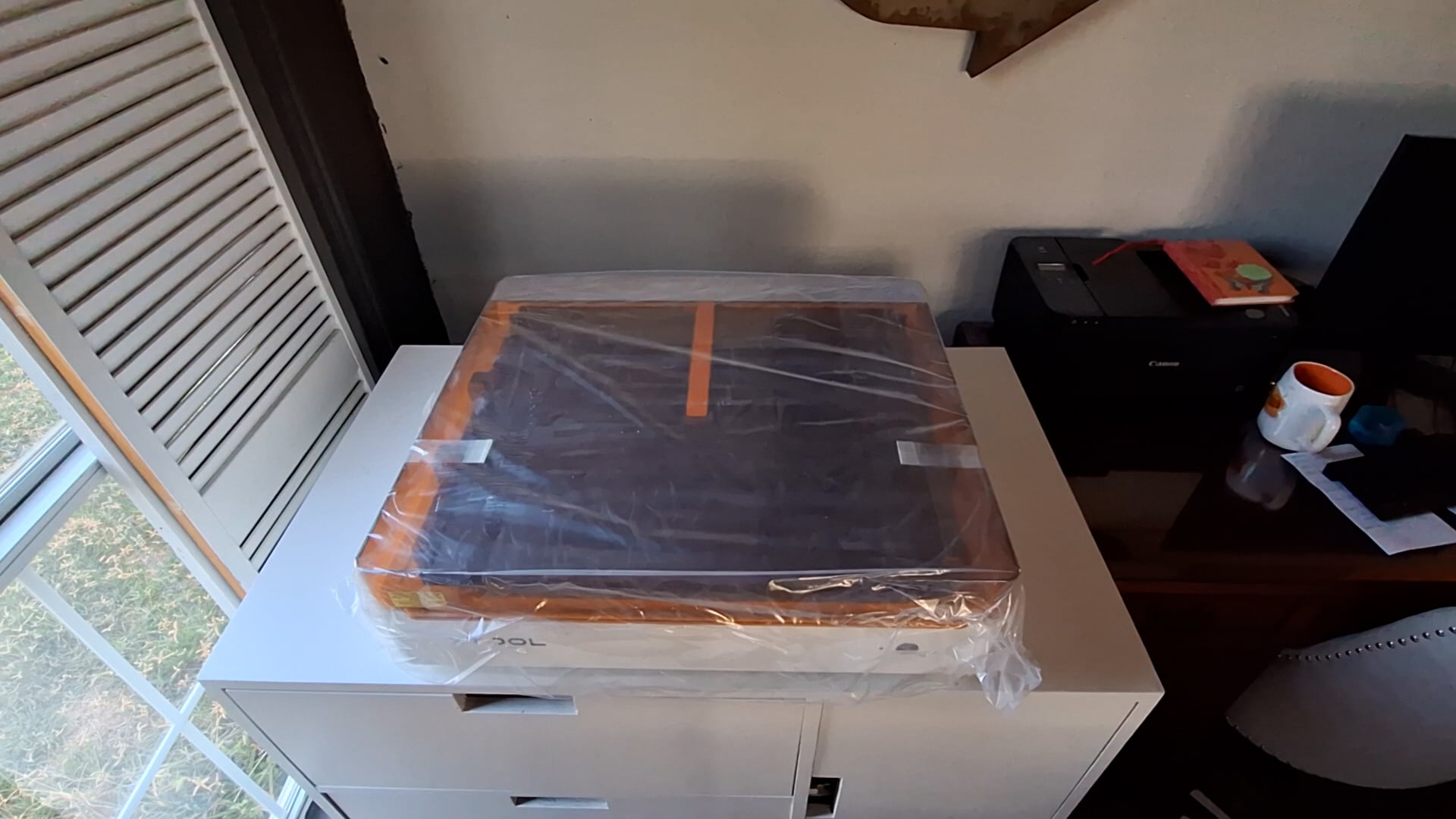
This is the packaging that I am talking about, look at this! 😍
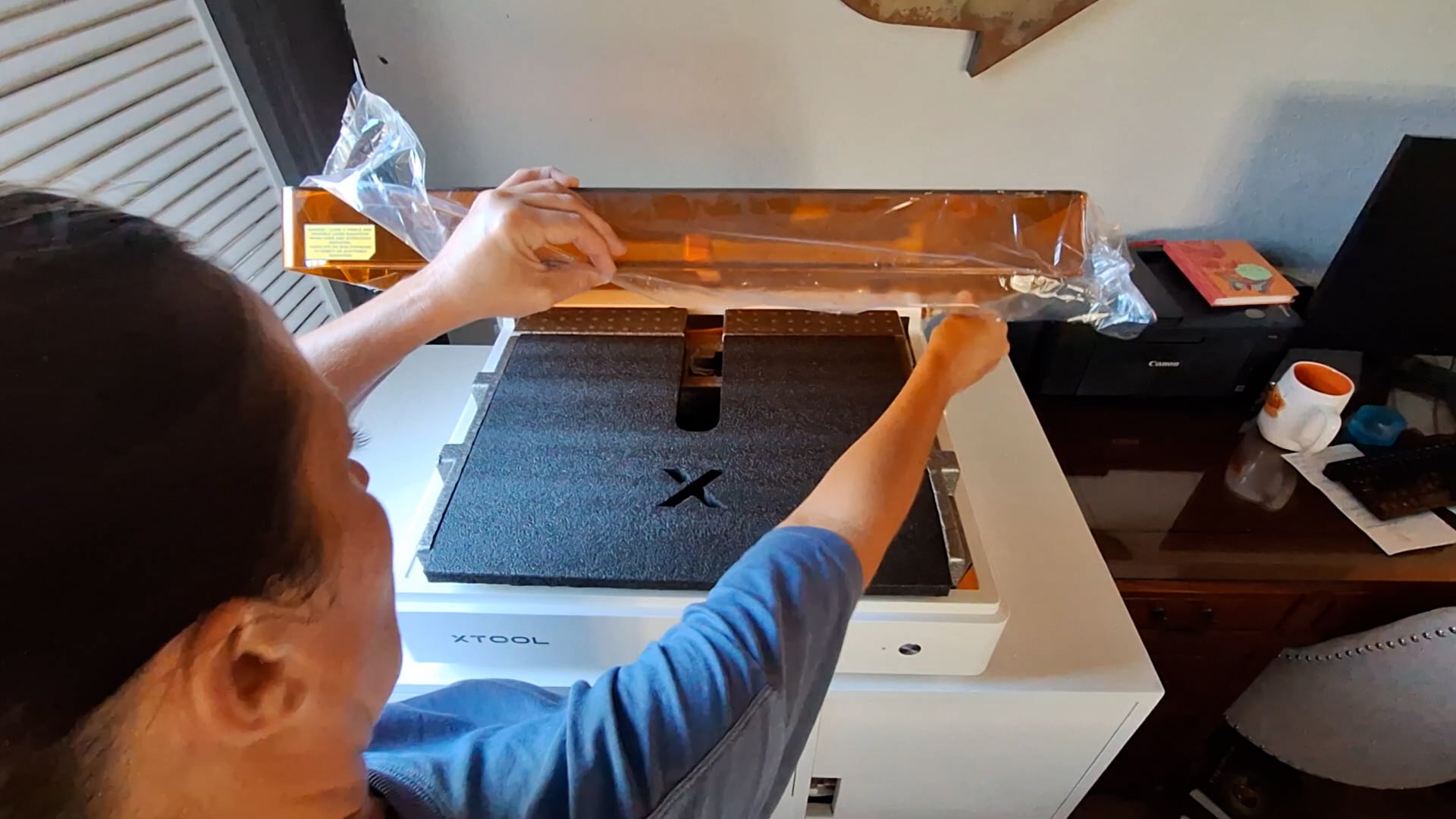
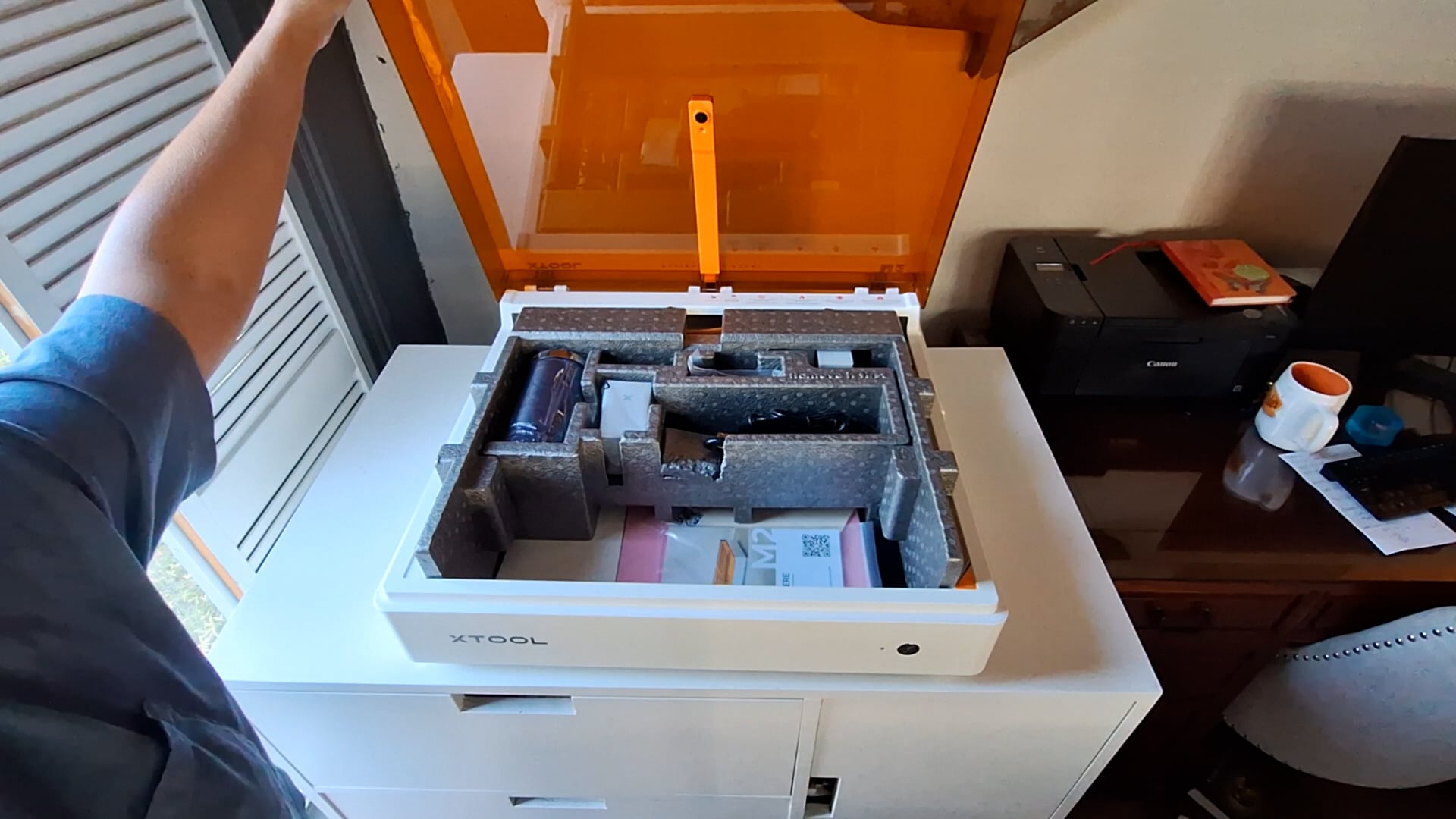
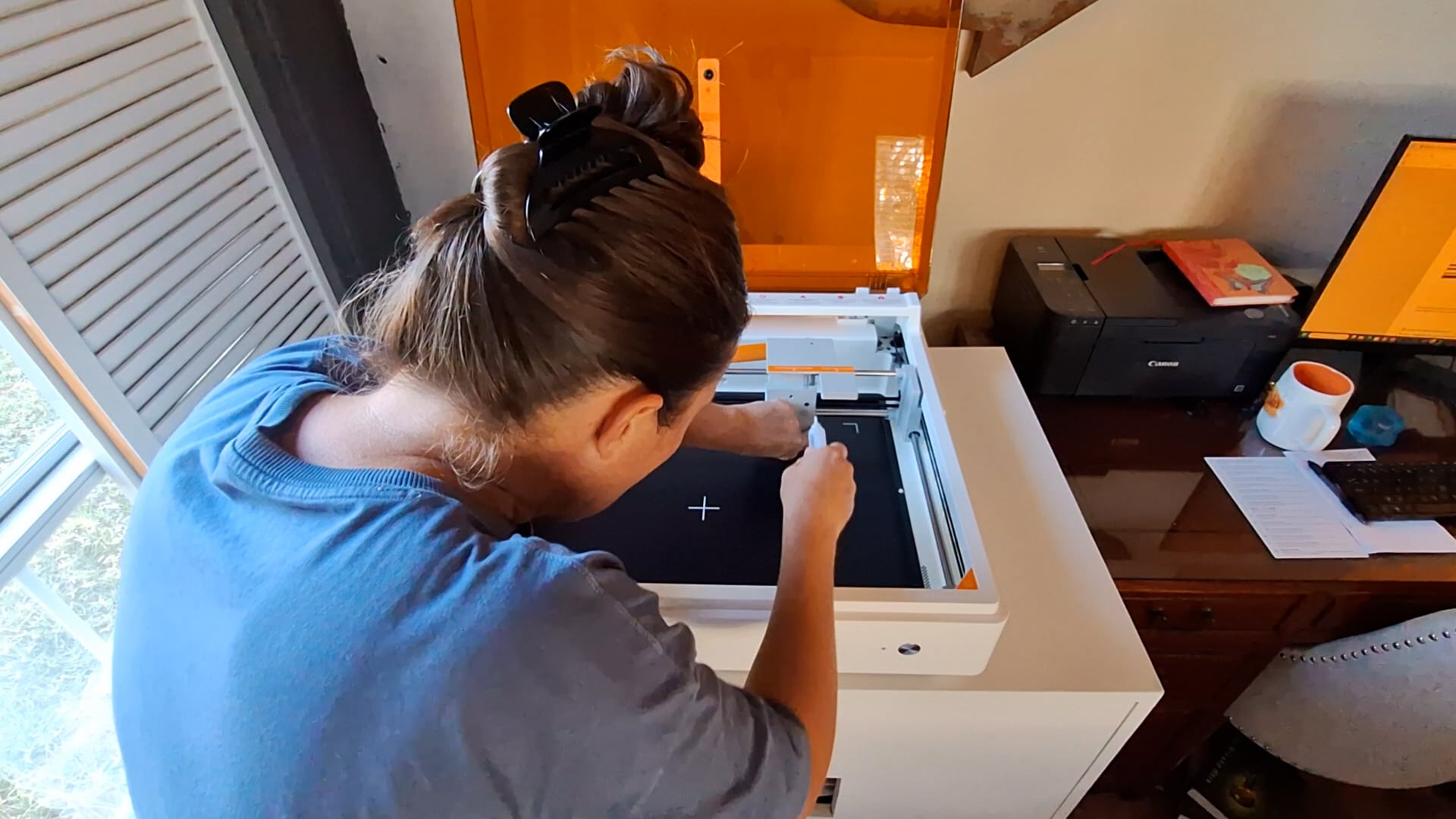
Once you get all of the parts out of the machine there are a few things you need to do to get your machine setup. First thing is lubricate the laser module holder. The setup guide gives excellent pictures and steps to follow! See it here: https://support.xtool.com/article/2778
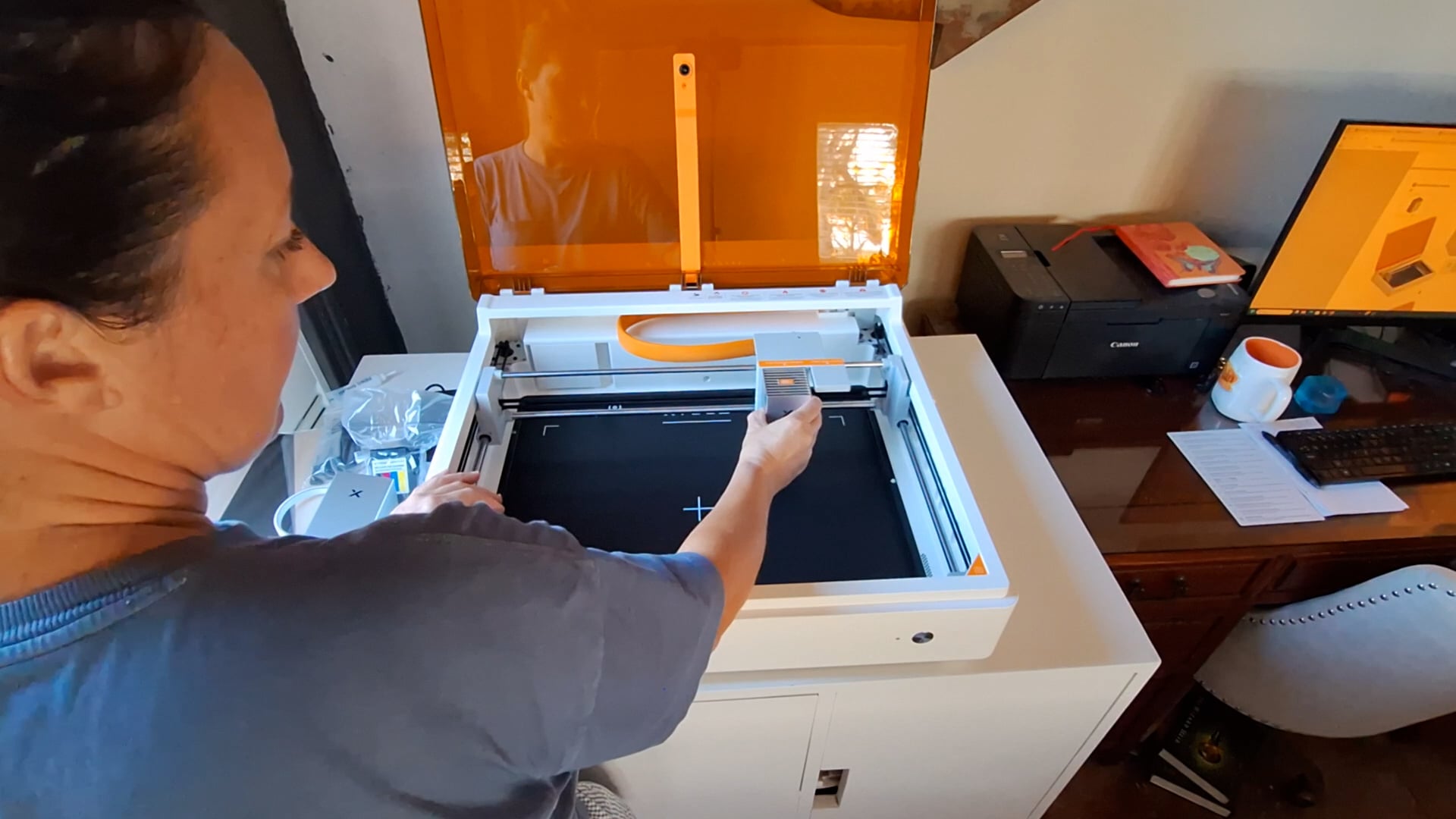
Once that is lubricated on the front and back, you will need to install the actual laser module, which is simply lining up the magnets on the back with the ones on the plate! Viola, that is it, it is in place!
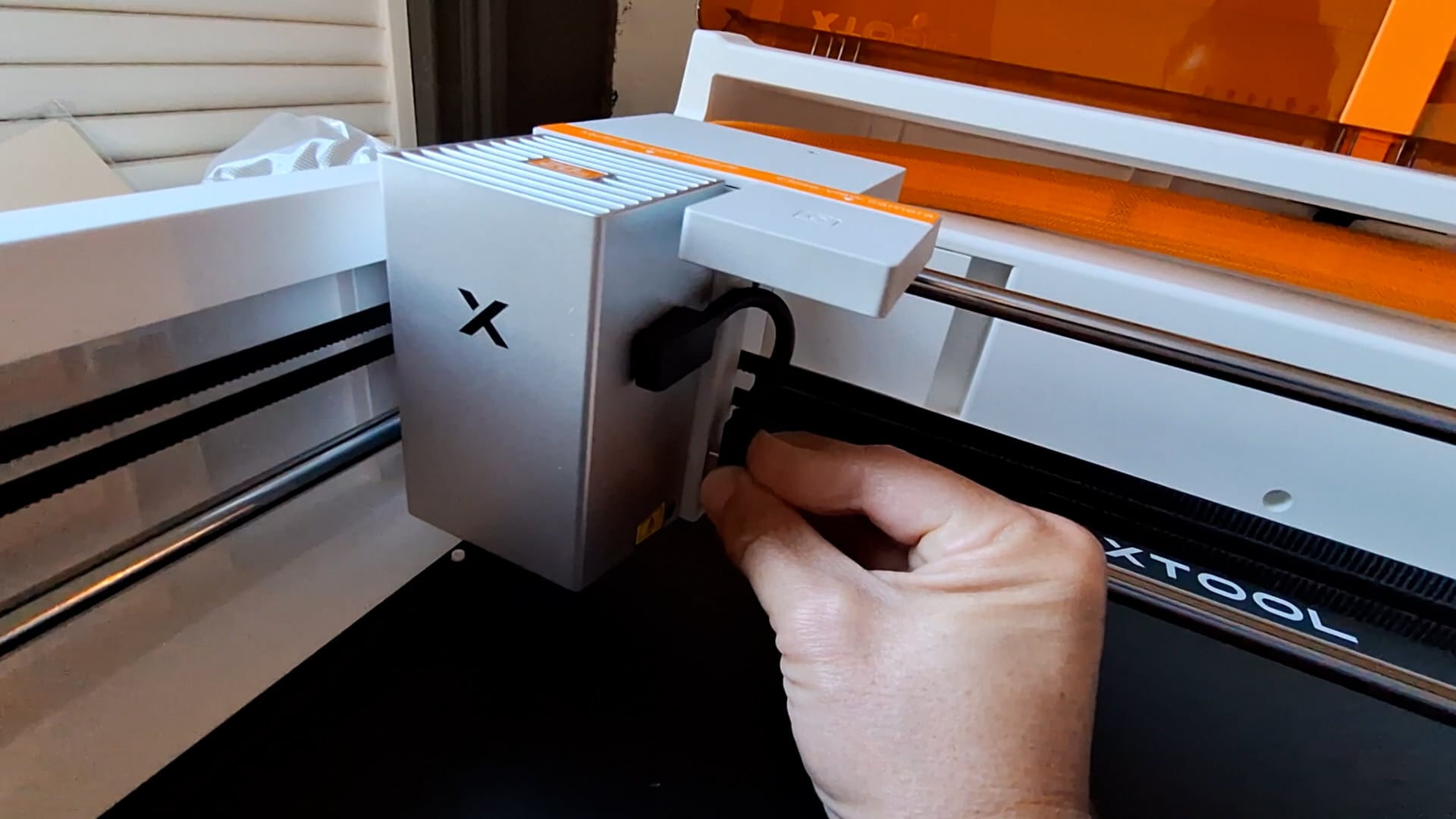
Now connect the cable, one end is connected to the plate, and one end is connected to the laser module.
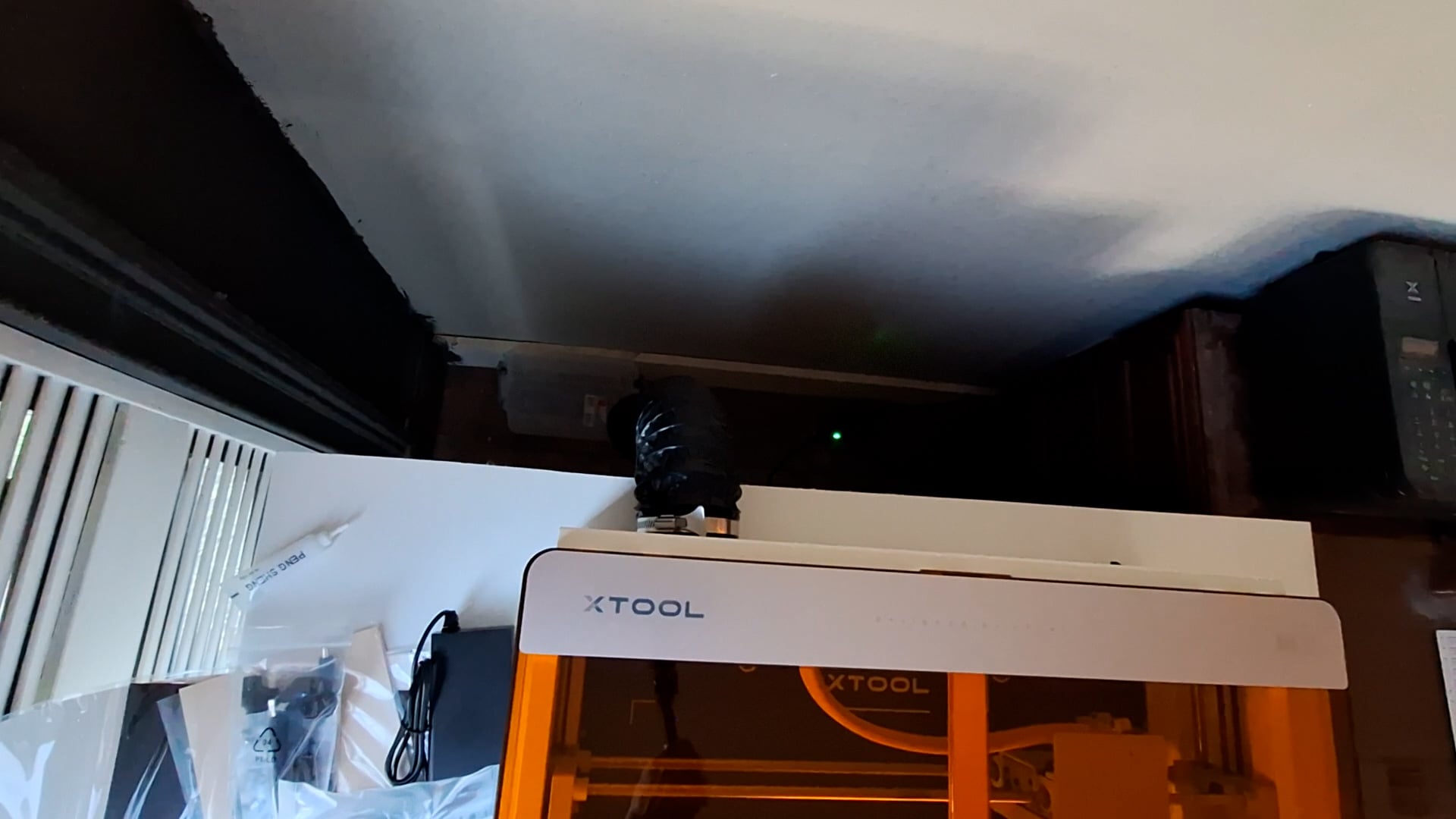
Make sure and attach the exhaust tube, slide it into place and tighten the clamp on the back of the machine! (Don’t judge my paint job on the wall! 😂🫣)
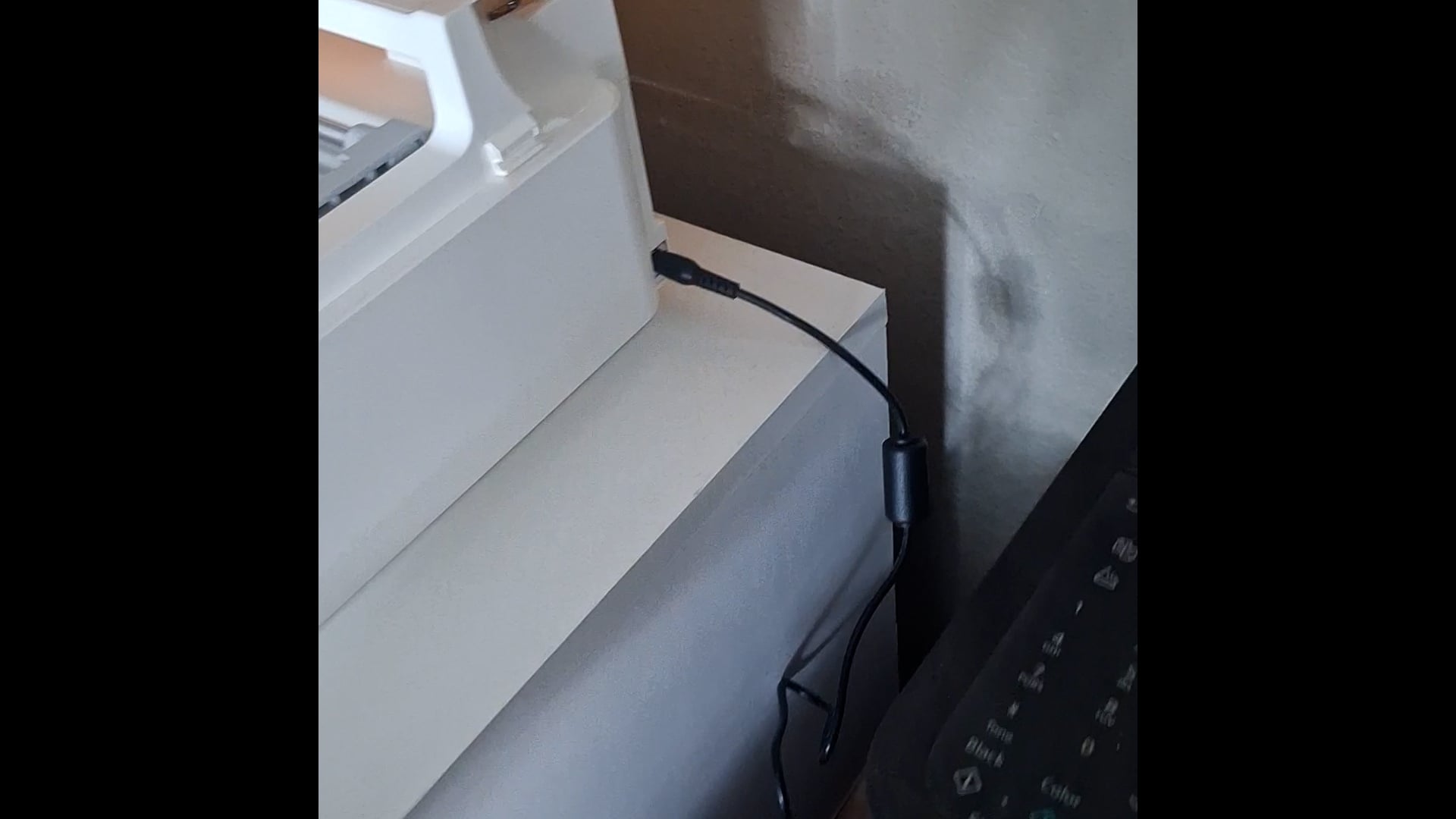
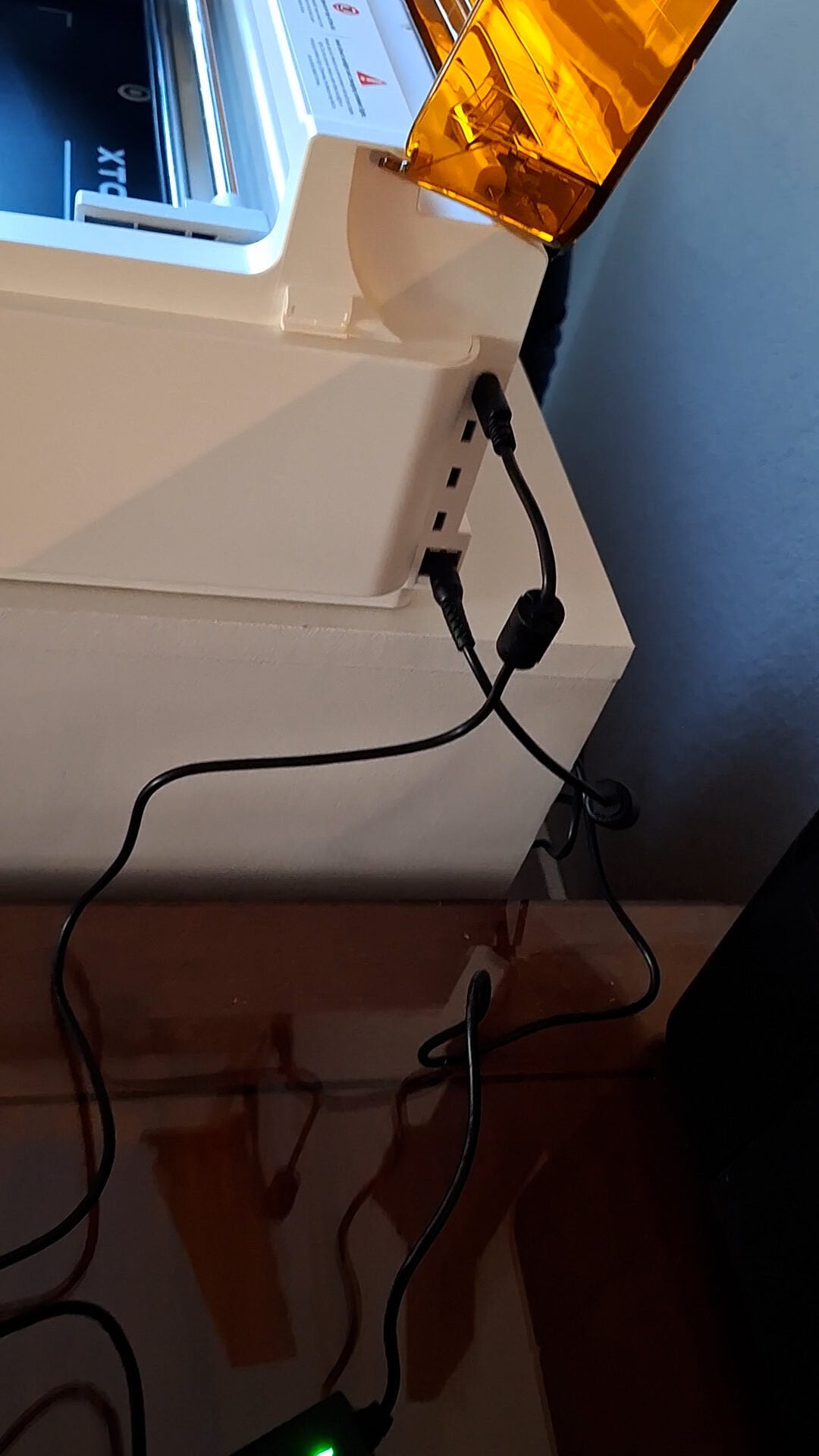
Plug the power supply into the right, back/side of the machine and then into your outlet.
You will need to download xTool Studio (xTool’s FREE software to run the machine), then you will attach the cable to your computer to set the machine up, this only has to be done once and then you can use Wi-Fi from there on out. Honestly, I was concerned about having to learn ANOTHER software when I received the very first laser, but xTool has made one heck of a user friendly software that did not hold me back at all, I was able to make my first cut within 5-10 minutes of opening the software!
If you need any help along the way, xTool provides extensive articles to help you with the software! xTool Studio Software Learning
Your machine should have power and be connected to your computer as well…which means IT IS READY TO USE!!!! The xTool studio will have you go through a calibration to make sure your laser is calibrated properly, don’t worry, it walks you through every single step!
***The set up is so simple but there is a guide with a QR code to scan on the enclosed “start here” book to make sure you have all the pieces and see where they will need to go if you need any help when setting up your laser!
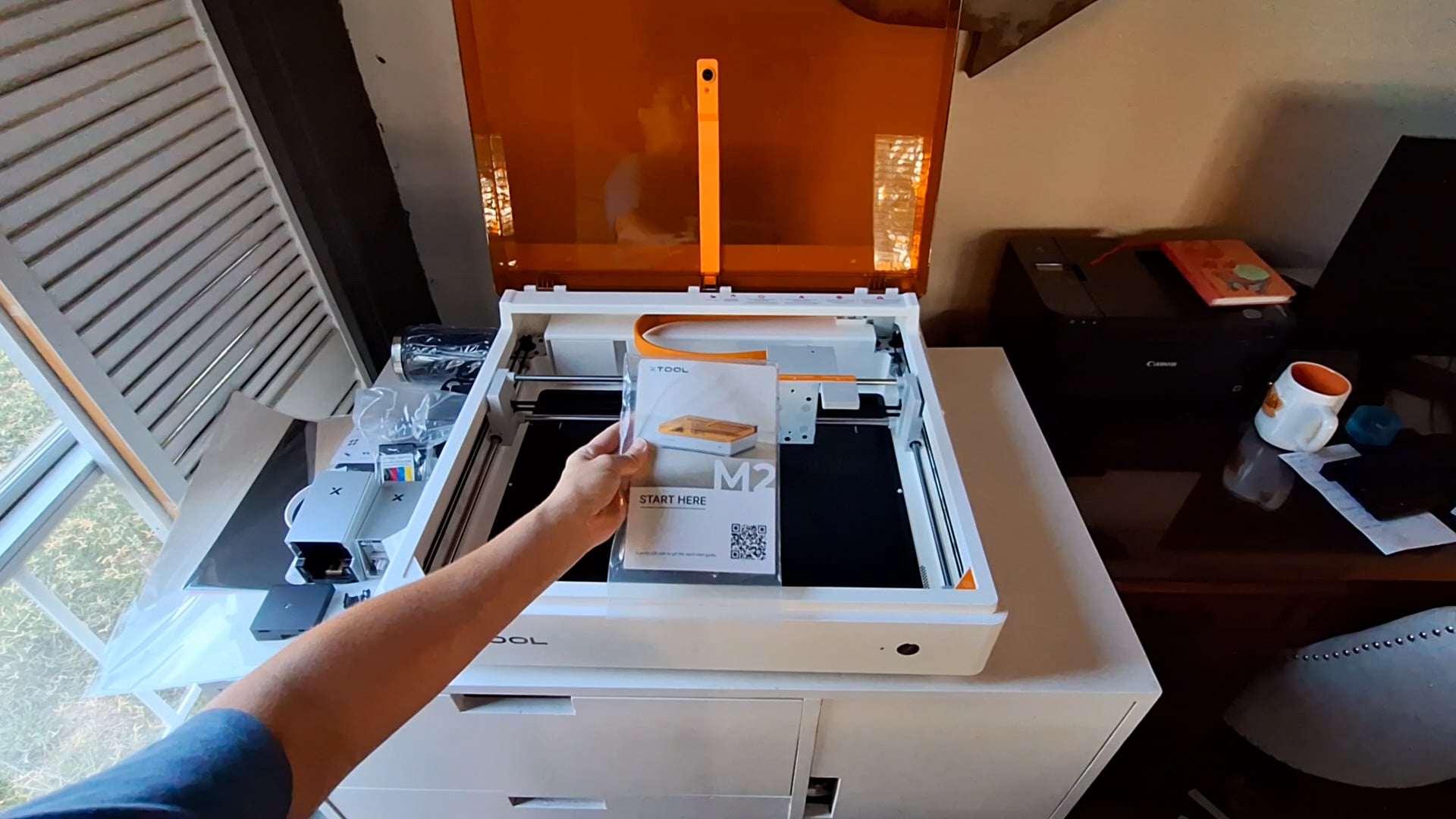
The ink jet module is in a separate package!
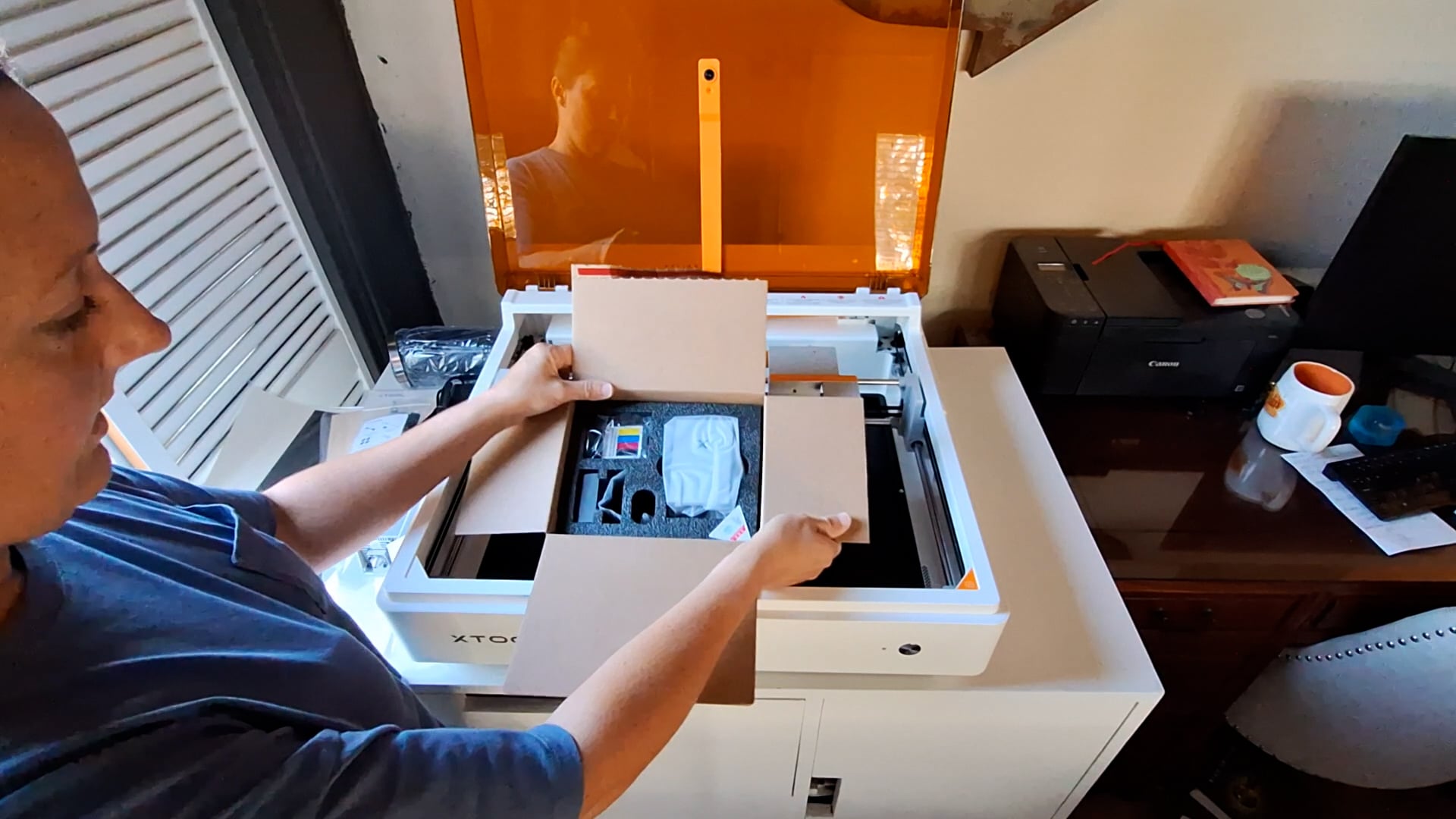
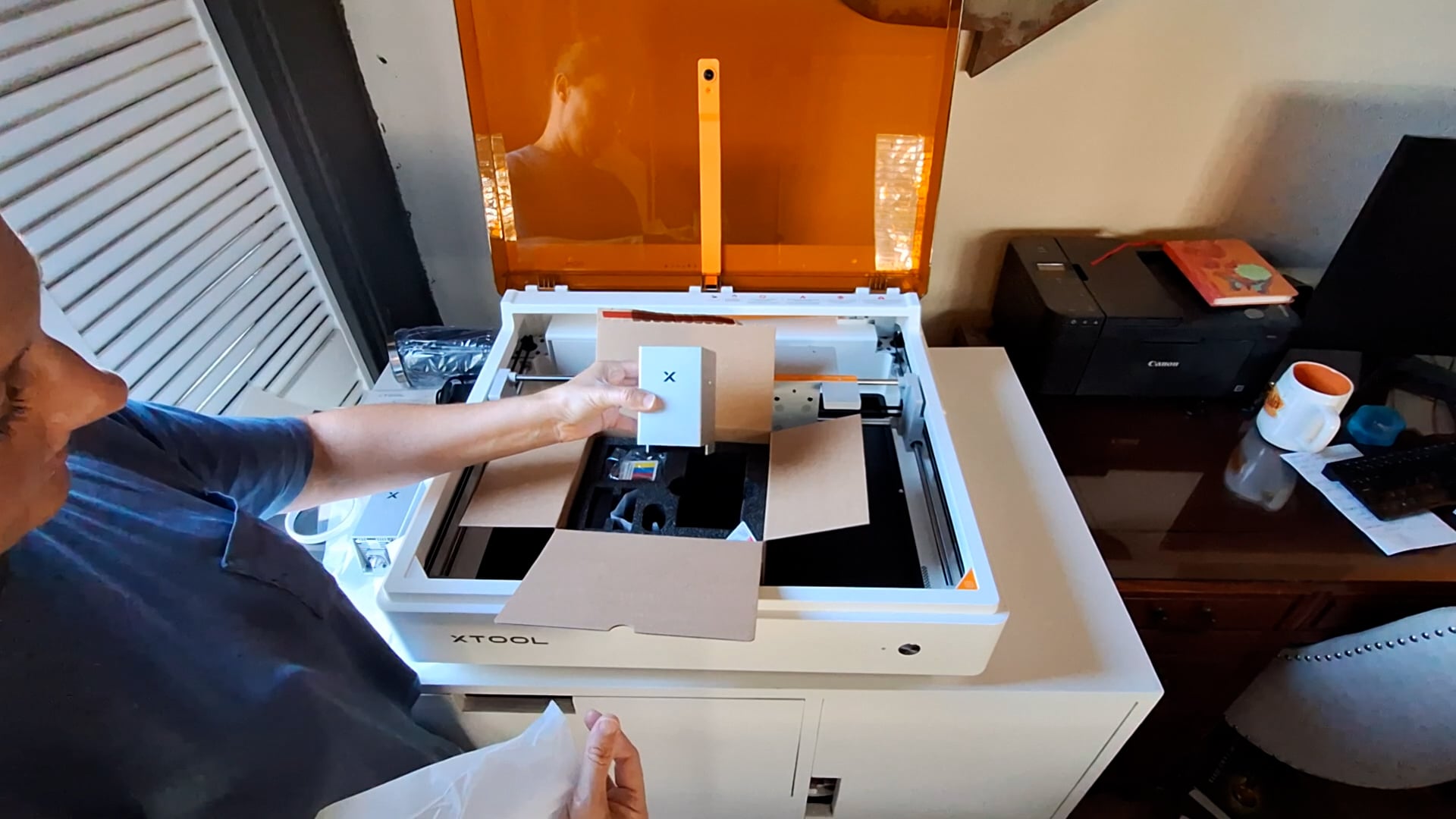
When you want to change over to this module, you just unplug the one end of the cable that connects to the laser module, pull the laser module off the magnet plate and set the ink jet module on the plate, lining up the magnets, and connect the cable to the ink jet module! It is that easy!
And then, make sure to change the mode in xTool Studio from “lasering on a flat surface” to “ink jet printing” or “print and cut,” which ever mode you plan to use!
Alright, time to test this baby out, we will start with engraving!
Engraving with the xTool M2
Engraving PU Leather
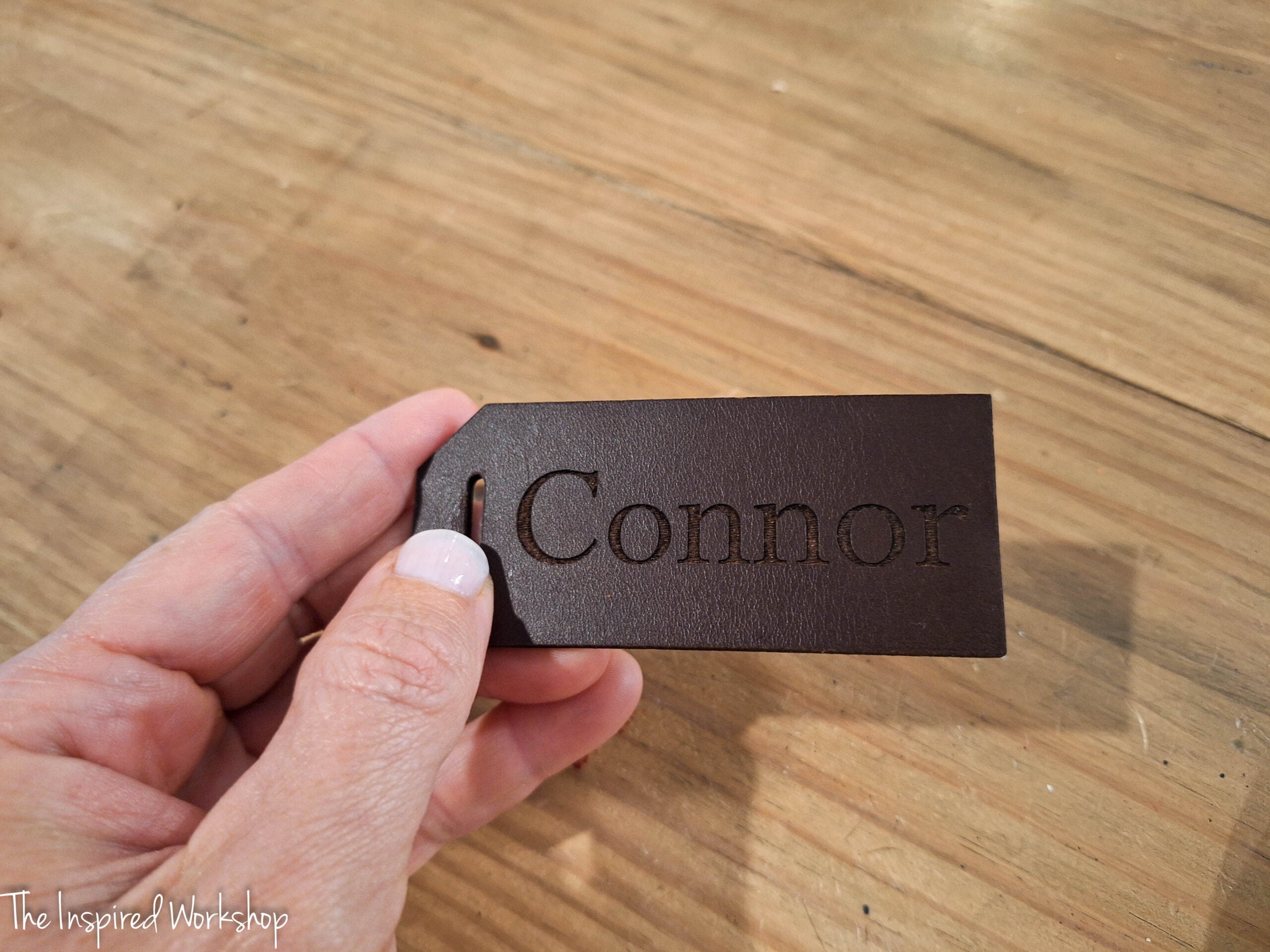
I had this luggage tag that I received in a goody bag from a conference I went to and it looked like the perfect thing to test an engrave on! I just did my son’s name, typed it up quickly in xTool Studio and ran the laser! It was so good, so fast, so super easy!
**I will update with the settings screenshots for each test as soon as I sort through the HOURS of screen recording that I accidentally left running for two days straight without realizing it!🥴
Engraving xTool Colored MDF
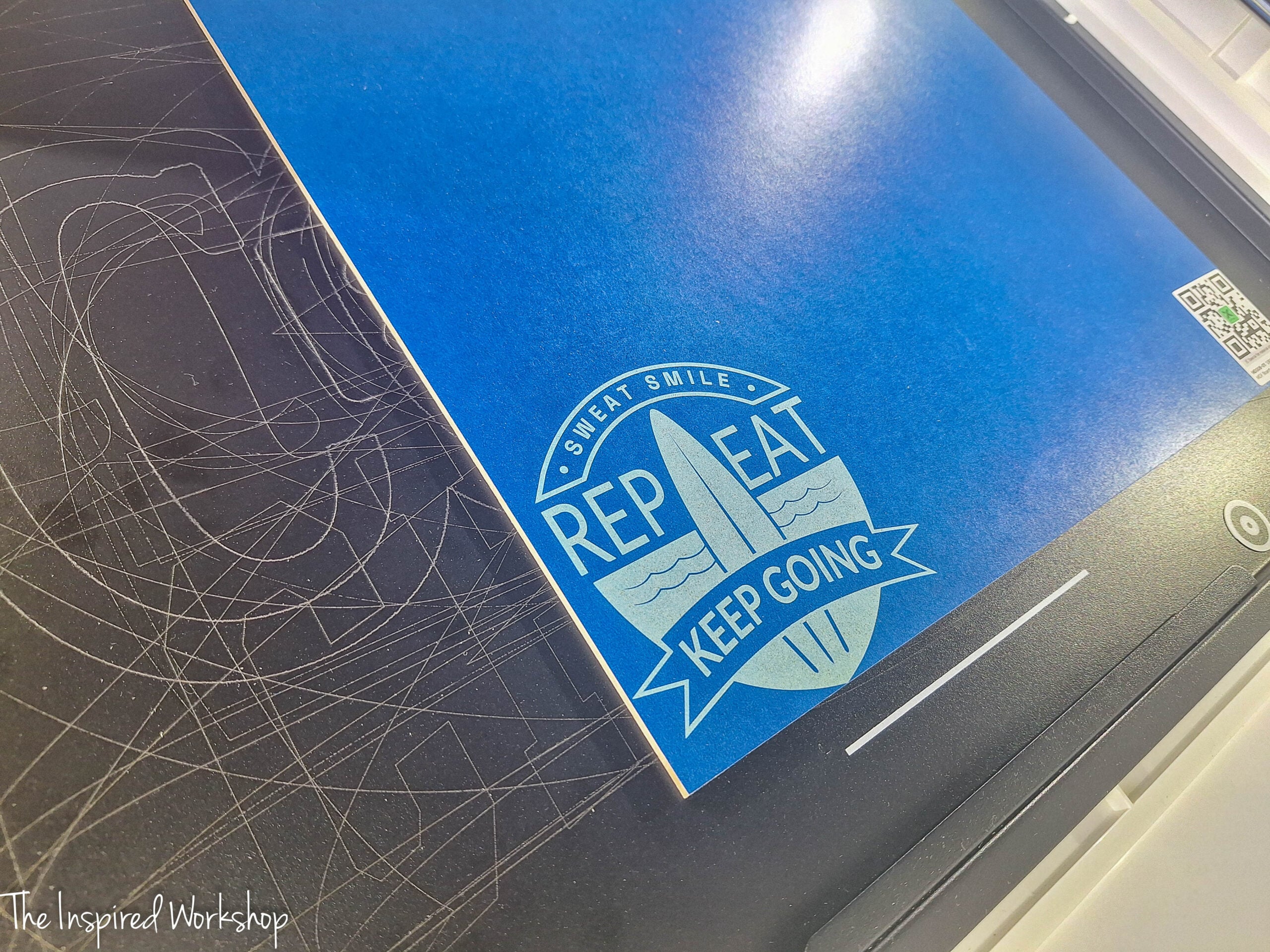
This was so cool, I had no idea there was anything special about this colored MDF that xTool sent as a bonus to test, it looked like simple colored MDF — but low and behold, this stuff engraves white! This was perfect for the Ice Cream sign I was making with it!
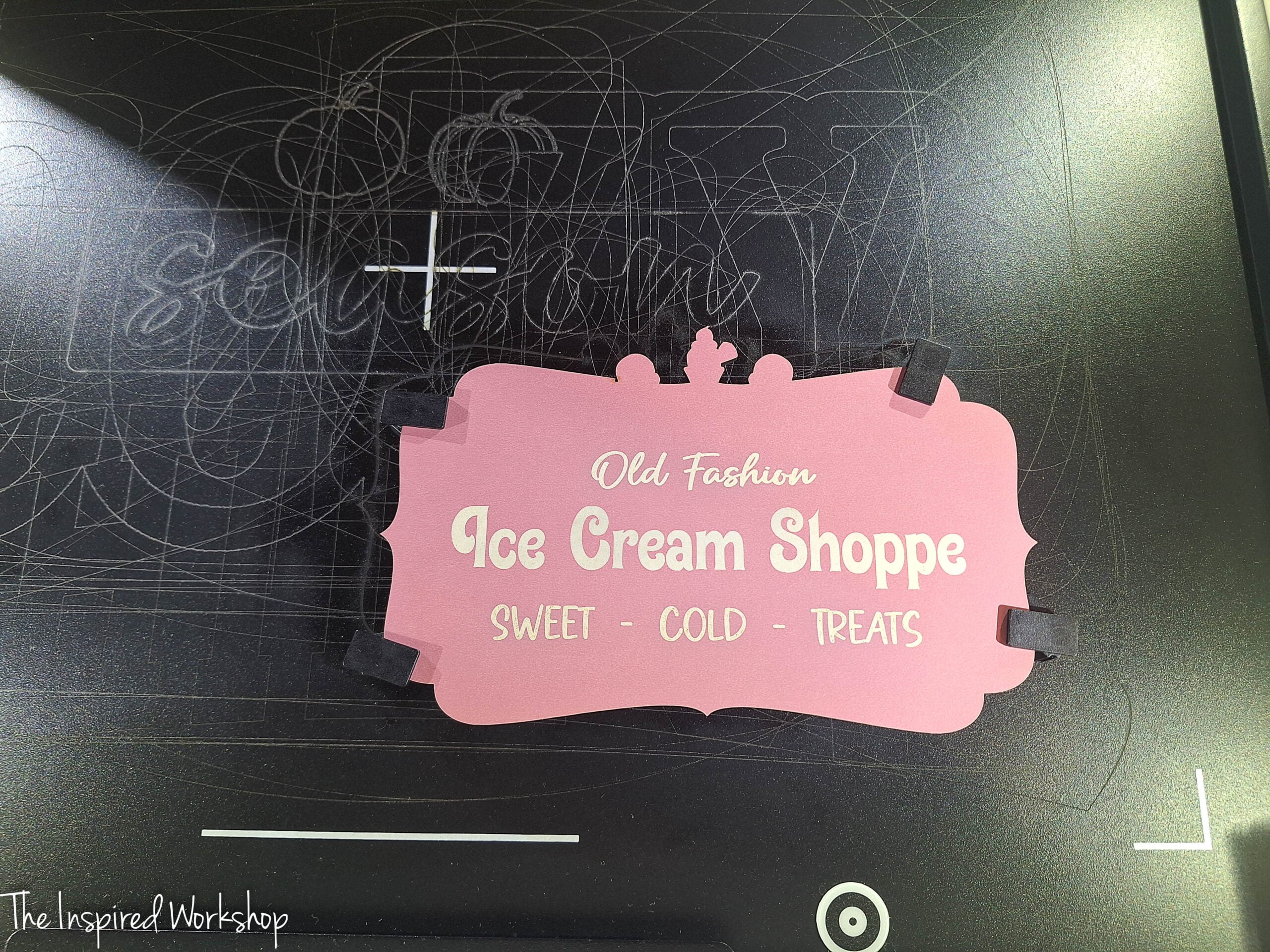
How cute is that?!
Here is a test of the blue, there are so many gorgeous colors in the set, and now I have so many projects in mind to make with this stuff!
Engraving Wood
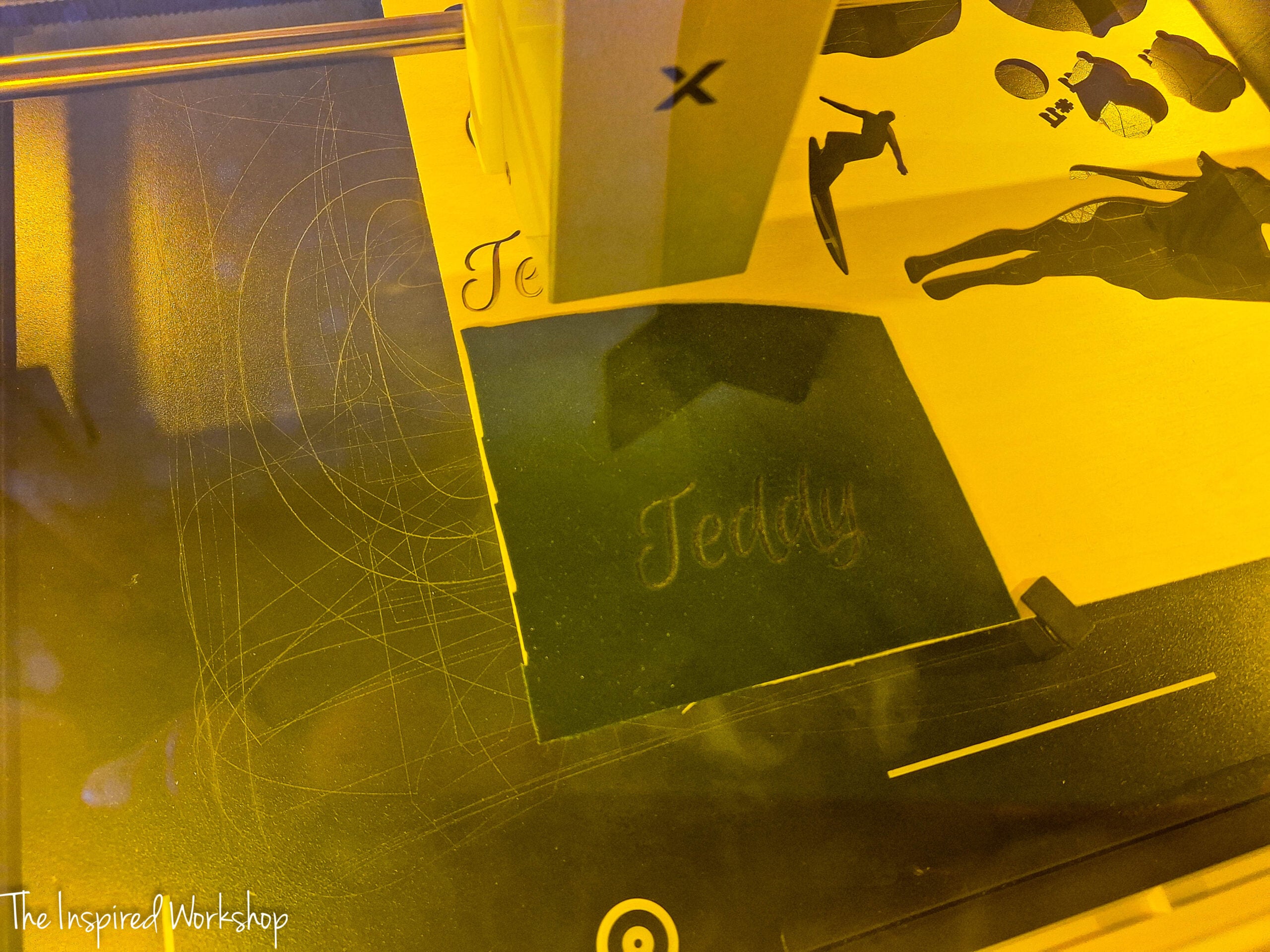
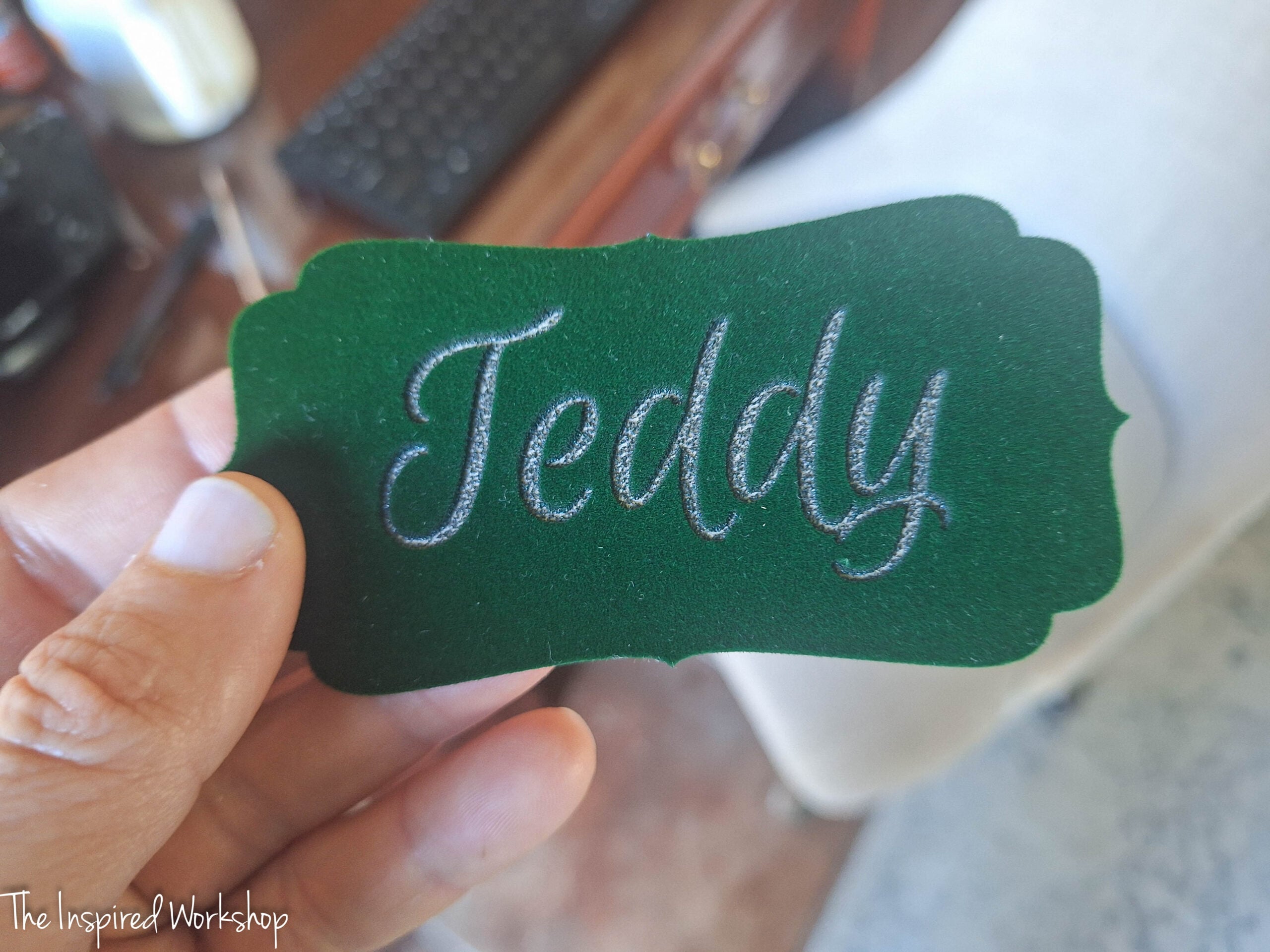
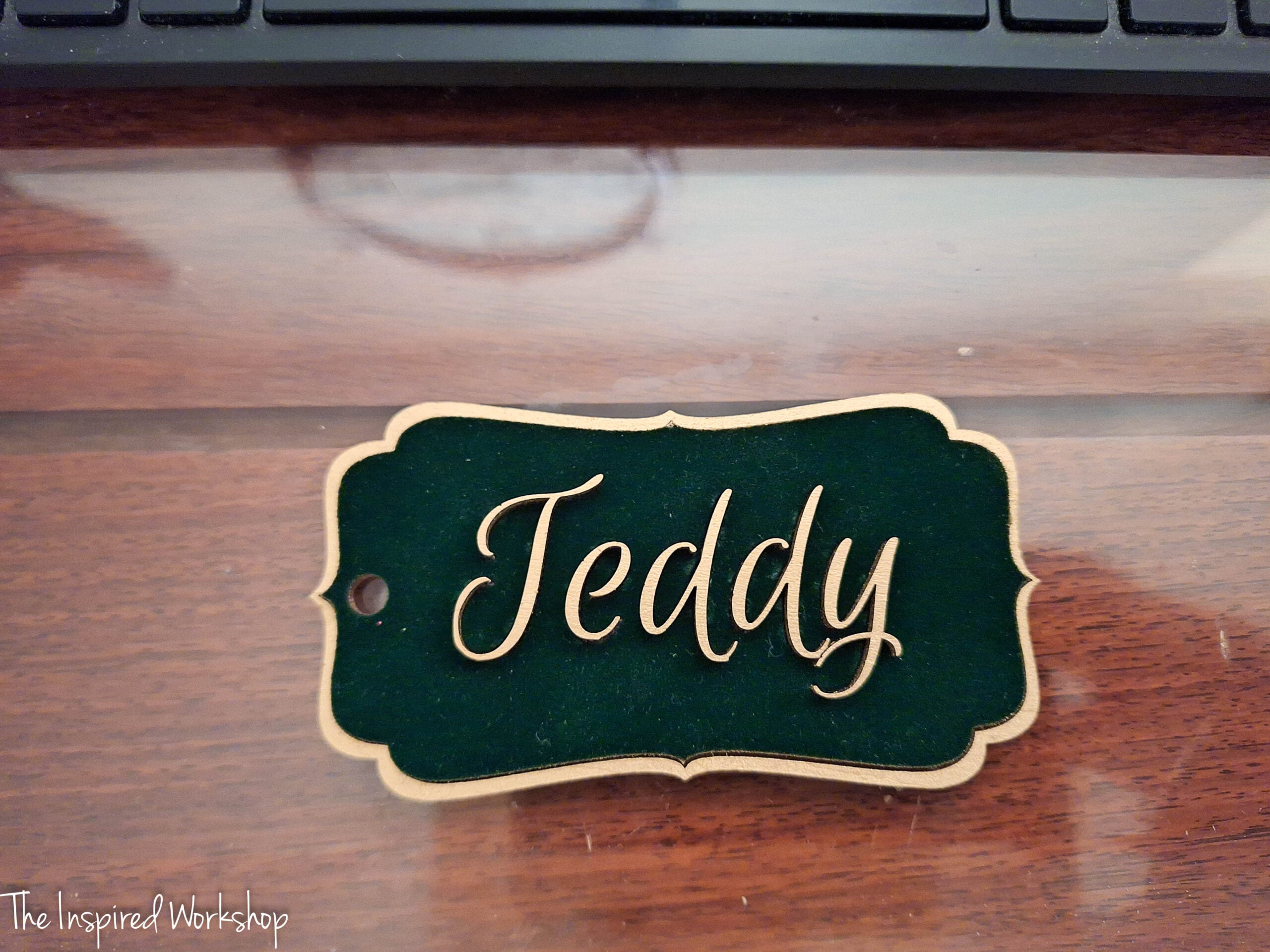
Okay, I needed to make some stocking tags, and I absolutely ADORE this peel and stick velvet, it elevates any laser project, you can check out the ornaments I made with it on my S1 (the M2 can cut these same files for you)! Anyway, I decided to quickly make one to check the engraving on wood! It works wonderfully, as to be expected, even with the added layer of velvet, it engraves beautifully!
Even though I added the velvet to the basswood, I still used the settings for 1/8″ (3mm) basswood in the xTool Studio material library!
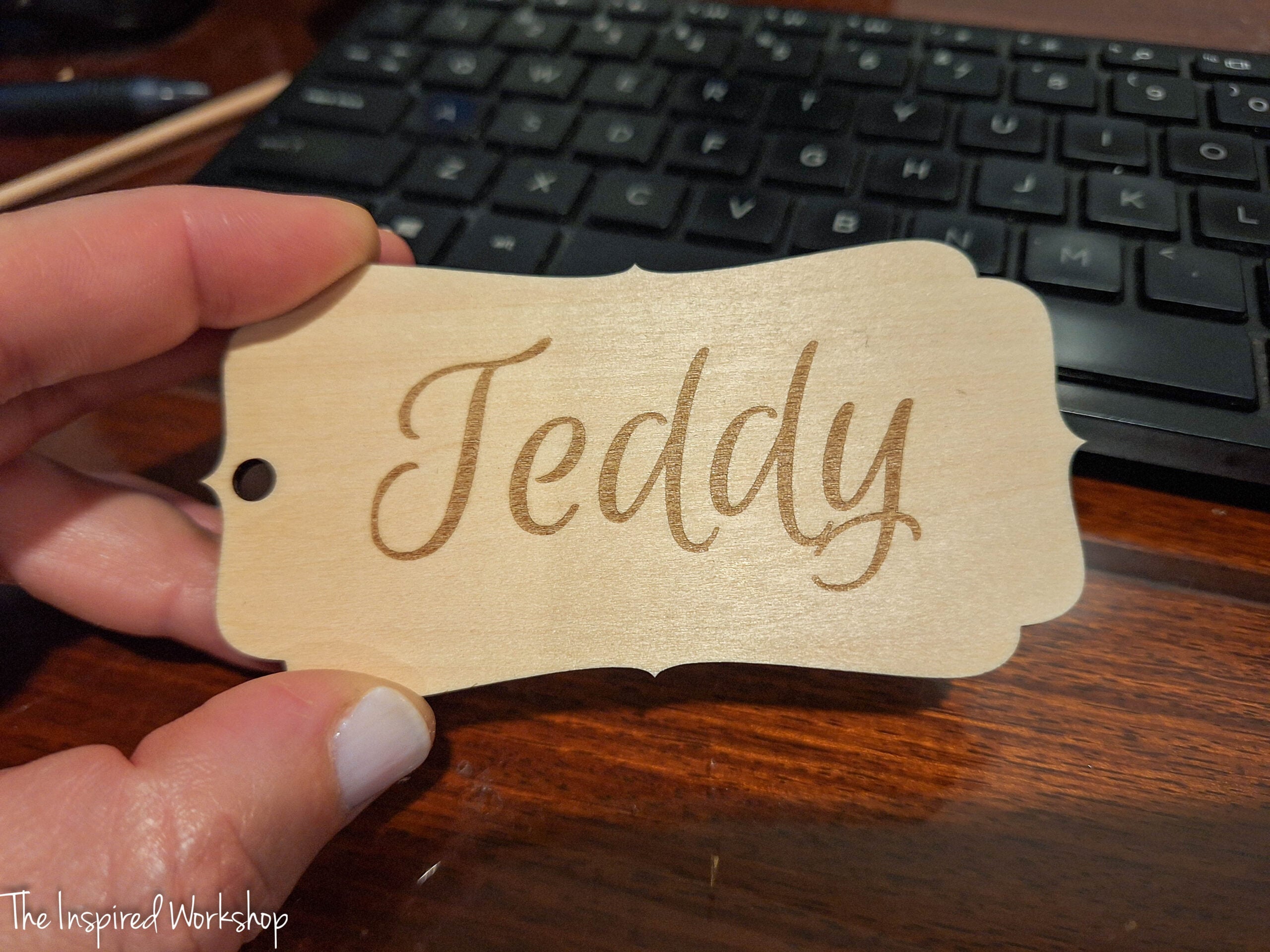
Here is the same thing cut and engraved on bare wood.
But let me show you a sneak peak of how cute the tag turned out when it was done being cut and painted, it just needs its ribbon! This is a more true color of the velvet as well!
Engraving Cylindrical Objects with the RA3 Lite
Alright, this may be the highlight of the M2, you can engrave tumblers, glasses, balls, etc., without ever having to remove the base plate and add risers to the machine itself, as you have to do with the other machines! I hate to use the term “game changer,” but you guys I am going all in on this cliche and I’m saying it, “This baby is a GAME CHANGER!” when engraving round objects!
I know a few people that make a lot of money engraving tumblers, and whether for business or personal use, this saves so much time not having to change the machine all around! This means more engraving in less time, and the ease of going back and forth from engraving cups to flat engraving/cutting without any set up will ease procrastination for those of use who deal with that! Lol!
If you need any help with setting up the RA3 Lite xTool has you covered once again! Rotary Attachment 3 Lite User Guide
The laser head itself is placed on a horizontal base so that the laser can be sideways inside the machine. This is how it can engrave on the cups without need to be on risers! The horizontal base is shown next to my arm, I am removing the laser module to add the new plate!
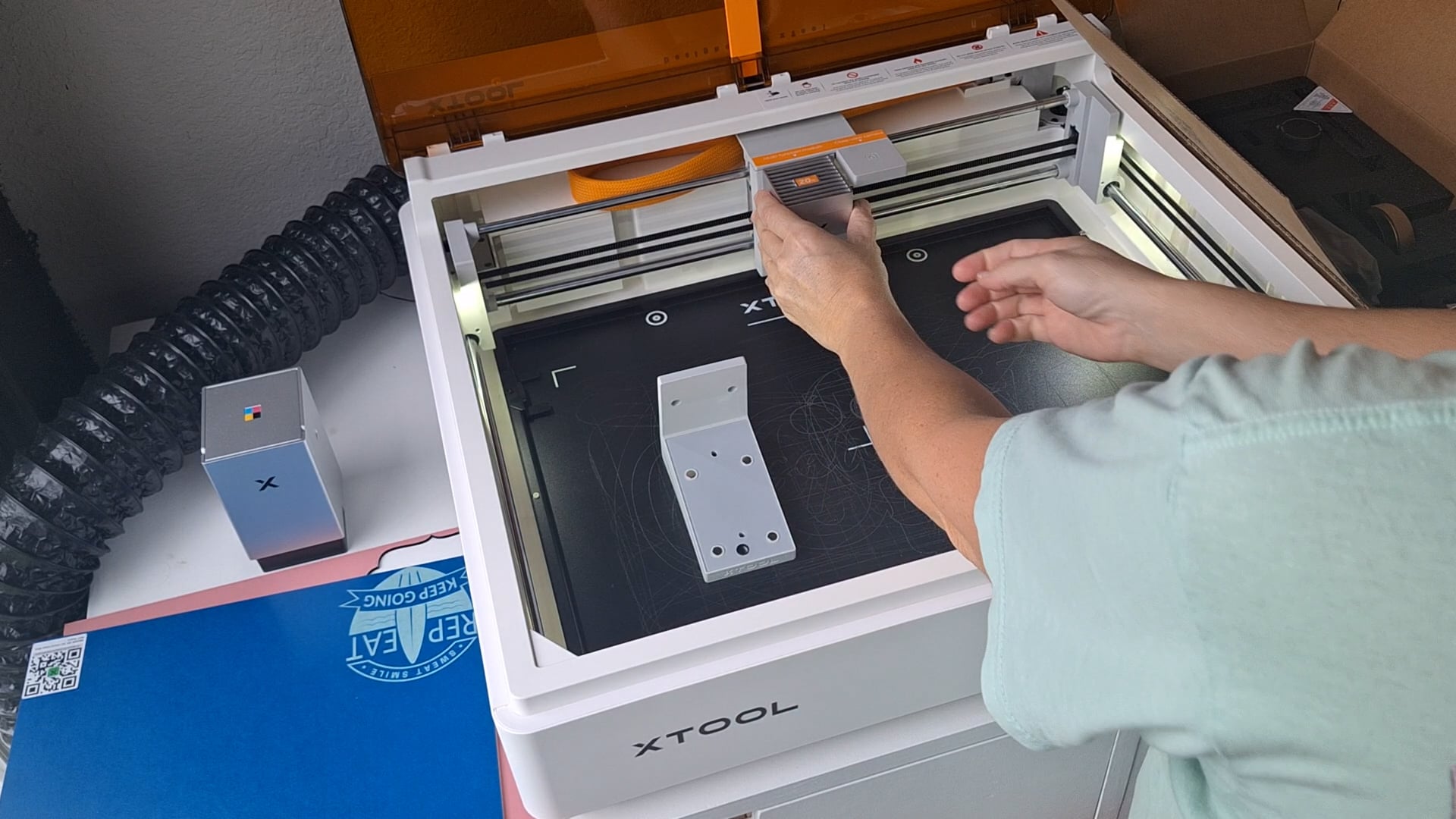
The horizontal plate is attached with magnets just the same as the laser module!
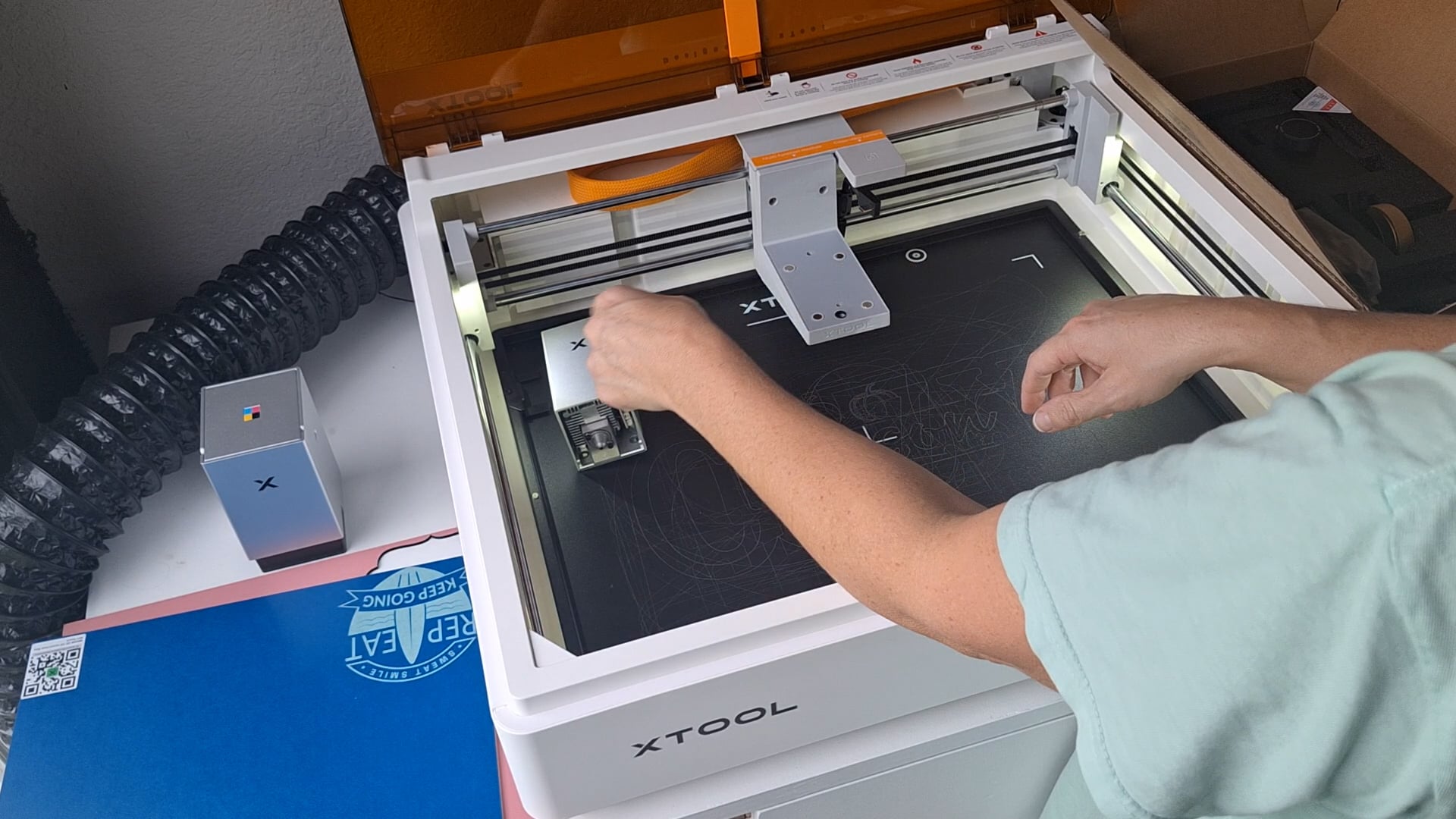
Now, set the laser module on this plate and plug it back in!
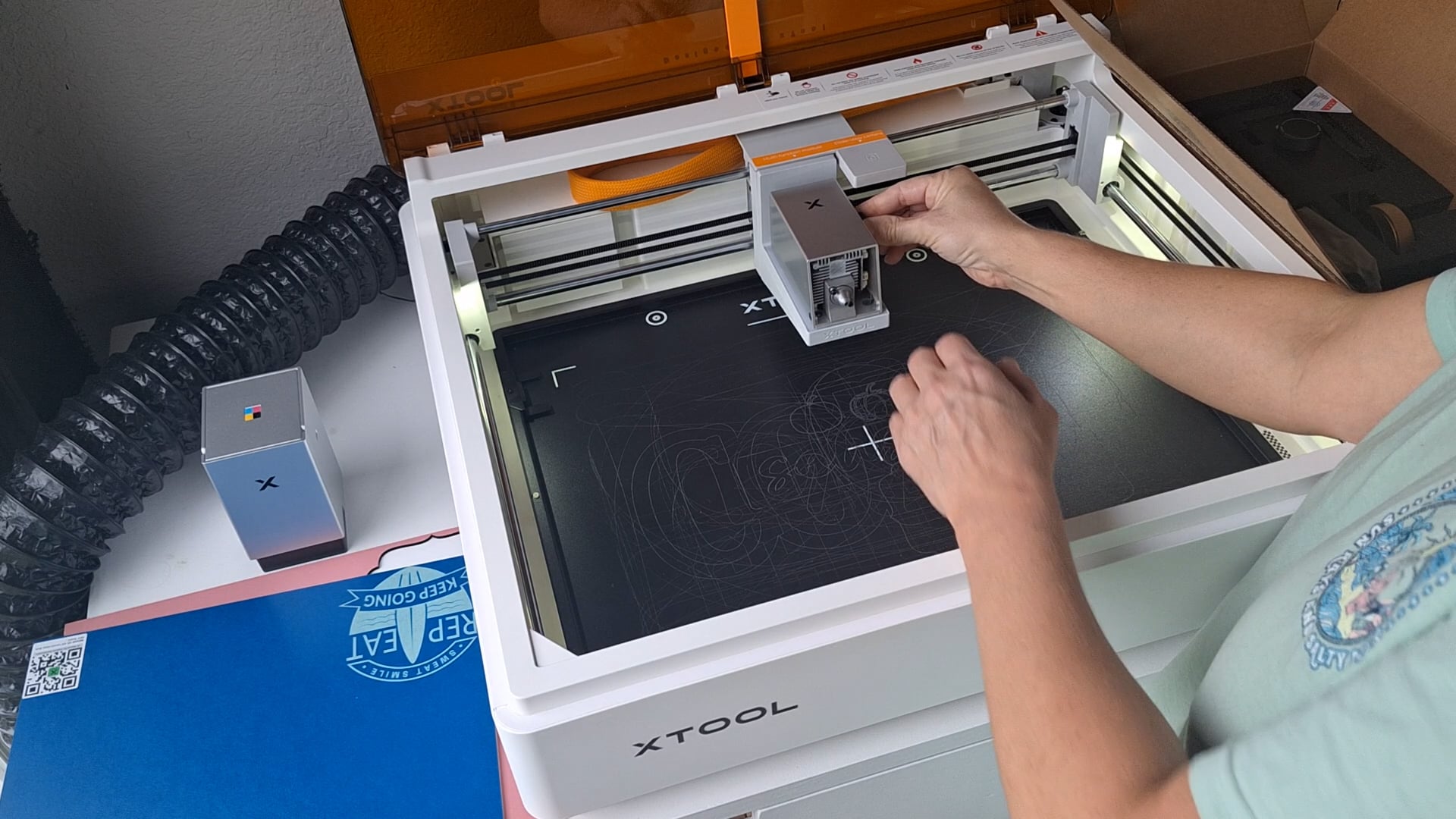
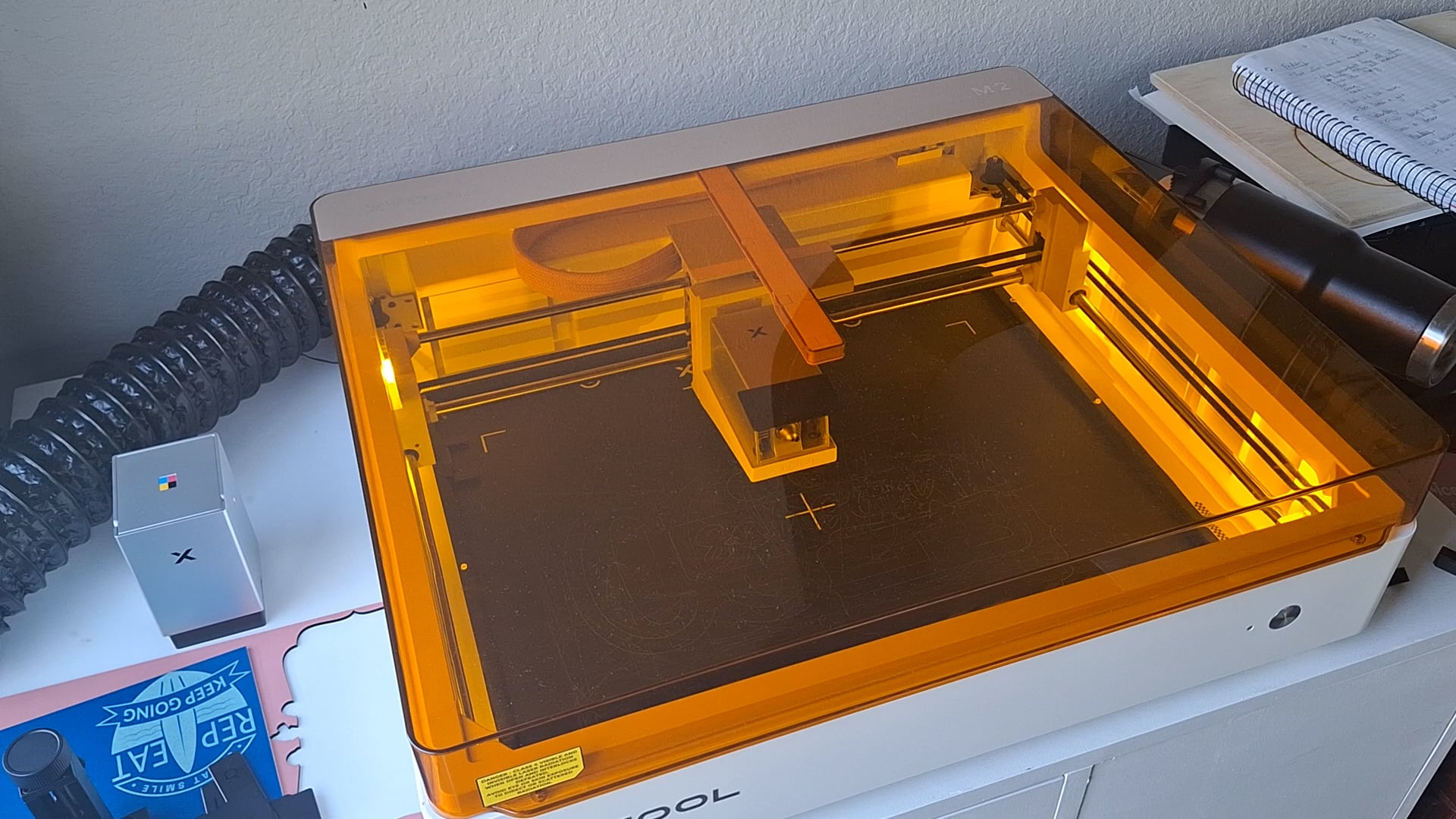
At this point, you will need to do a vibration calibration for the horizontal plate with the laser. I realized this after I had it all set up and had to take it all out! Change the mode to “Use rotary attachment.” It should prompt the calibration if it is your first time! I don’t think the rotary has to be plugged in, but I could be wrong! This is what it looks like when it does the calibration.
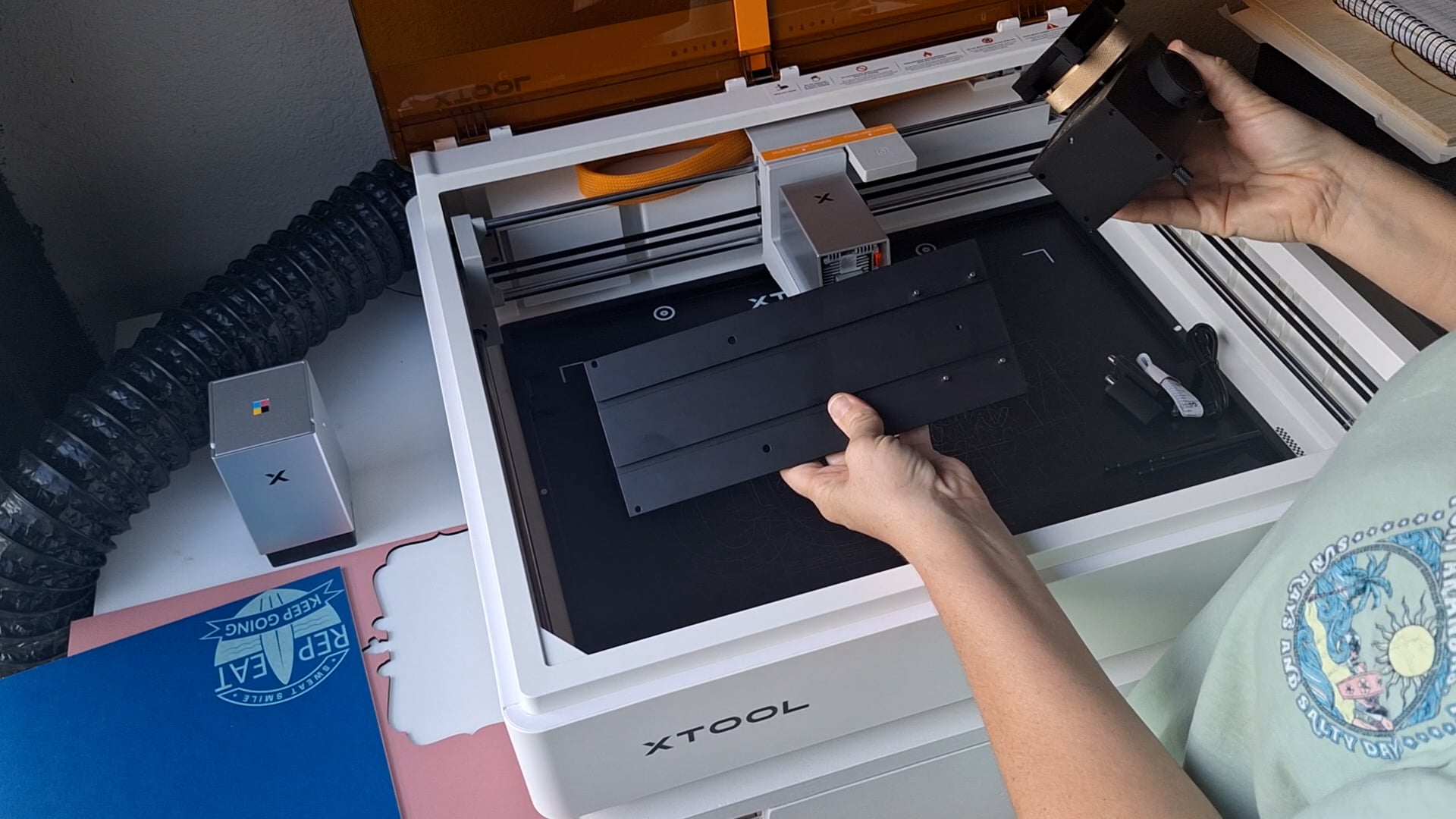
Now you will set up the actual RA3 that holds the cup, it comes in a few pieces but goes together really easily! Place the power module on the four little magnetic prongs of the base plate.
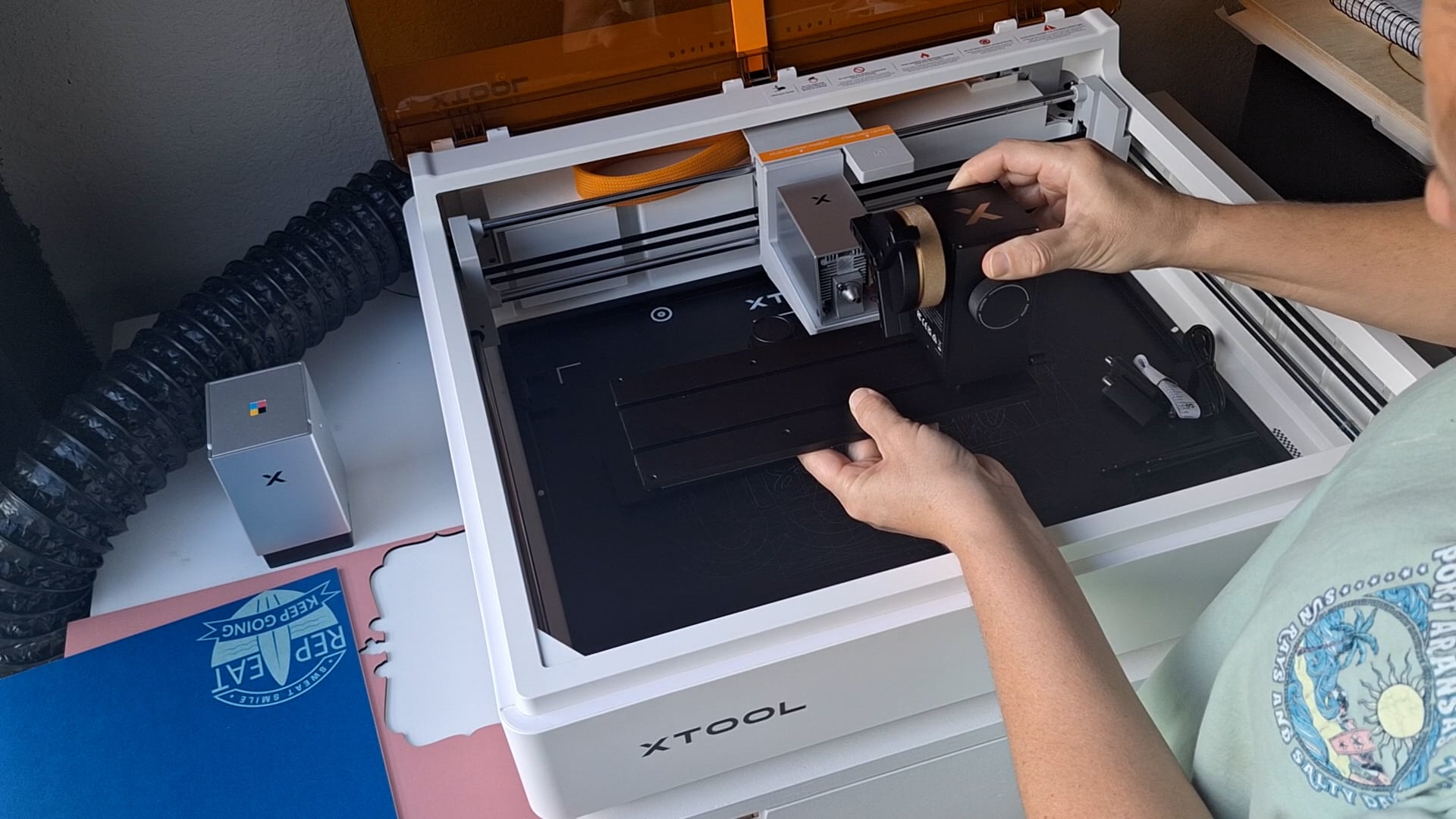
The image above has the jaw chuck in the power module but you will take it out and place it on your cup, or whatever you are engraving on, and tighten it! I used an old Pelican stainless coated cup that we had that no longer had a lid for, to test the engraving!
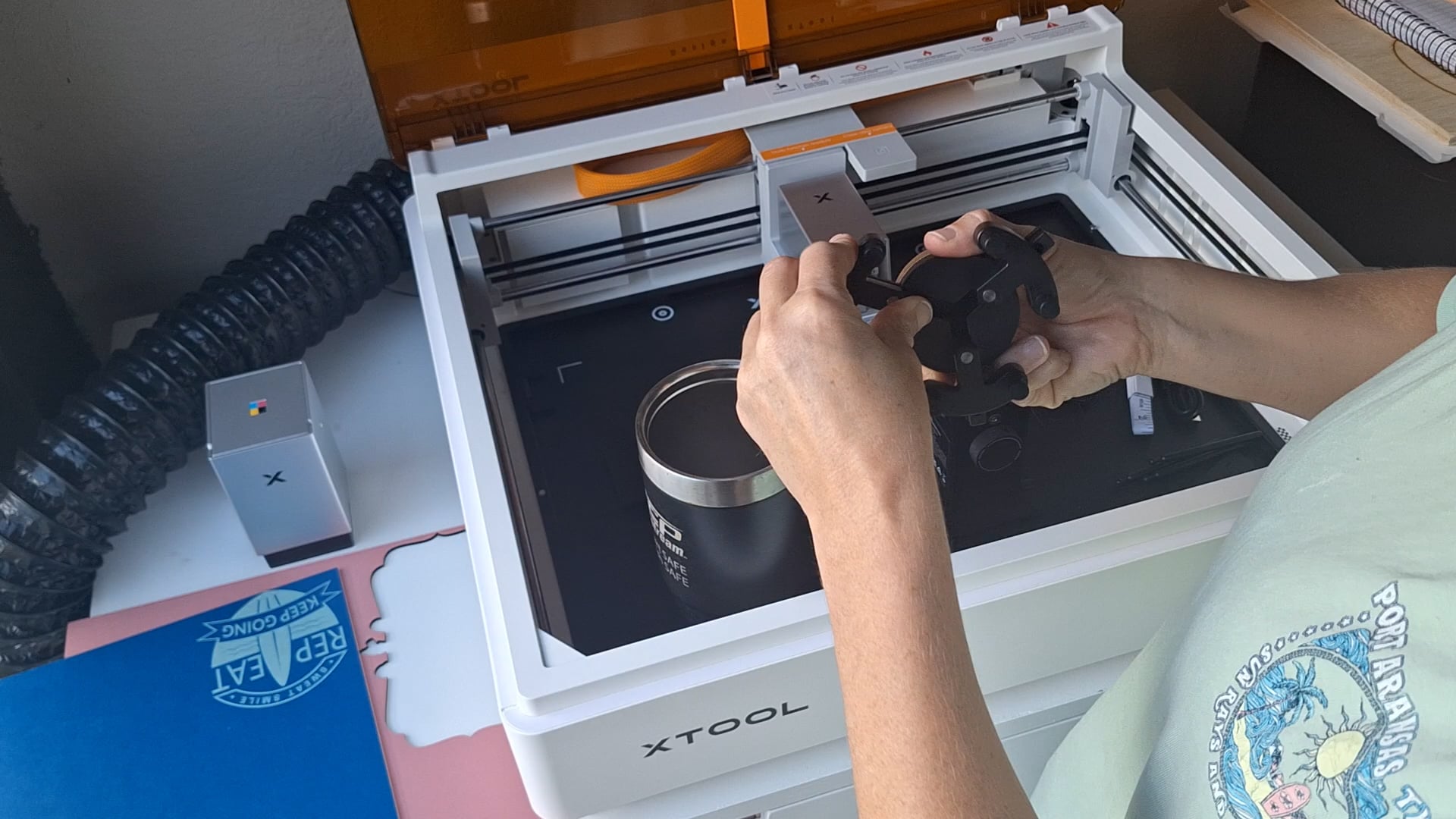
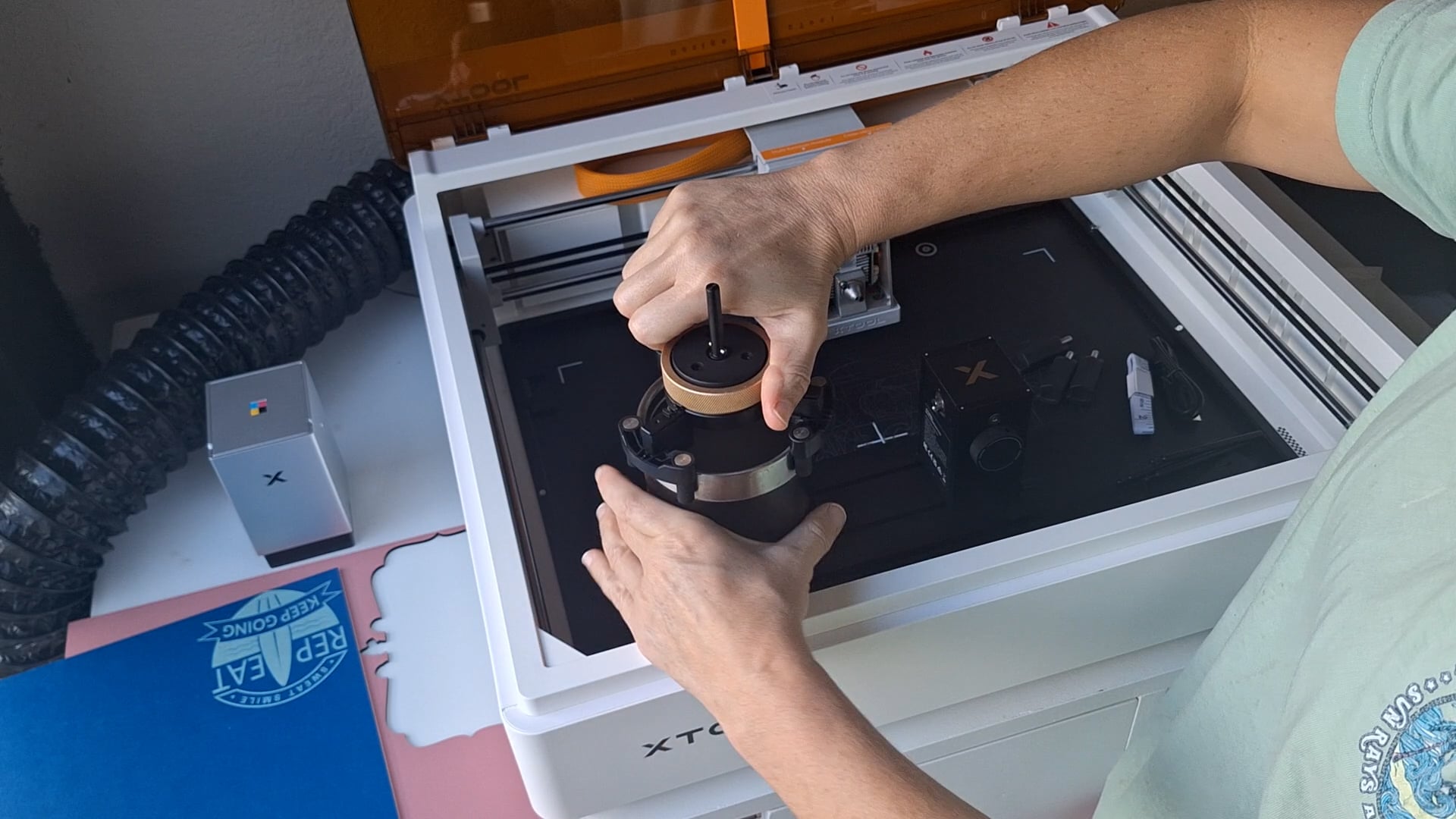
You will then slide this back into the power module.
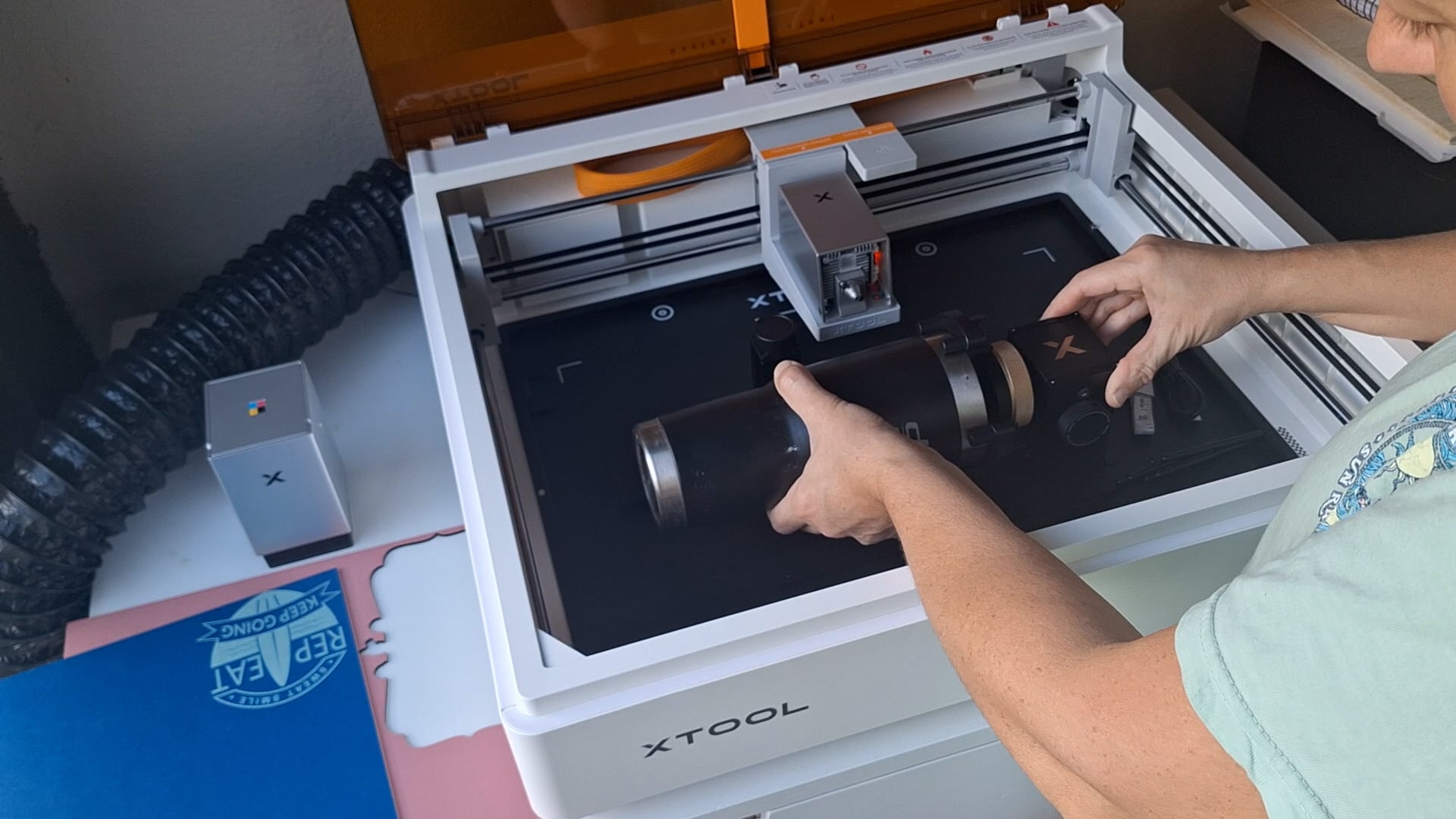
Using the enclosed cord that comes with the RA3, you will plug the larger end into the power module. I also clipped the little laser shield on at this time, if you look at the actual laser, it now has a black shield on it! It just clips onto the right side.
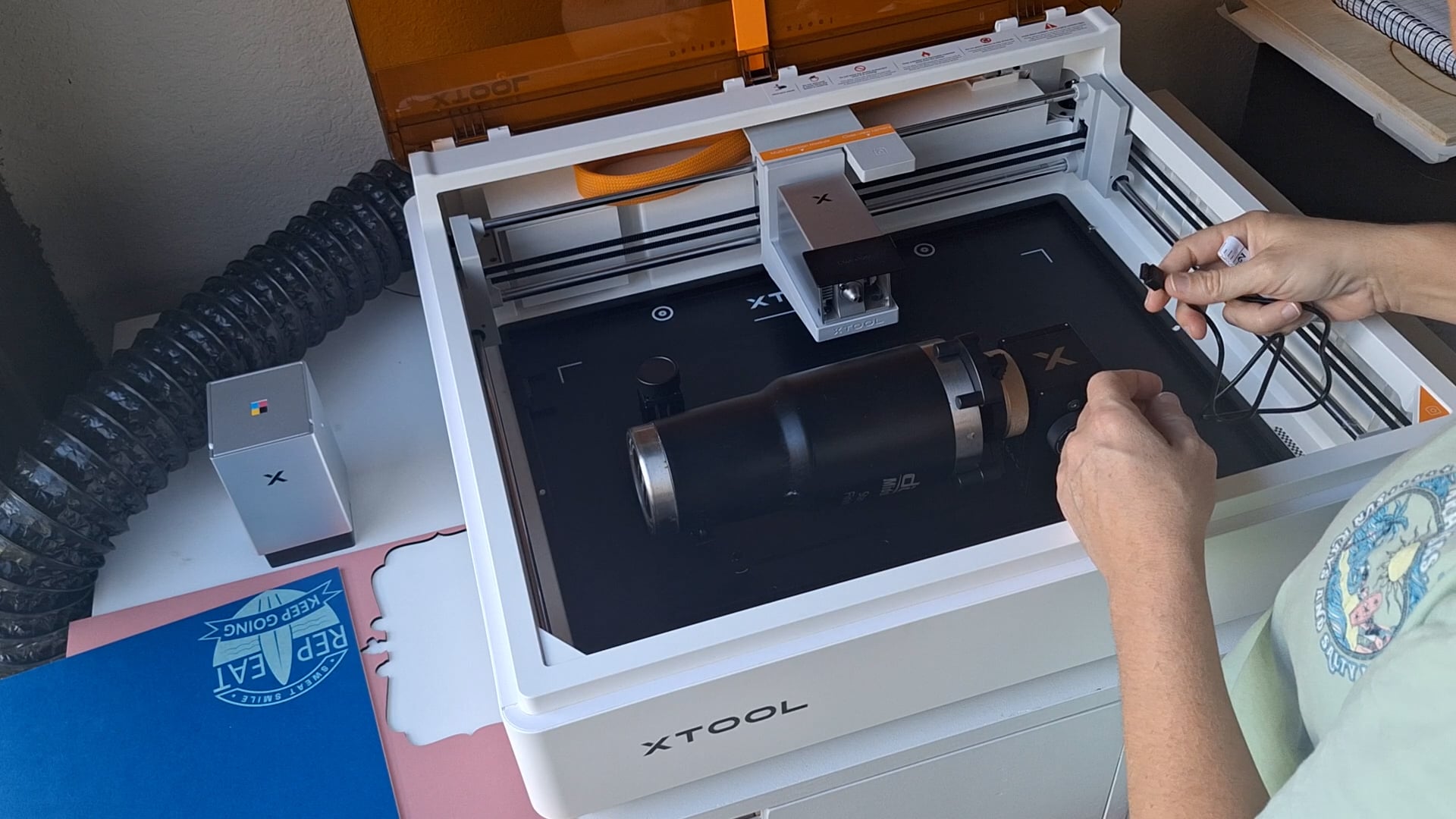
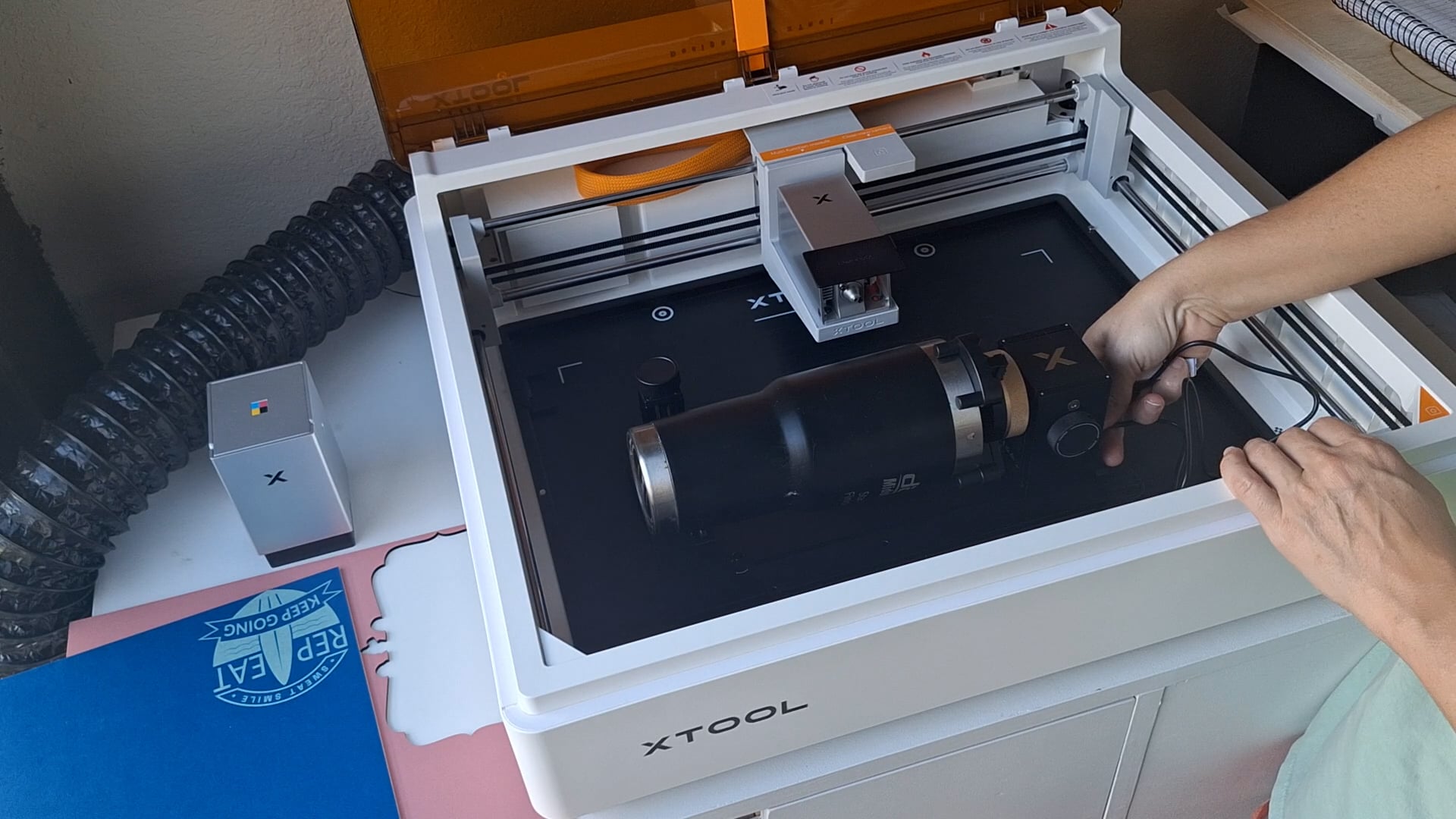
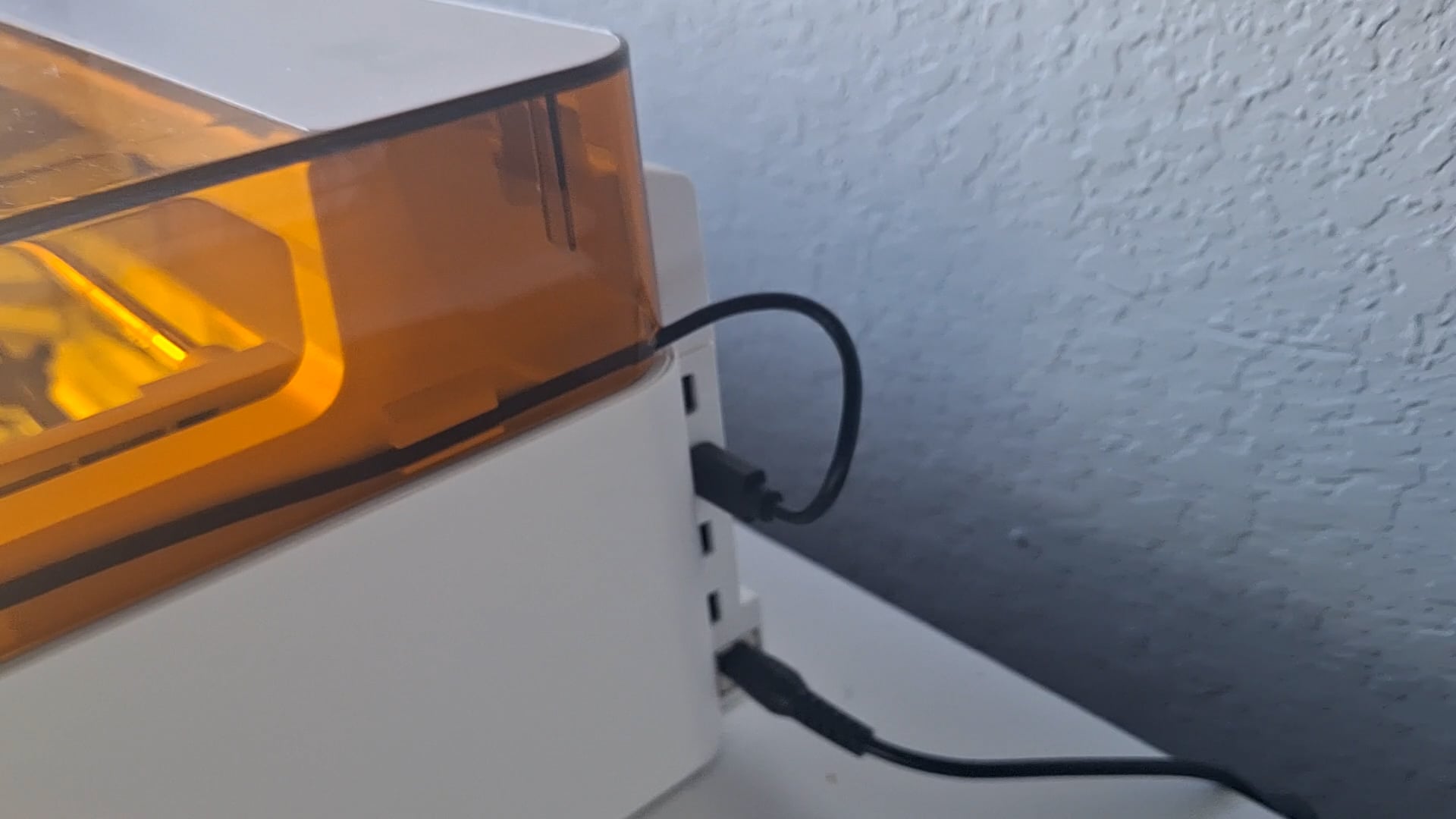
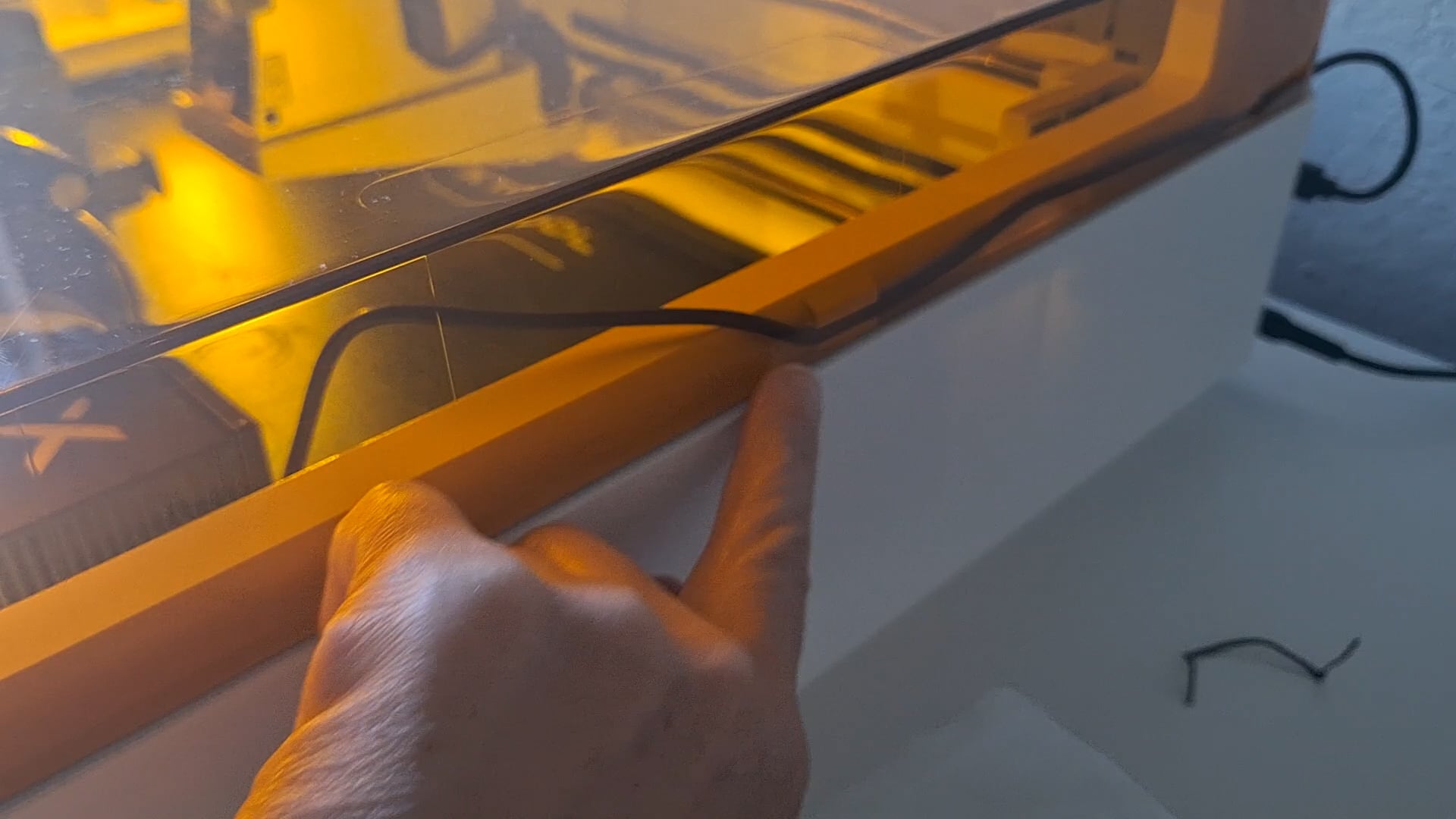
Next, plug the other end into the side/back of the machine, where the power cord is plugged in. You will run the cord into the clips along the side so the top will close properly.
Next take the cards supplied and set the first one, making sure it has an “R” showing at the top, in the far right bottom corner of the machine.
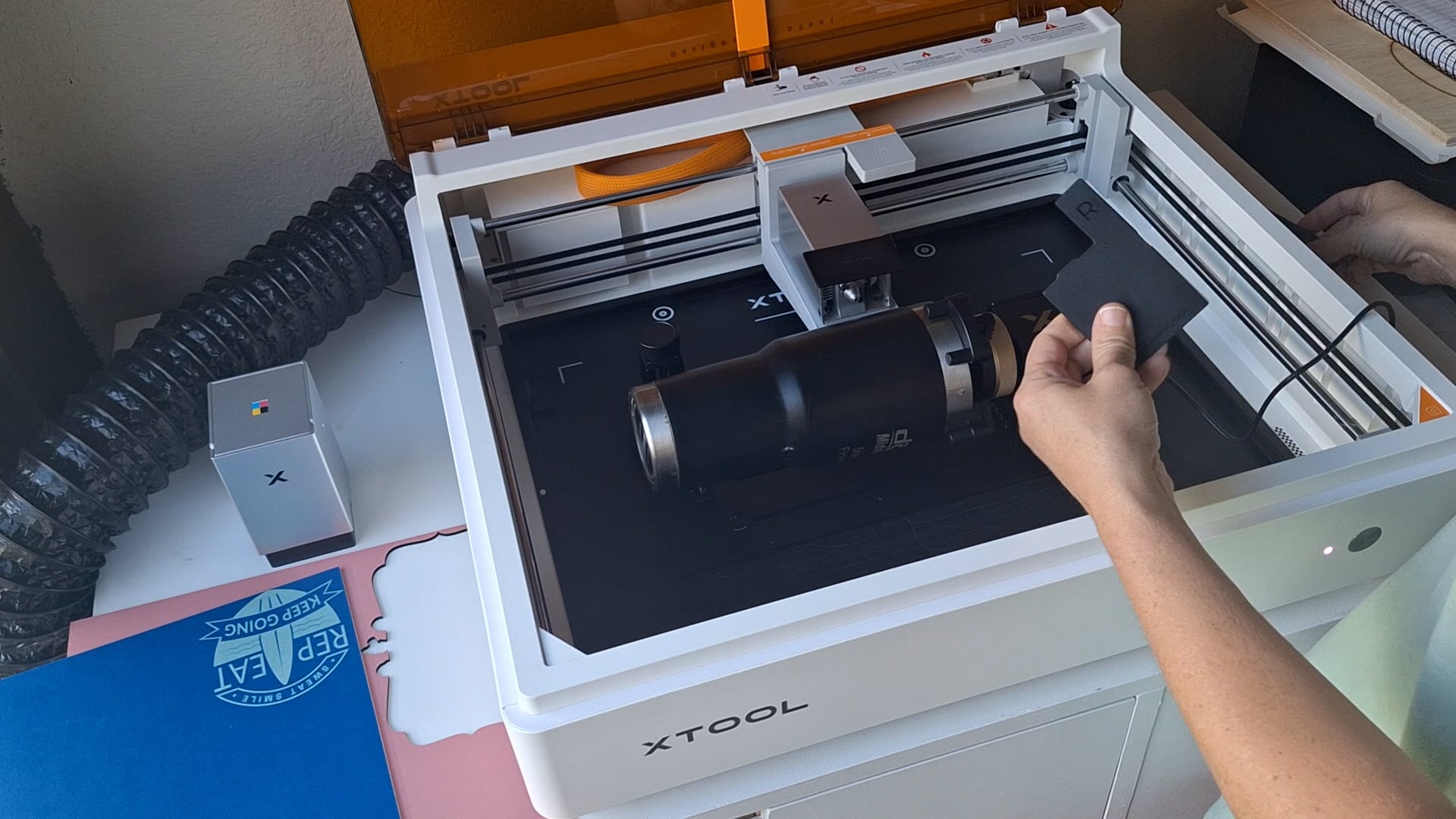
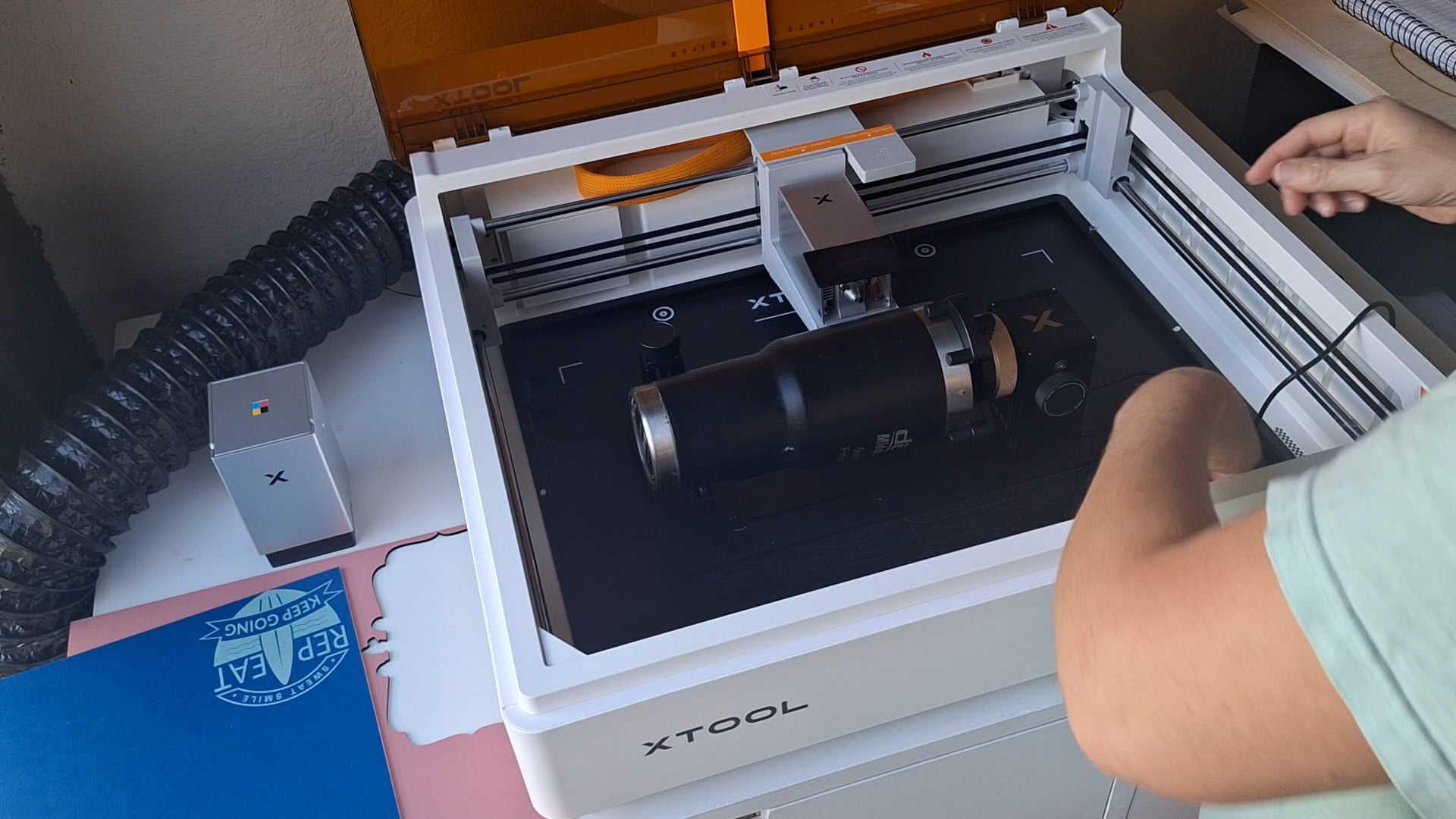
Then place the left side card.
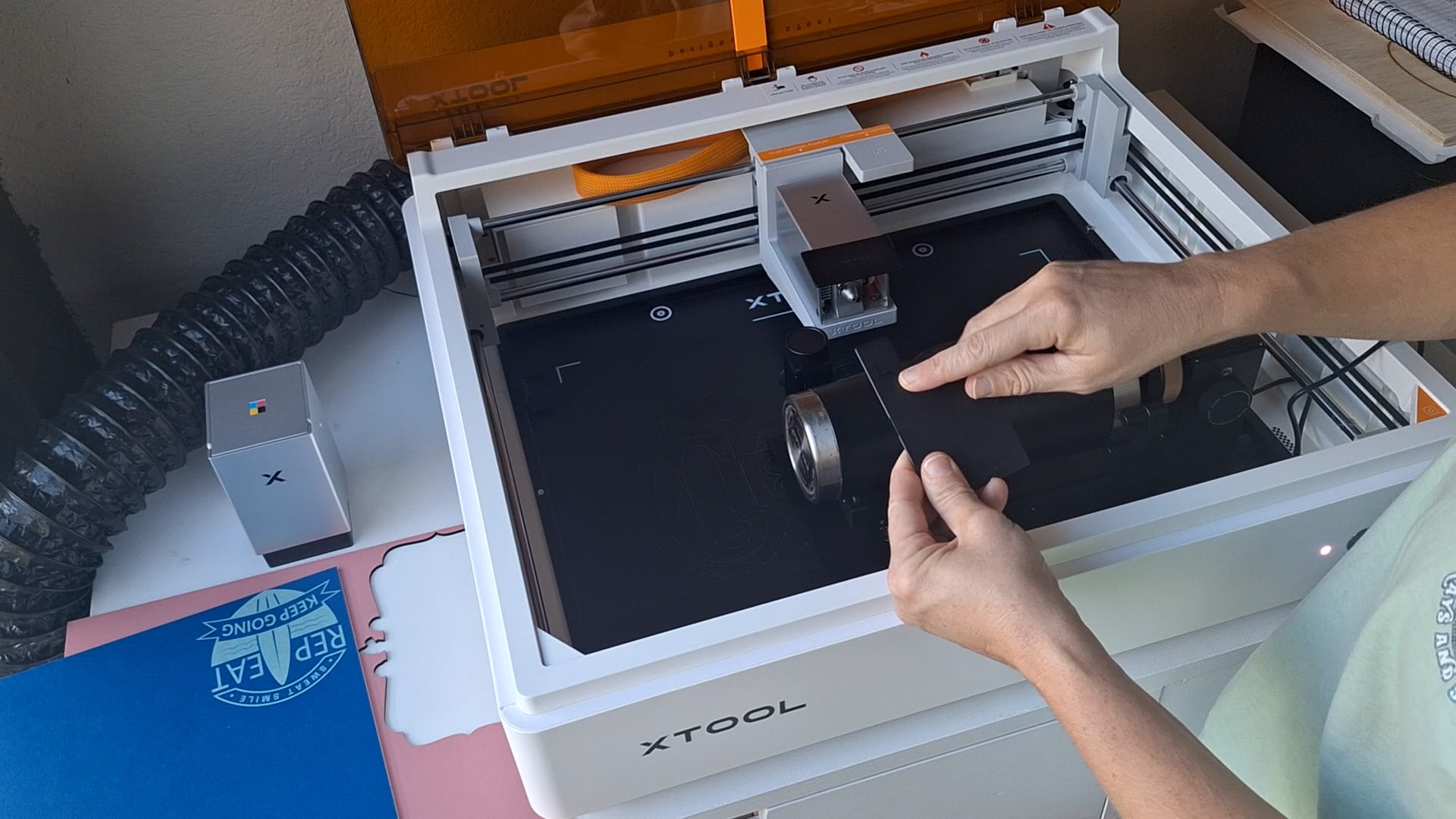
You will then move the RA3 over and set it in the notched out corners of the plastic cards. I have the support in the wrong spot in this image below, but just look at the corner cards! Lol!
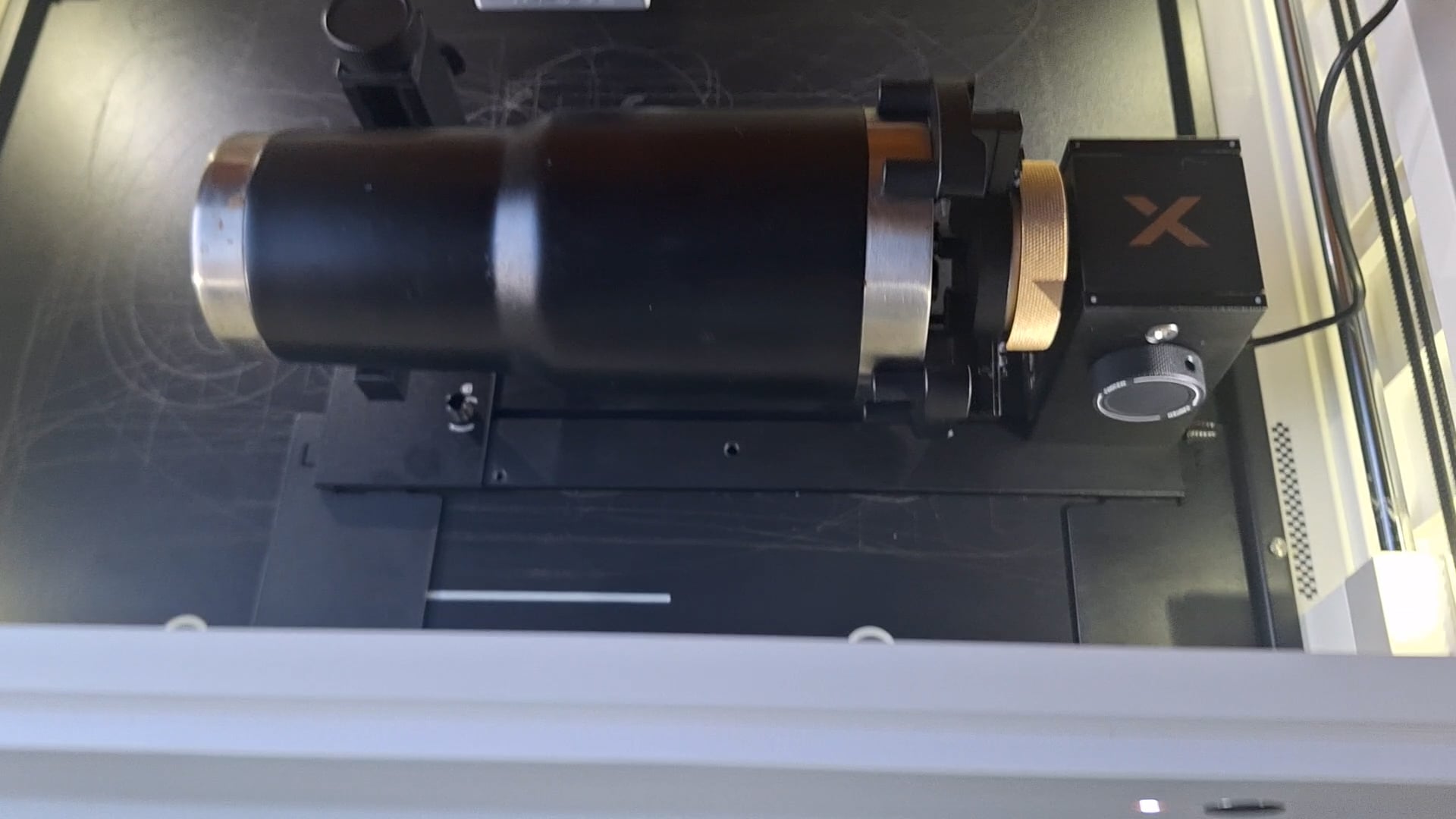
Now, you will want to flip the support to the other side so the laser can’t hit it!
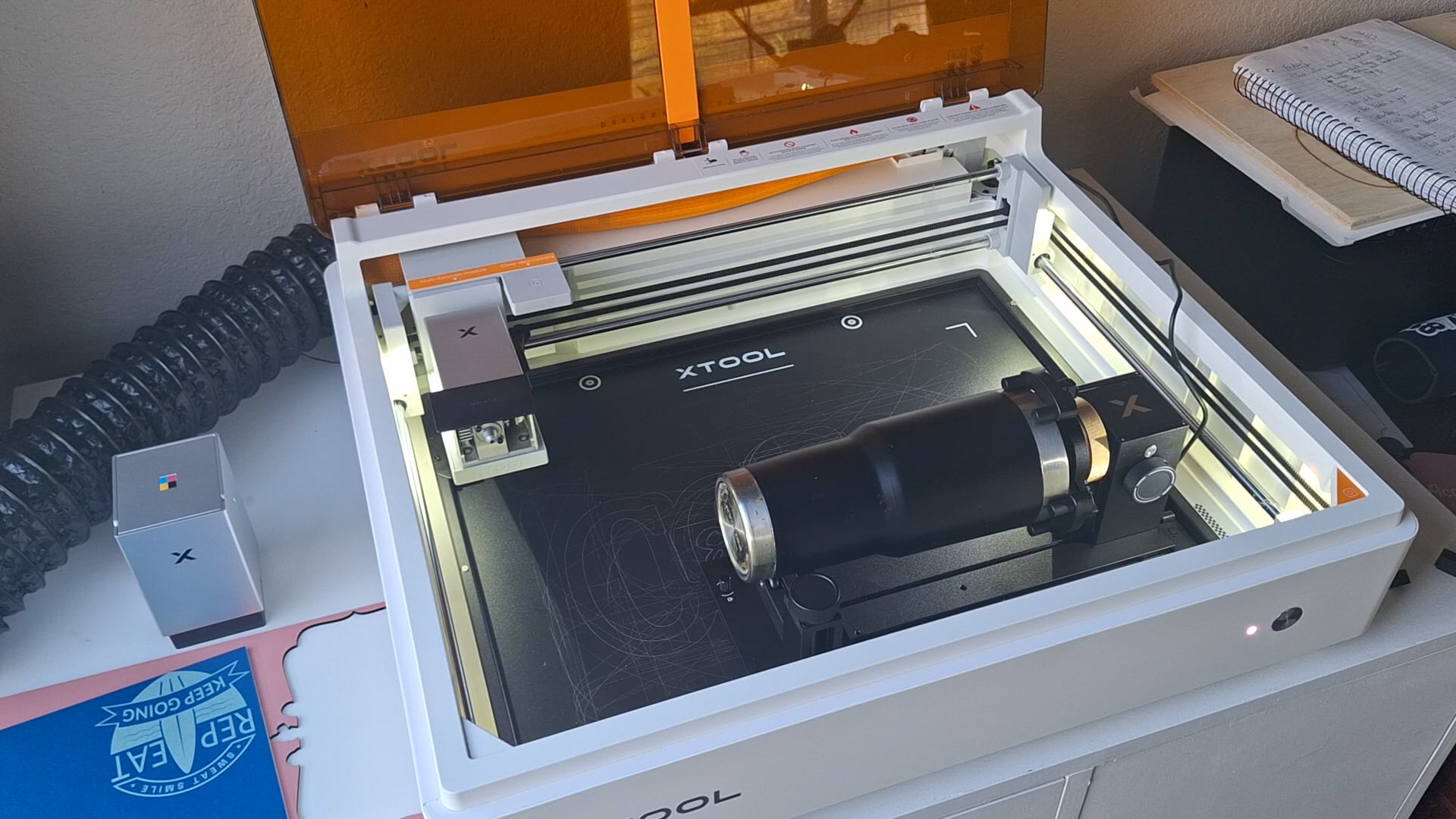
Once everything is all set up, now you can measure, you can use the auto measure just like you do with flat lasering! It will move over and measure to the power module and then move down and measure the cup, it will measure multiple points if you want it to if the cup tapers.
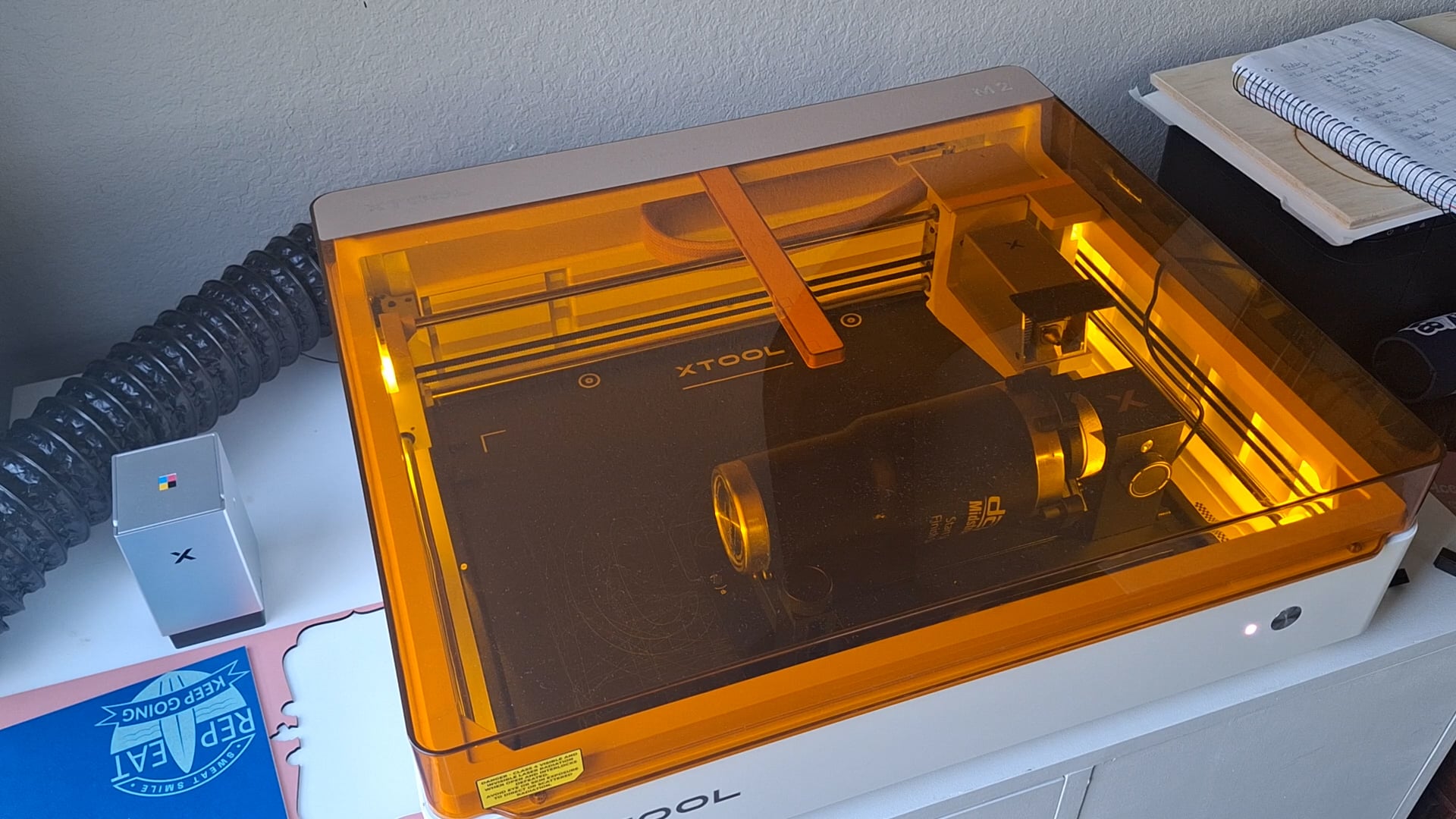
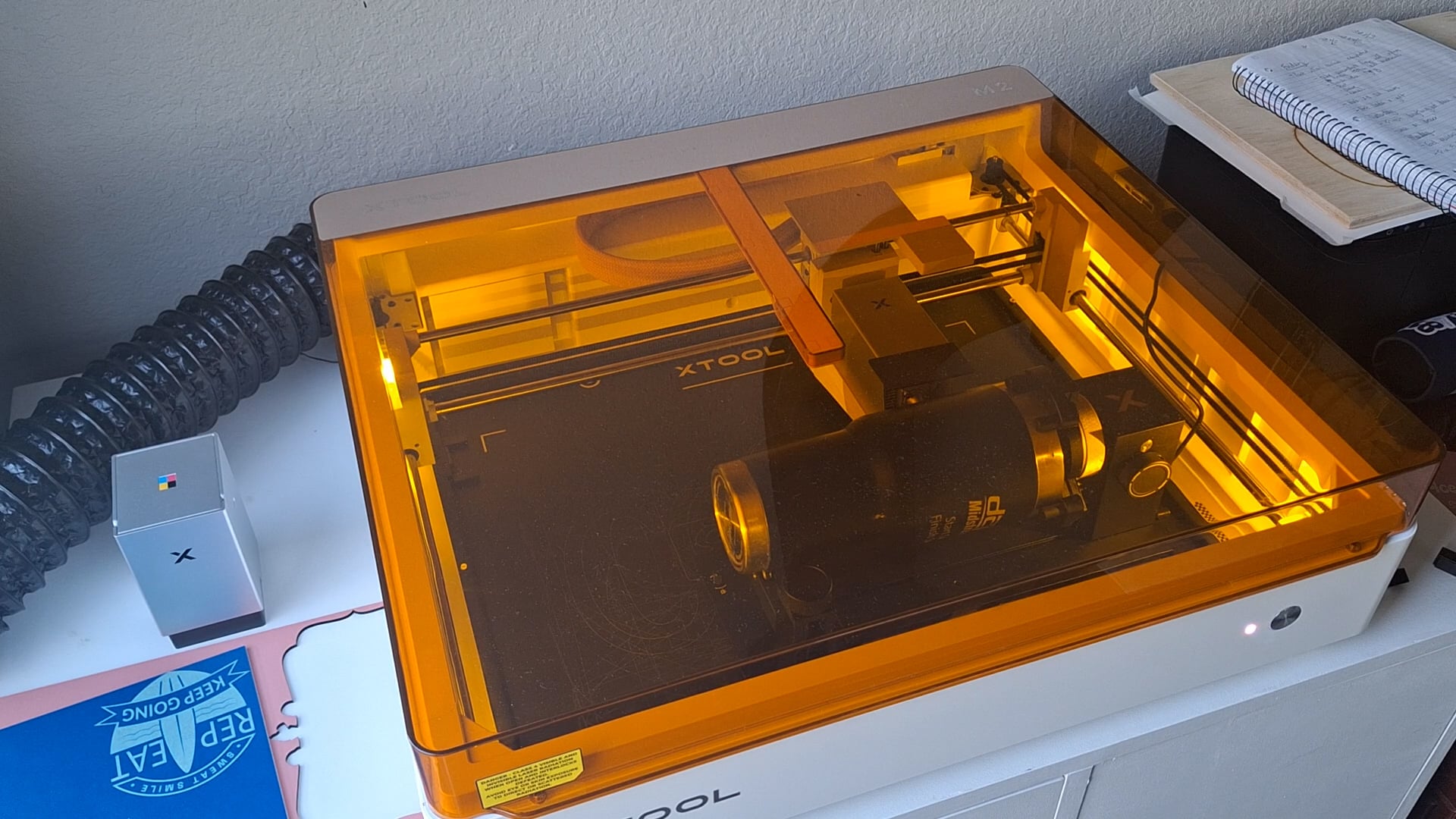
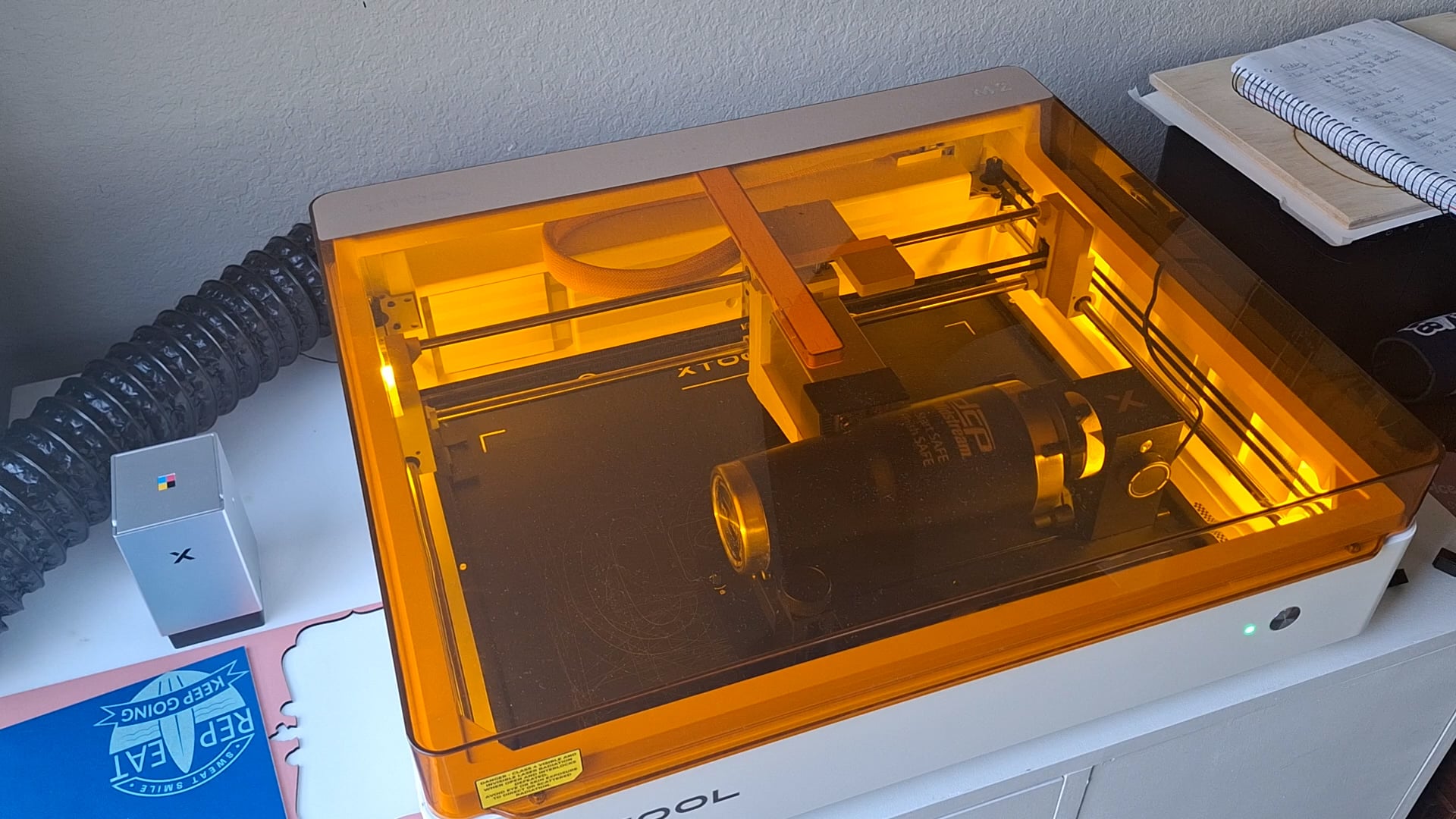
Now it is time to set the engrave! I used the “black to silver cup with handle,” I believe was what it was called, and kept the settings it gave — 25% power, 100mm/s, 1 pass! It is best to frame before processing as I really thought I had the name in a completely different location than it was when I framed it!
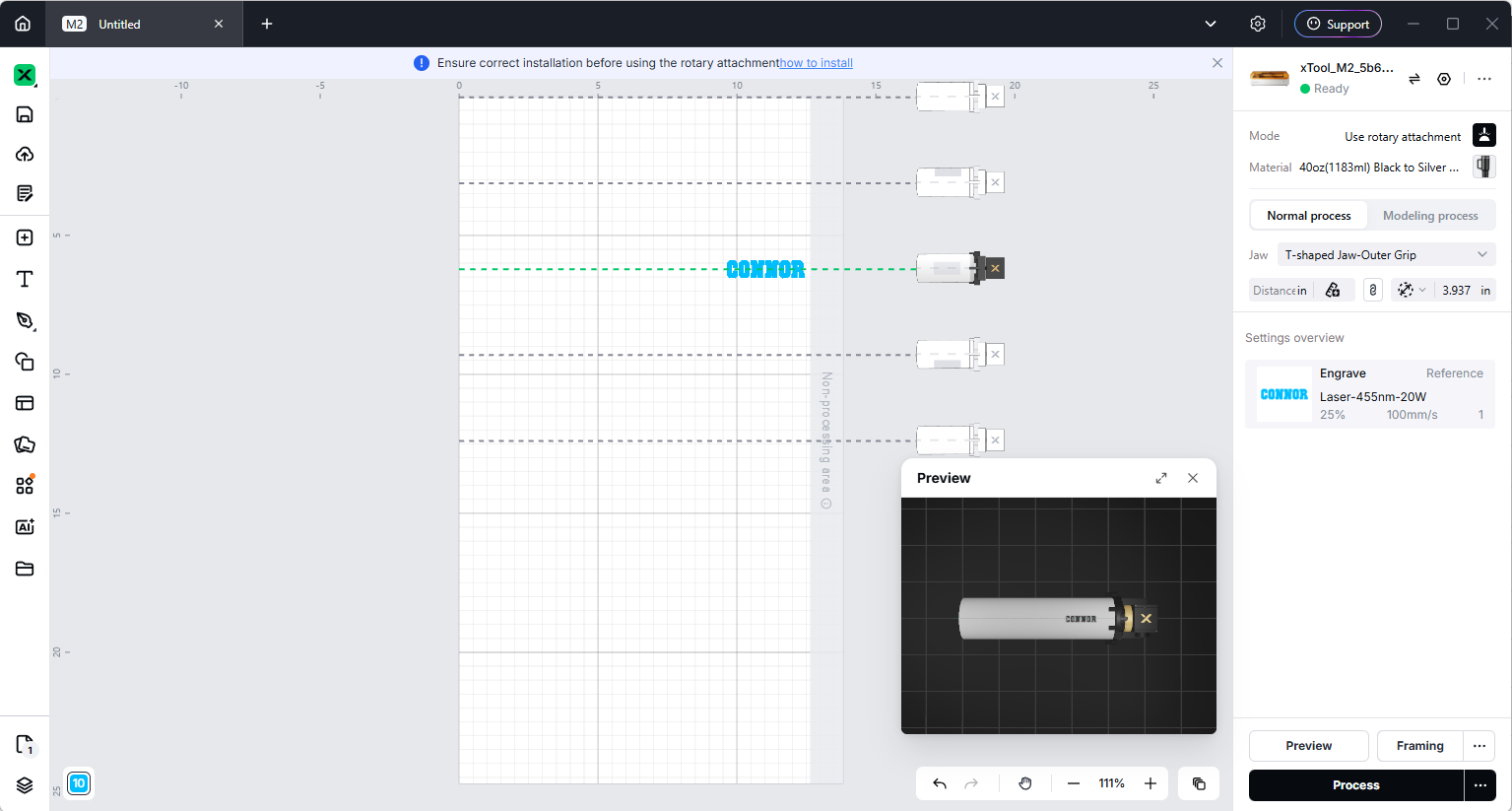
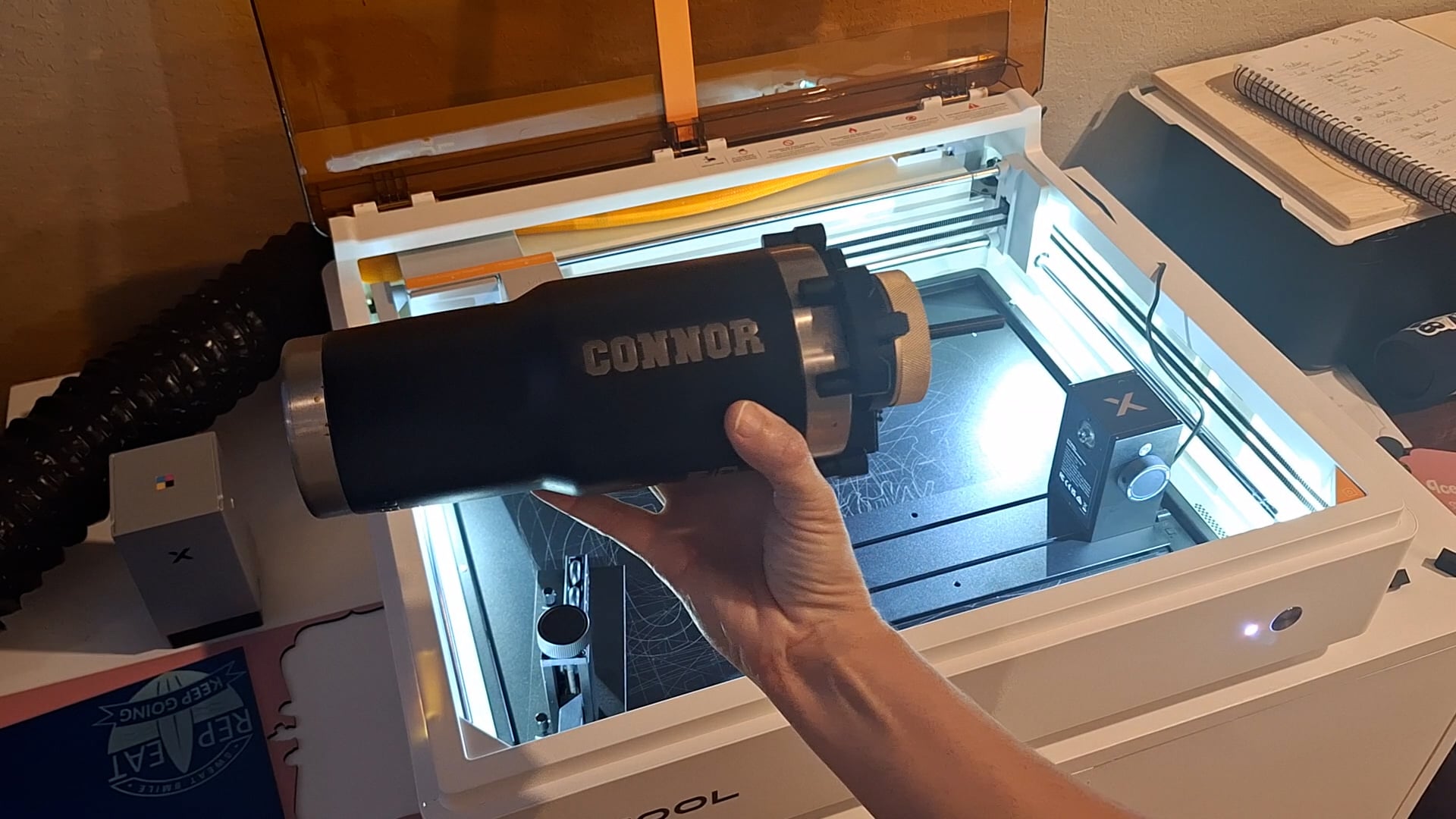
I was SHOCKED at how easy this whole setup truly was! The tumbler turned out amazing and it was seriously so easy, now doing a wrap around engraving or something more advanced may be more work, but this simple name was not hard!😅
Cutting With the xTool M2
This machine is a 20w which is the same as the S1 I have, so I knew that there wasn’t going to be much of a difference between this one and the S1 when it comes to cutting, but I had to test it out to see!
The one thing that is so much better with this machine than the S1 is that when my settings were off and I did not cut all the way through my sweatshirt, I was able to line it back up and cut it again with PRECISION because of the cameras and sensors! I was able to cut the EXACT same lines even though I moved the sweatshirt in the bed of the machine! That is INCREDIBLY helpful to keep from wasting materials!
Cutting Poster Board with the xTool M2
First cut with the new machine was poster board! My son was painting his parking spot at school and I thought, this is perfect to test out the M2! I have actually never cut paper of any kind with any of my lasers because the M1 has a blade which I used instead, but I have to say, WAY BETTER (and faster) to use the laser!
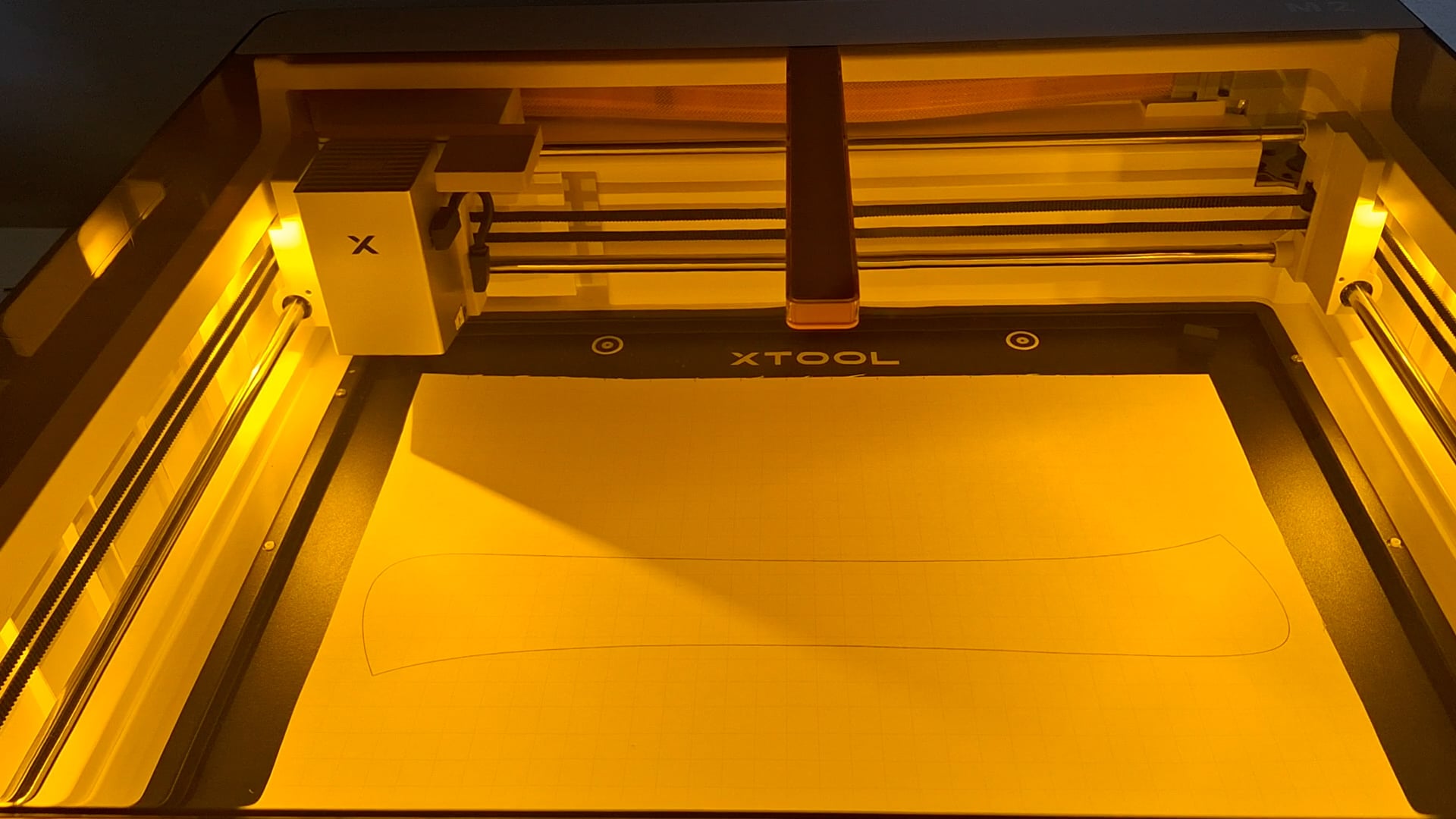
I was skeptical about cutting the poster board because I was worried about it catching fire since the paper has to lay flat on the bottom of the laser bed with no air flow underneath, but to my surprise, this was not an issue at all!
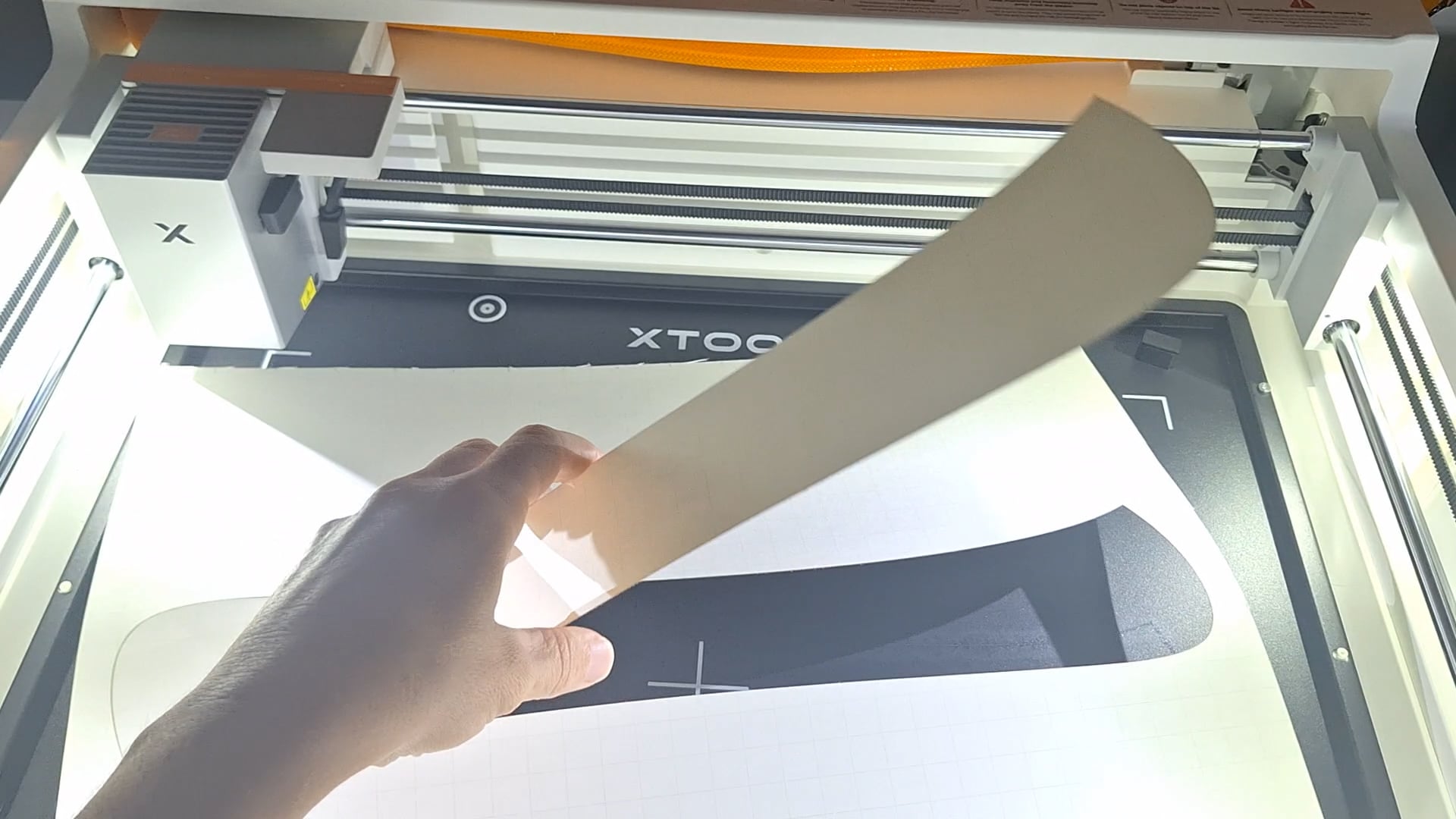
His parking spot turned out pretty good using our stencils that we cut with the M2! Lol, only my child, we cut the stencils for his parking spot to say, “If you’re reading this, I’m late” but it was SOOOOO HOT at 1 o’clock in the afternoon, on the August day before school started, so he changed it to say, “That Mine” -Connor! 🥴😂 Luckily, it did take us far less time to stencil this as opposed to the first one he planned!
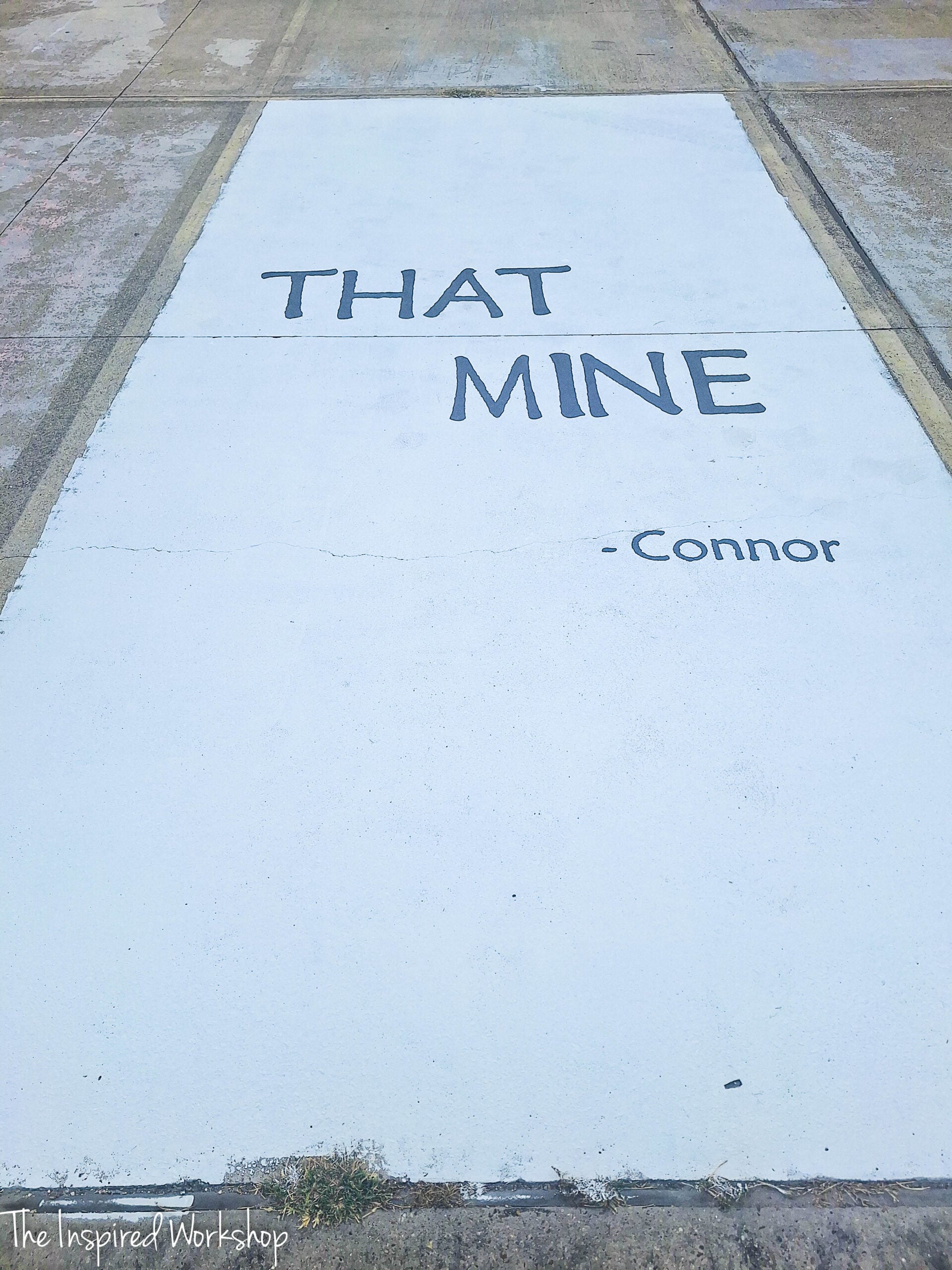
The girls parking spots were all so cute and creative…and then there was this one! 😂
But, with both of us working it took us only about 20 minutes to paint the letters, had we not have had the stencils, it would have taken HOURS!!! I love having a machine to make this kind of stuff so much easier, and quicker!
Cutting Fabric with the xTool M2
Fabric was in the same category as poster board for me, I was unsure about cutting it while it was lying flat on the base of the laser, but low and behold, it cuts like magic! Lol! I was absolutely shocked at how well it cut with no issues, and then I was upset that I had never cut fabric on my other lasers! Lol!
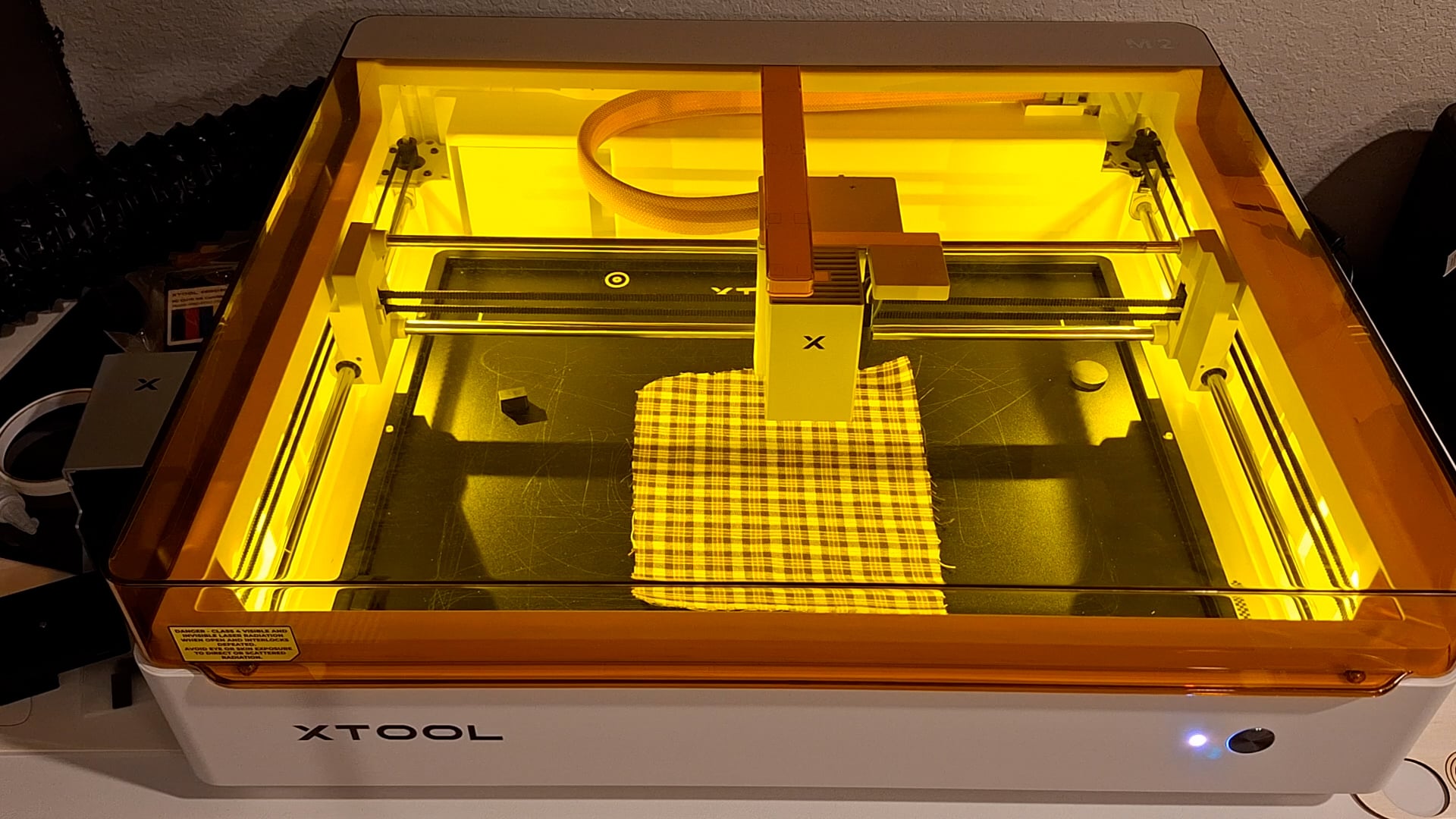
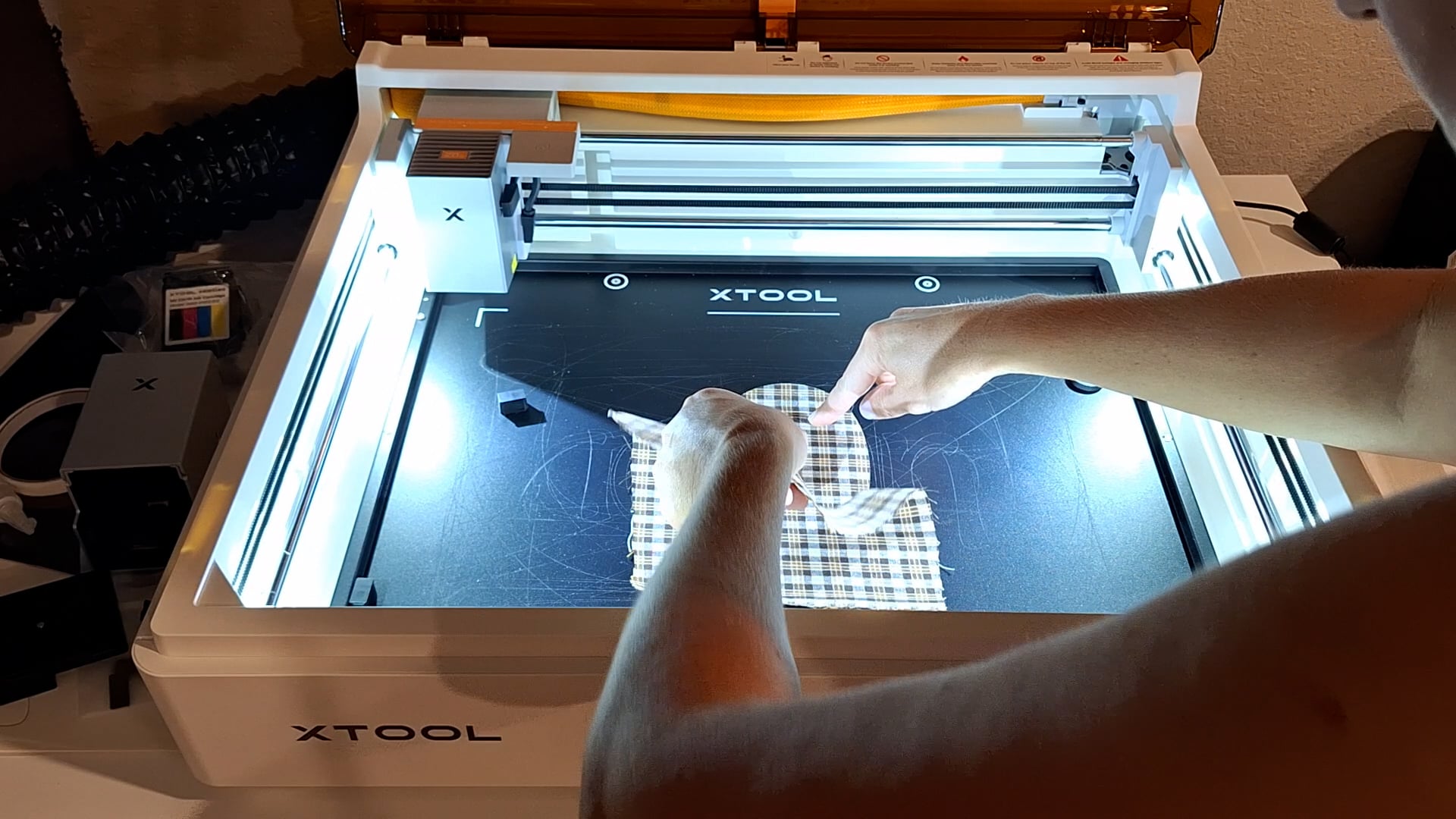
I turned that fabric blob, along with a couple of others into the CUTEST sweatshirt, the M2 did all the heavy lifting for me since I cannot sew! Lol! But now I want to figure out my sewing machine so I can make some cute boxers to match the sweatshirts! 😅 Using a board to keep from cutting all the way through the sweatshirt, I was able to cut the letters out of the sweatshirt and then iron on the fabric that was cut on the laser to fit perfectly!
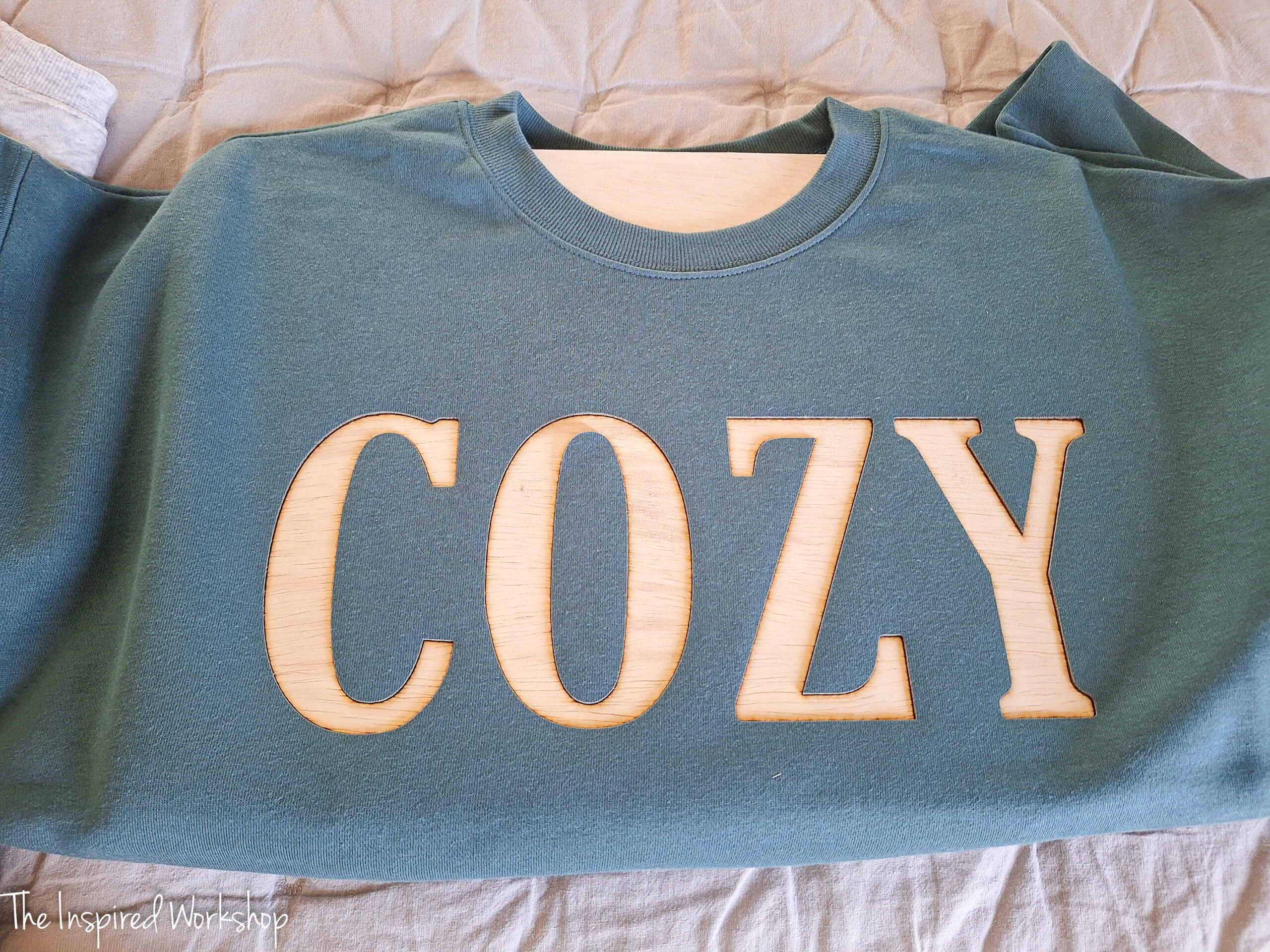
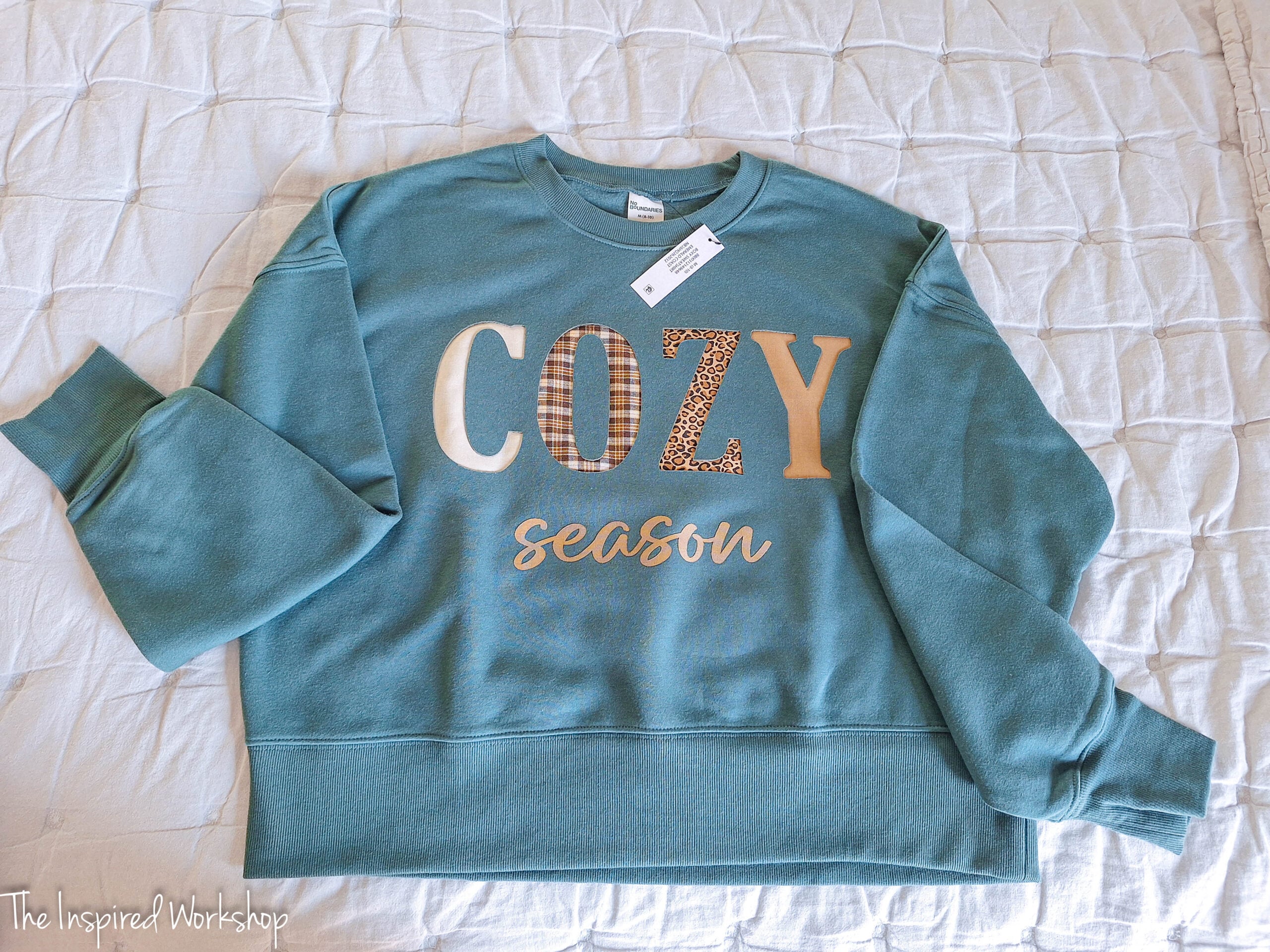
I will have the full tutorial up shortly! DIY Reverse Applique Sweatshirts
Cutting Wood with the xTool M2
Cutting wood with the M2 is pretty much the same as cutting wood with the M1 or S1 as I previously have, it is amazing though how precise you can get with this machine when lining things back up with the cameras! I cut these cute little pumpkins to make Pumpkin Earrings!
The M2 comes with the little black magnets you see holding this small piece of plywood! They are better than the wood laying on the bottom, but are not as nice as a honeycomb that allows air flow but also holds the pieces as they are cut. There is a base that you can purchase separately for the M2, called a CleanCut panel, that helps with this!
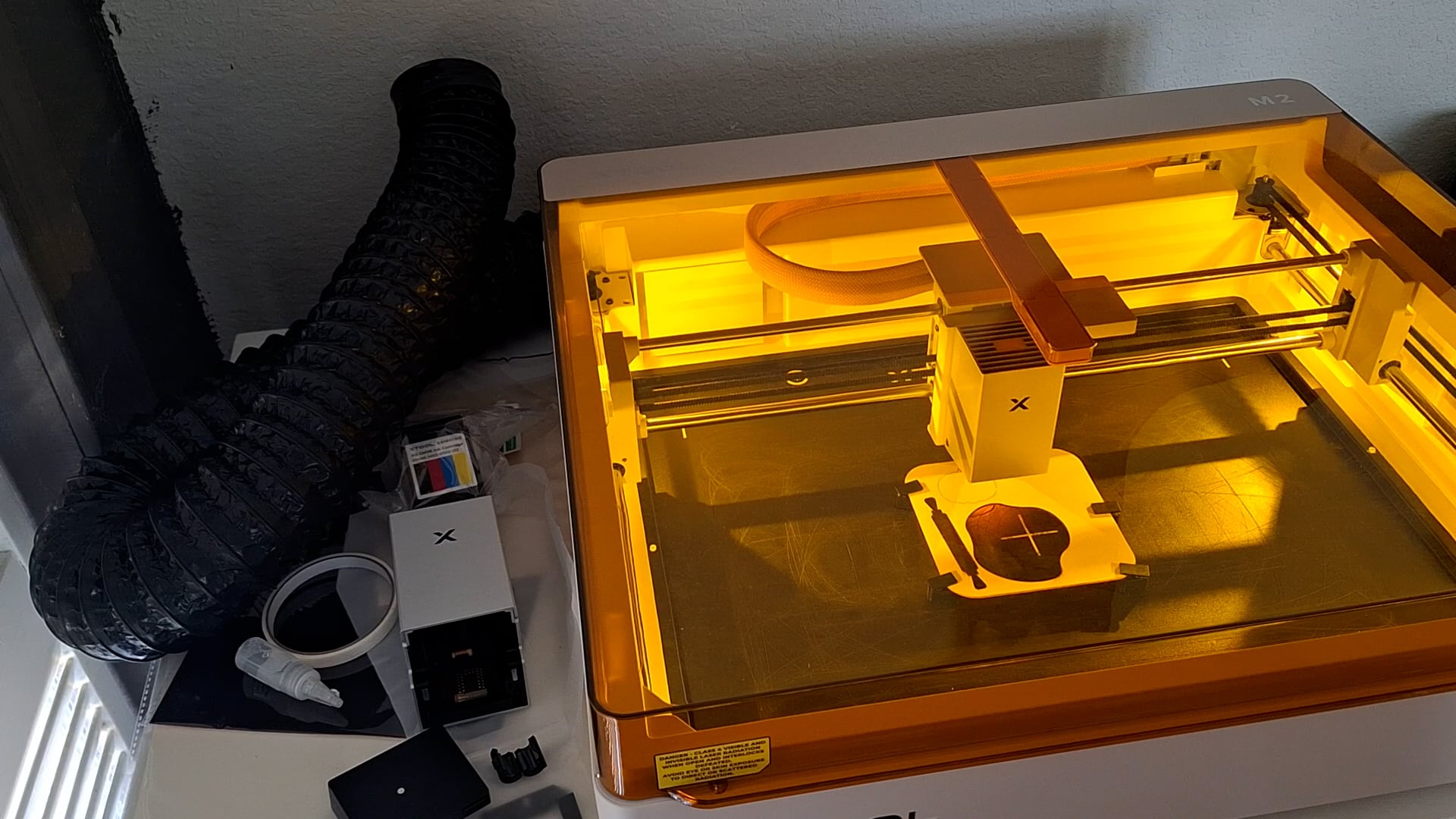
This pumpkin will be the backer.
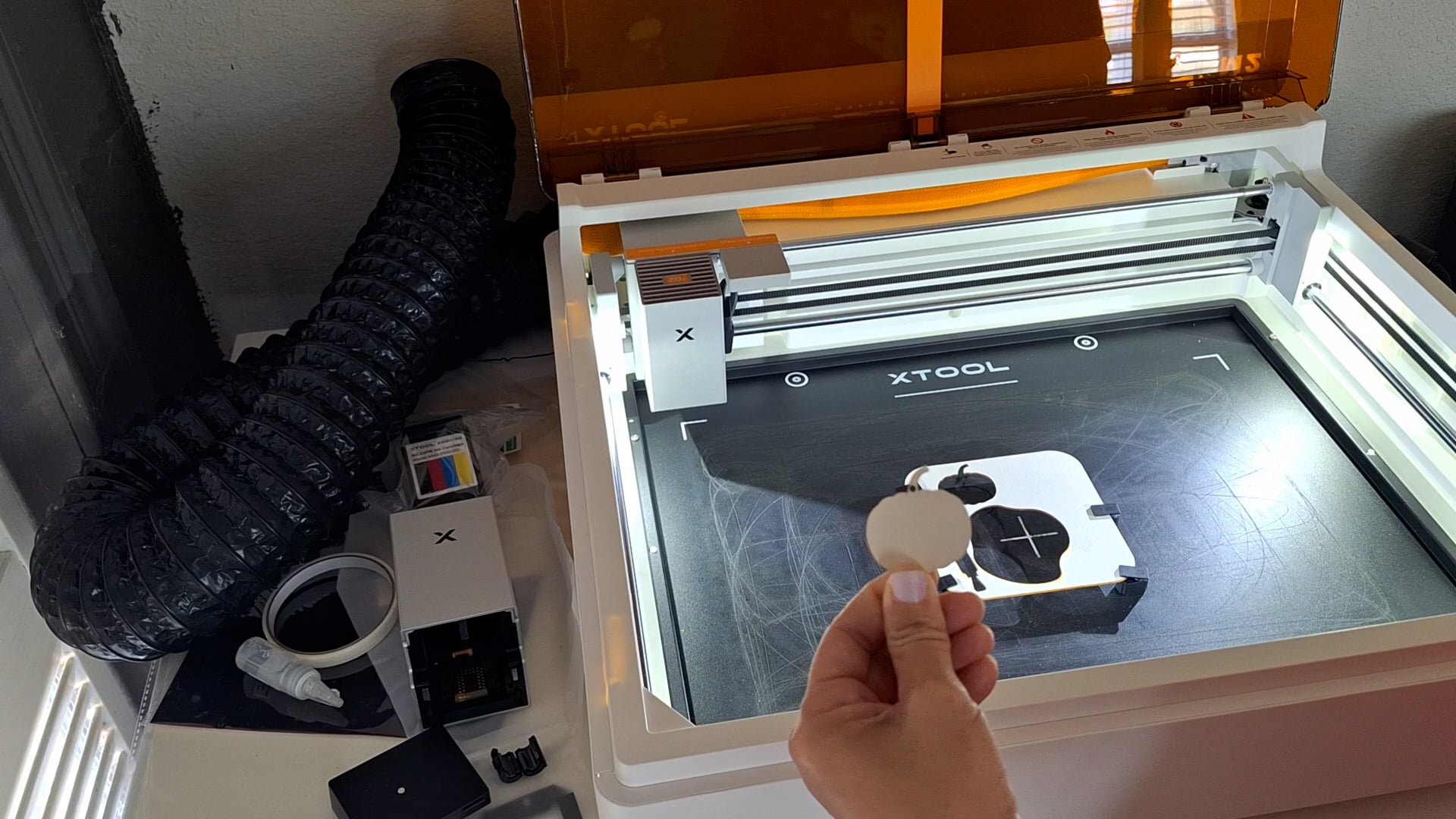
Then, I cut this pumpkin to go on top of that one!
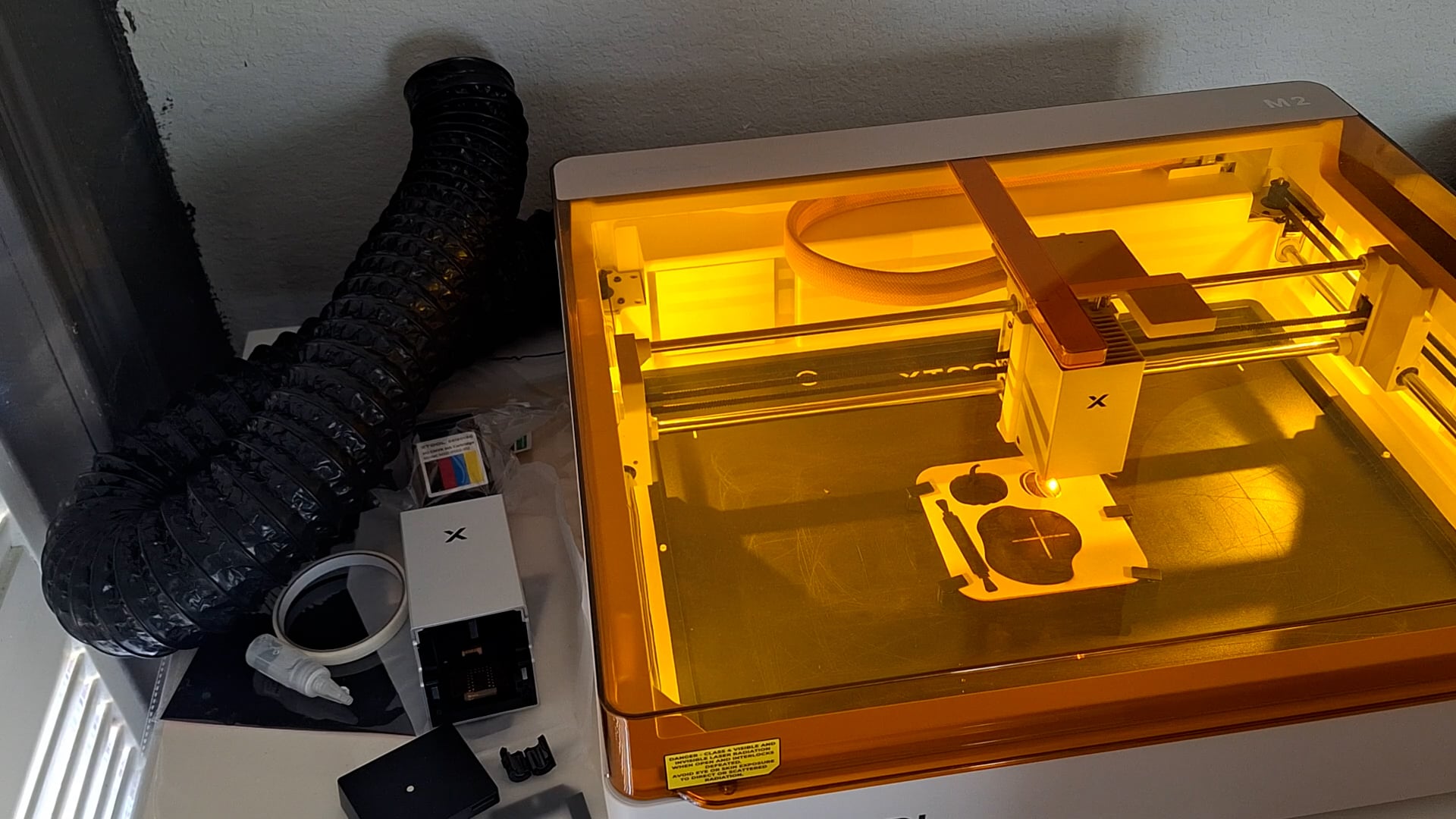
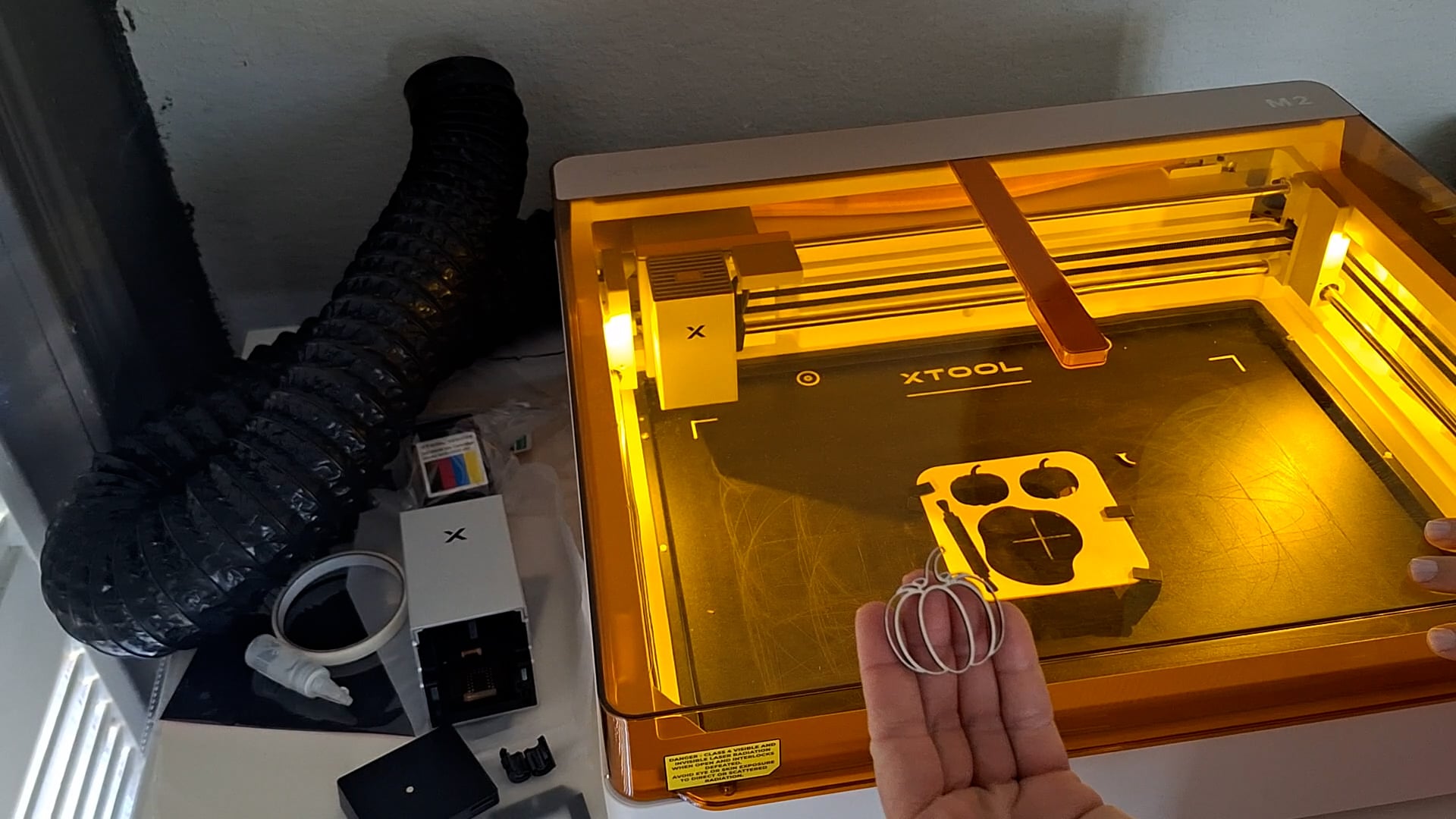
They will be painted and glued together to make the cutest pair of pumpkin earrings! You will be able to get the full tutorial here: DIY Wooden Earrings. This cut file along with several other cut files will be available at that link for earrings!
Cutting Acrylic
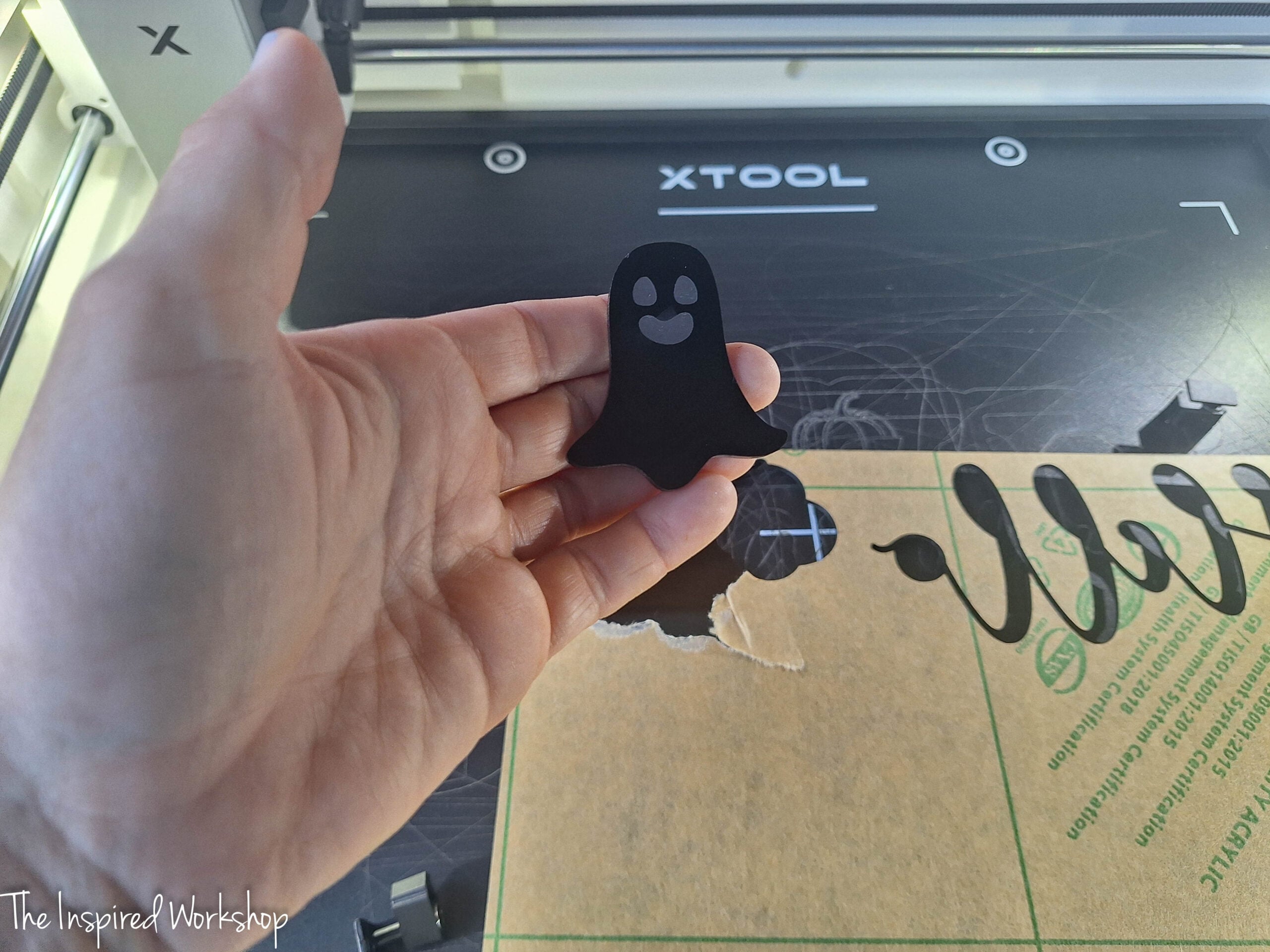
Black acrylic cuts like butter with this machine, I cut out a ghost and engraved his little facial features just to show how well it cuts! I used the settings in xTool Studio for 1/8″ black acrylic, did not adjust them, and they worked great!
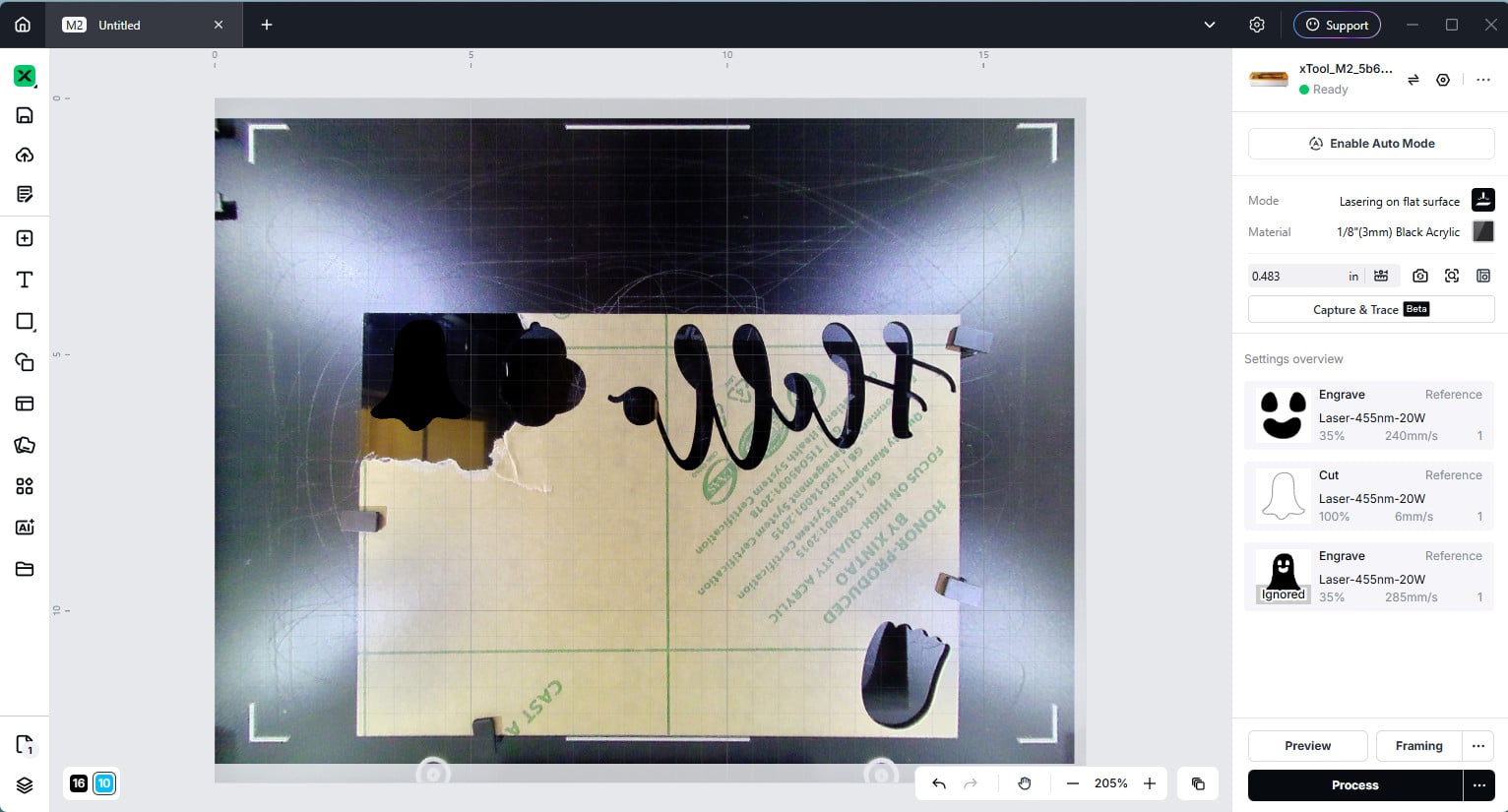
Now I had worked and worked and worked to figure out settings that worked to cut white acrylic (this is one of the colors that diode lasers have a harder time with) I had them saved in the previous xTool software and now I cannot access them in the new software! Needless to say, the settings for 1/8″ white pearly acrylic didn’t work for the white! Lol!
I will have to go back and find the settings in some of my old screen recordings because I had it dialed in pretty good to not only cut, but cut with smooth edges too! The “C” on the right was the new cut, see how the edges are scraggly looking, that means it was melting!
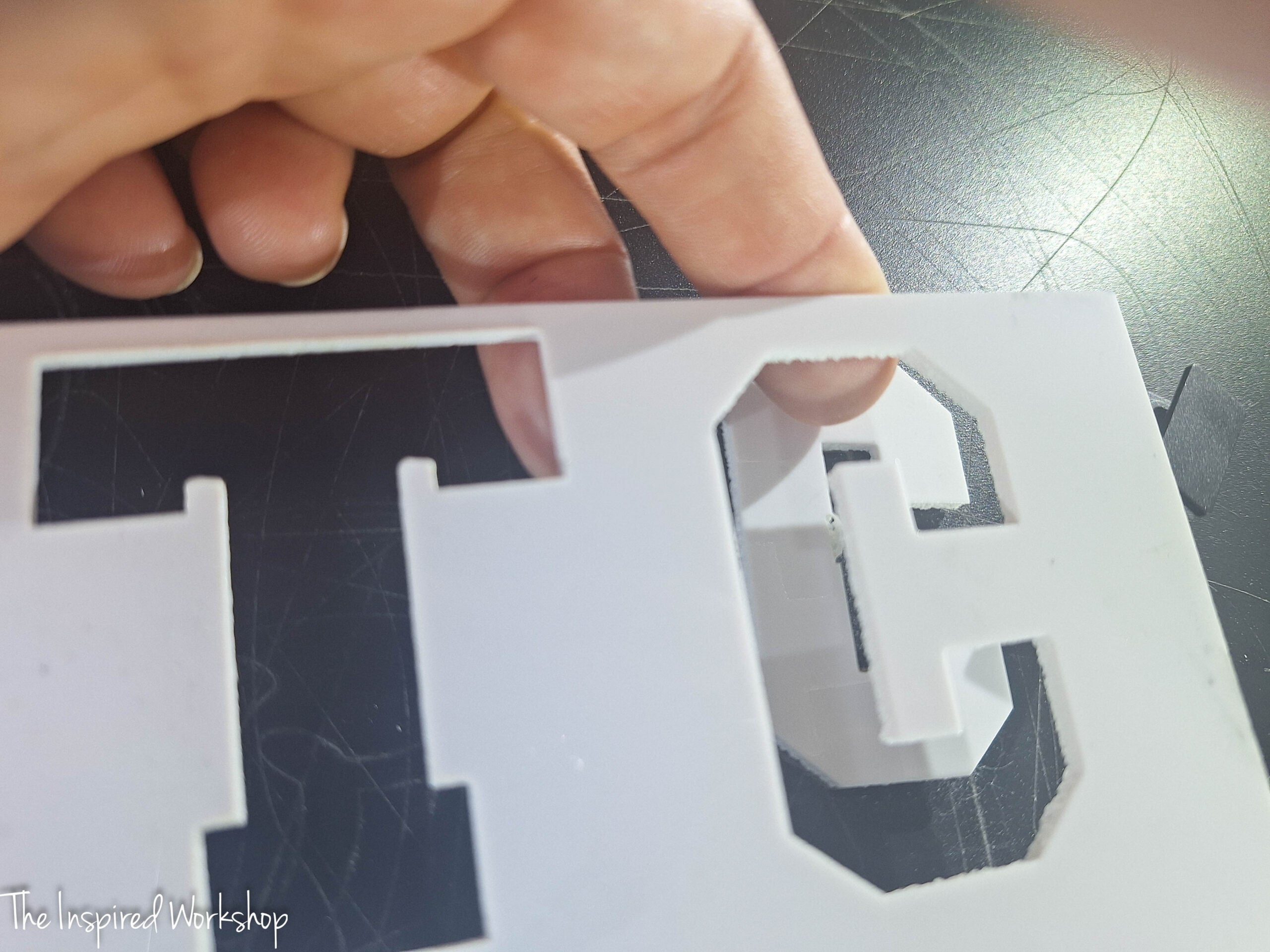
It was definitely too hot, look at the back of the “C”!🫠
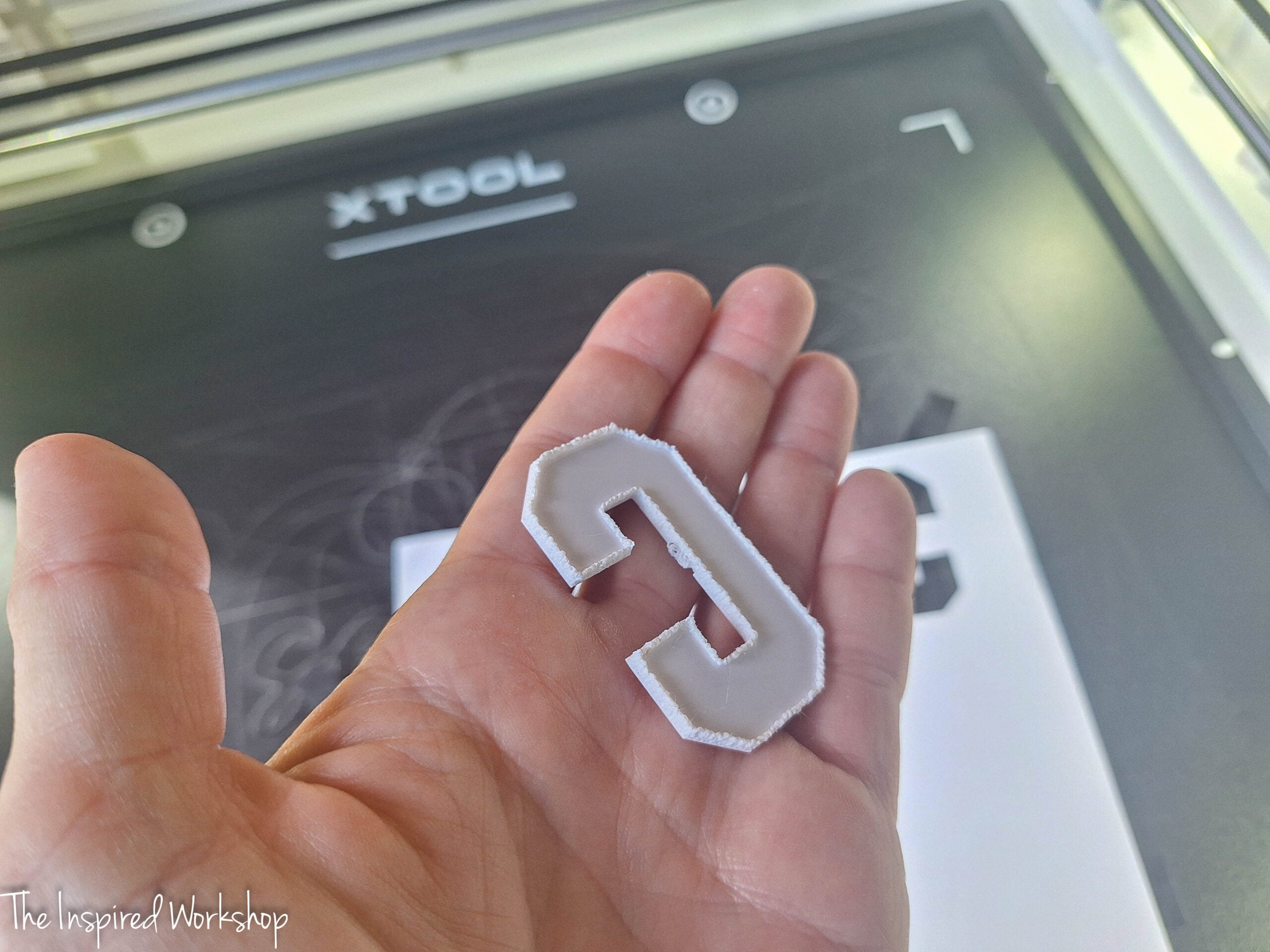
If I find the settings I will post them!
Printing with the xTool M2
Printing with the xTool is really cool, but I did have some struggles! Printing takes some tweaking so make sure and use test materials and get everything dialed in before utilizing more expensive materials! My biggest complaint was just the variation in coloring, and I even made all my files in CMYK vs RGB but the colors still varied widely!
You will need to calibrate the print module when you first use it just as you have to calibrate the laser module! Again, xTool Studio walks you through each and every step!
Printing on Paper with xTool M2
This is pretty straight forward and obviously the easiest to get right. I think the colors print on white paper a little lighter than they appear on my screen, but pretty close to it. The paper should be taped down to prevent movement, the woosh of movement from the module moving back and forth can blow the paper around sometimes!
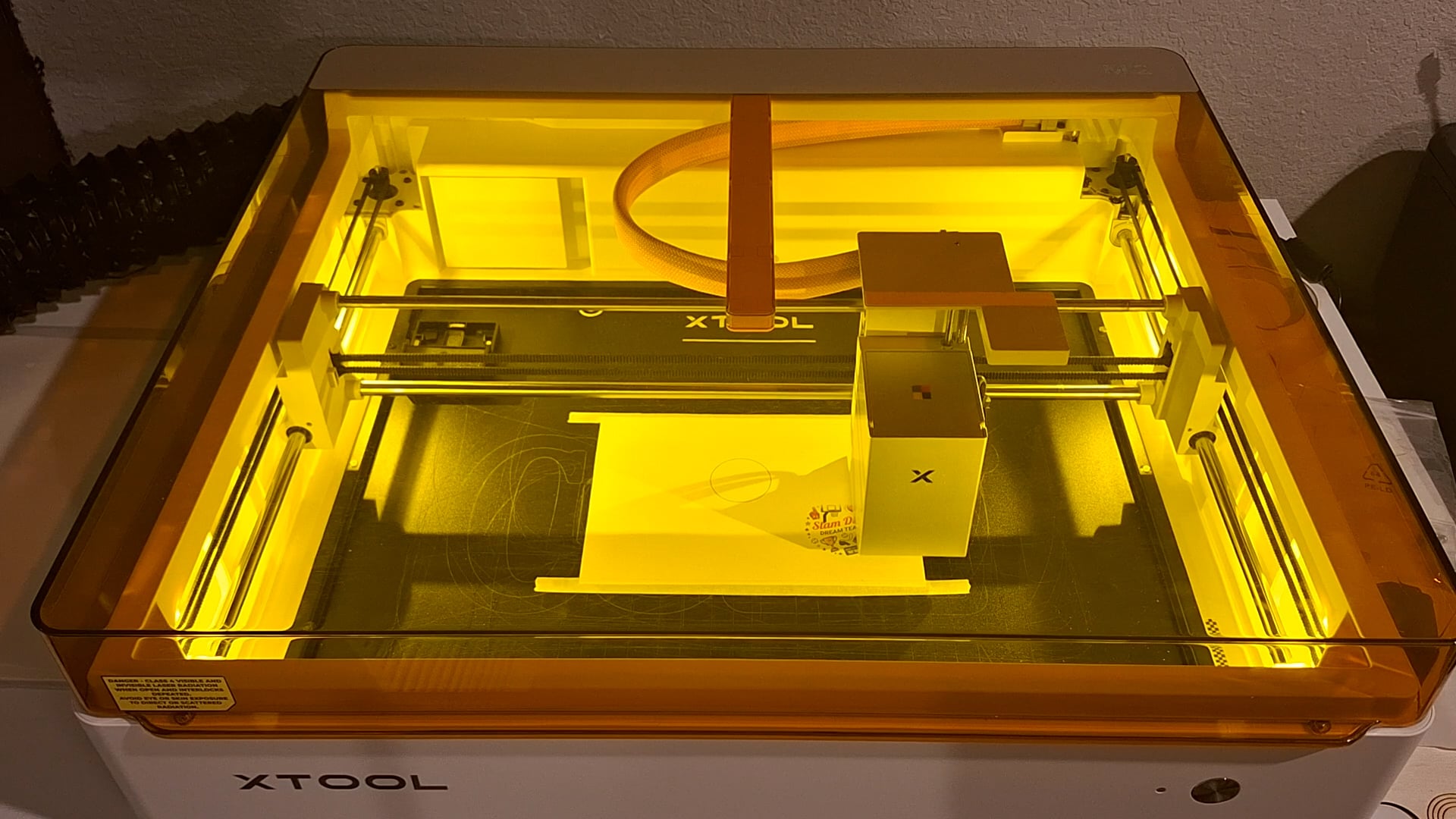
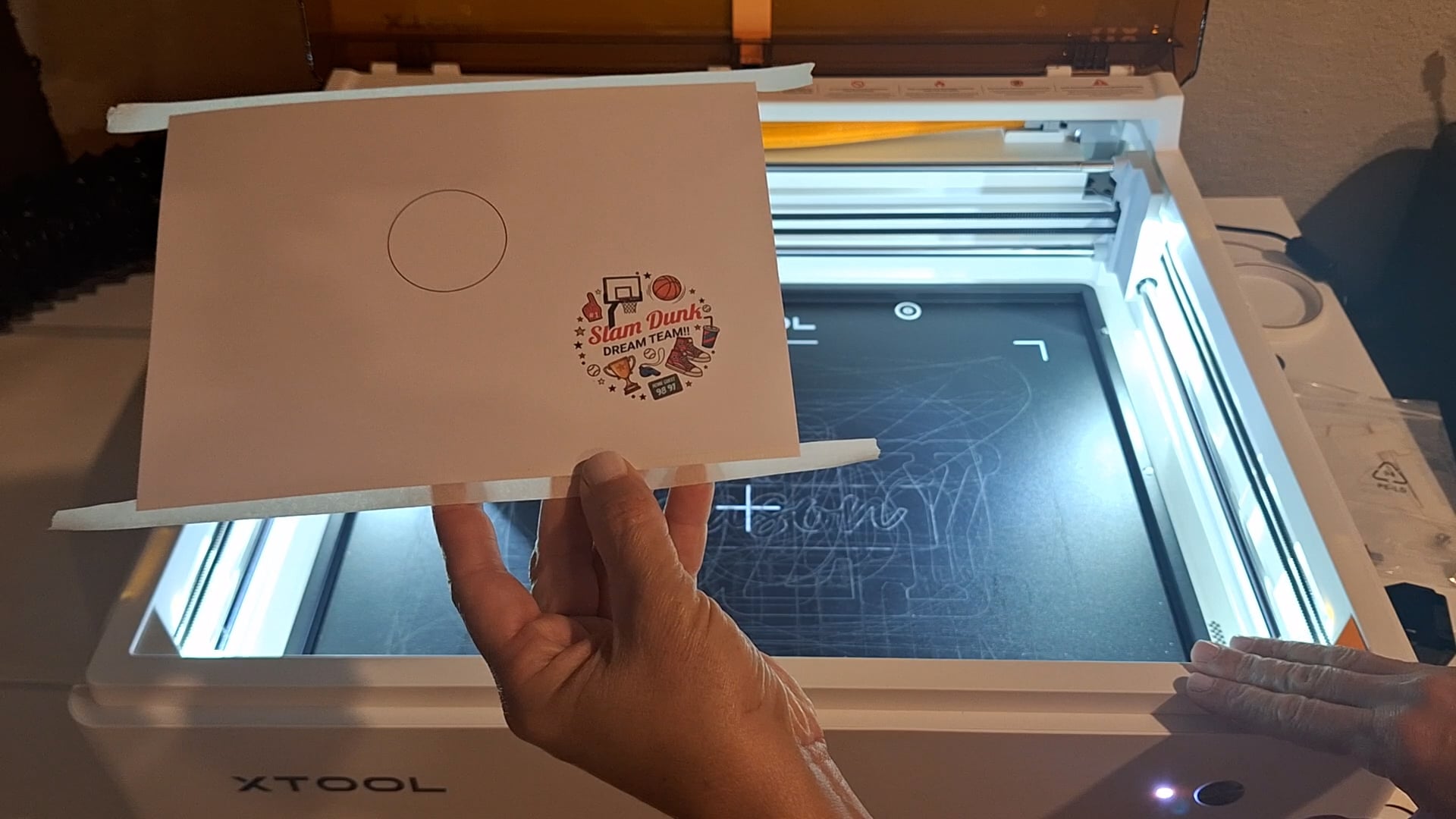
Print to Cut with Paper
Print to cut is really awesome! It makes the cut line automatically so you don’t have to when you select this function and then you can adjust where you want the cut line!
I printed a candy cane and had the machine cut it out! First you print…
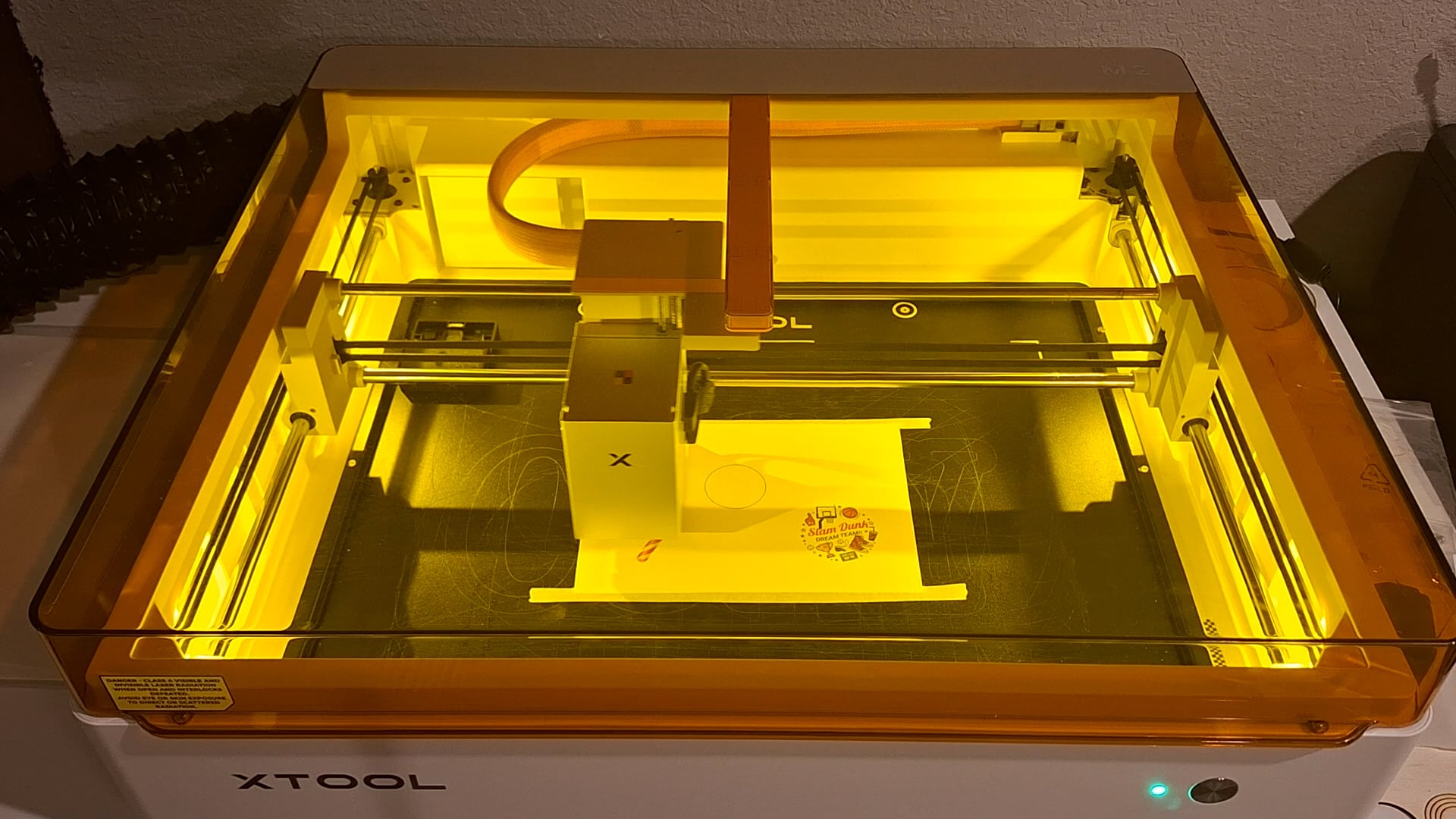
Then, you need to change the ink jet module to the laser module for cutting, remove the print module…
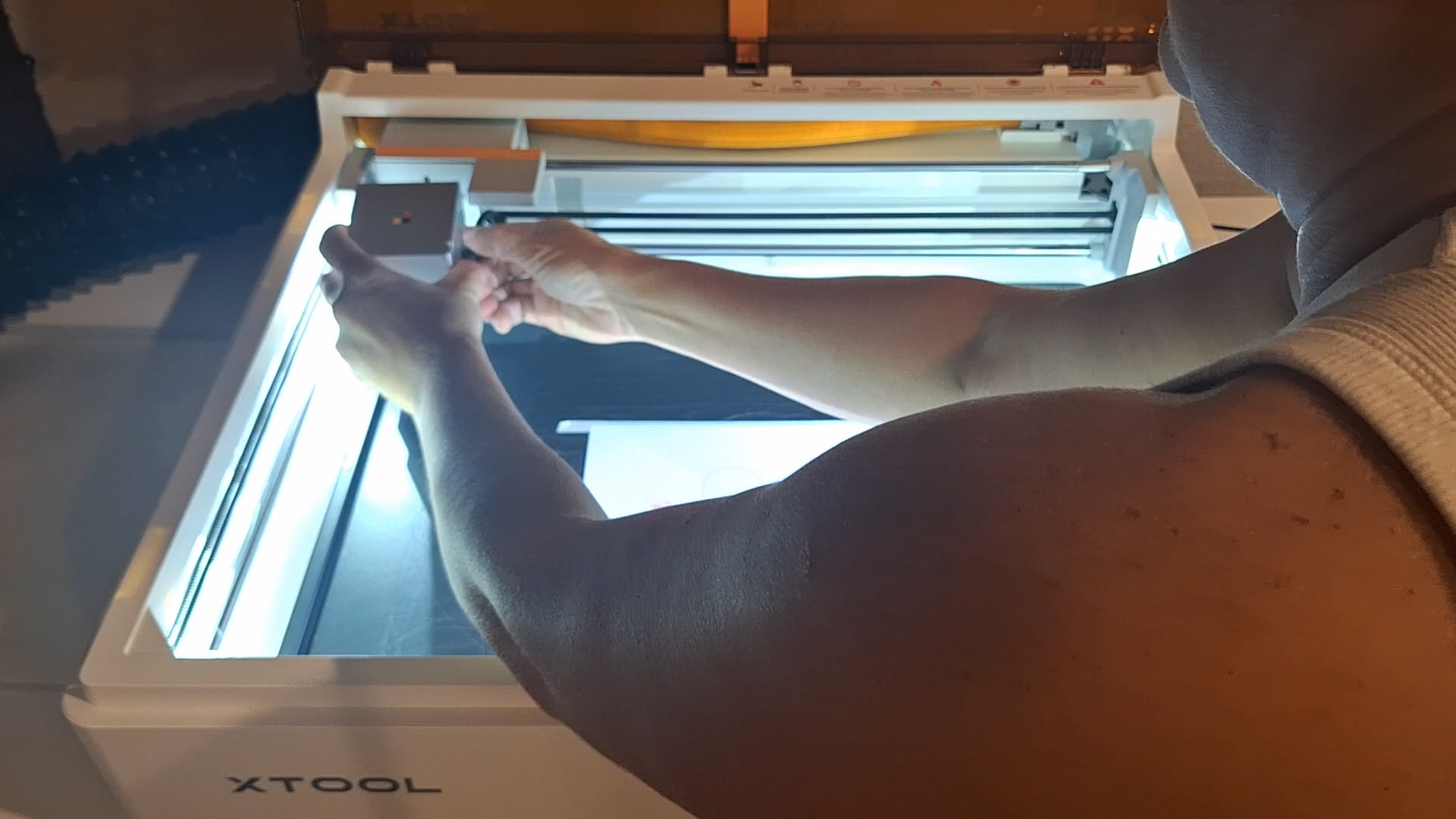
And attach the laser module…
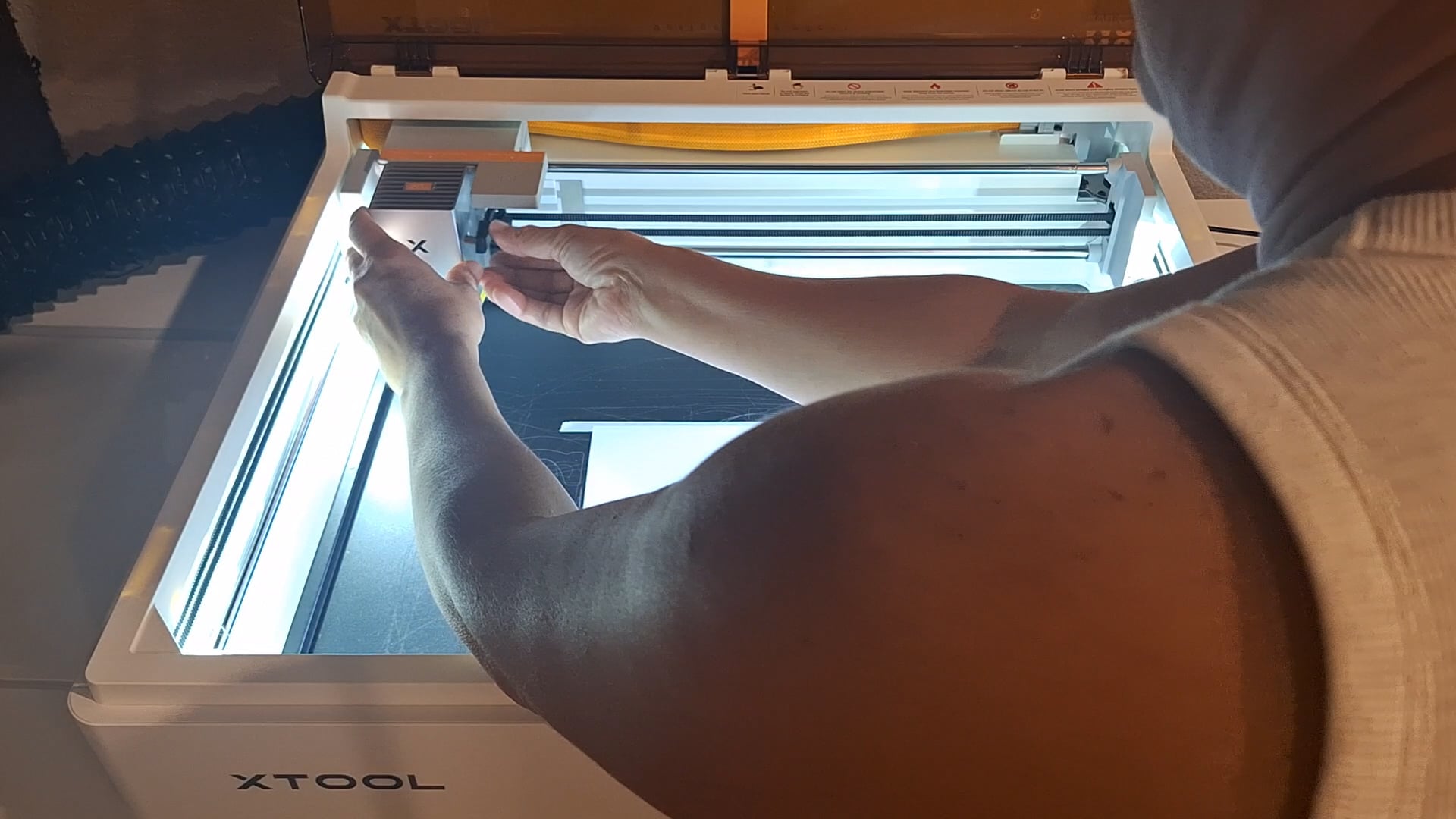
Now, xTool Studio will prompt you to continue with the cutting!
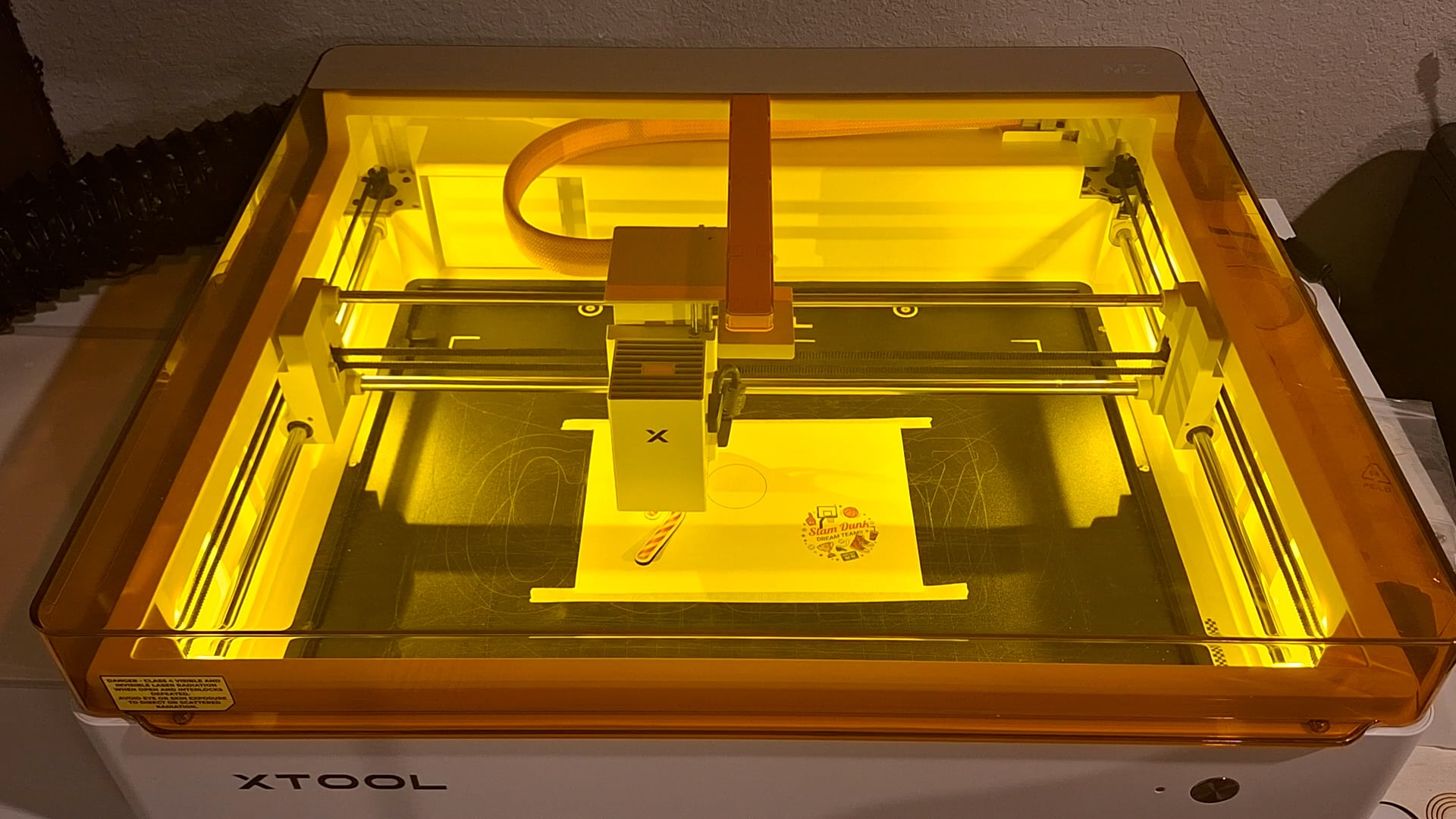
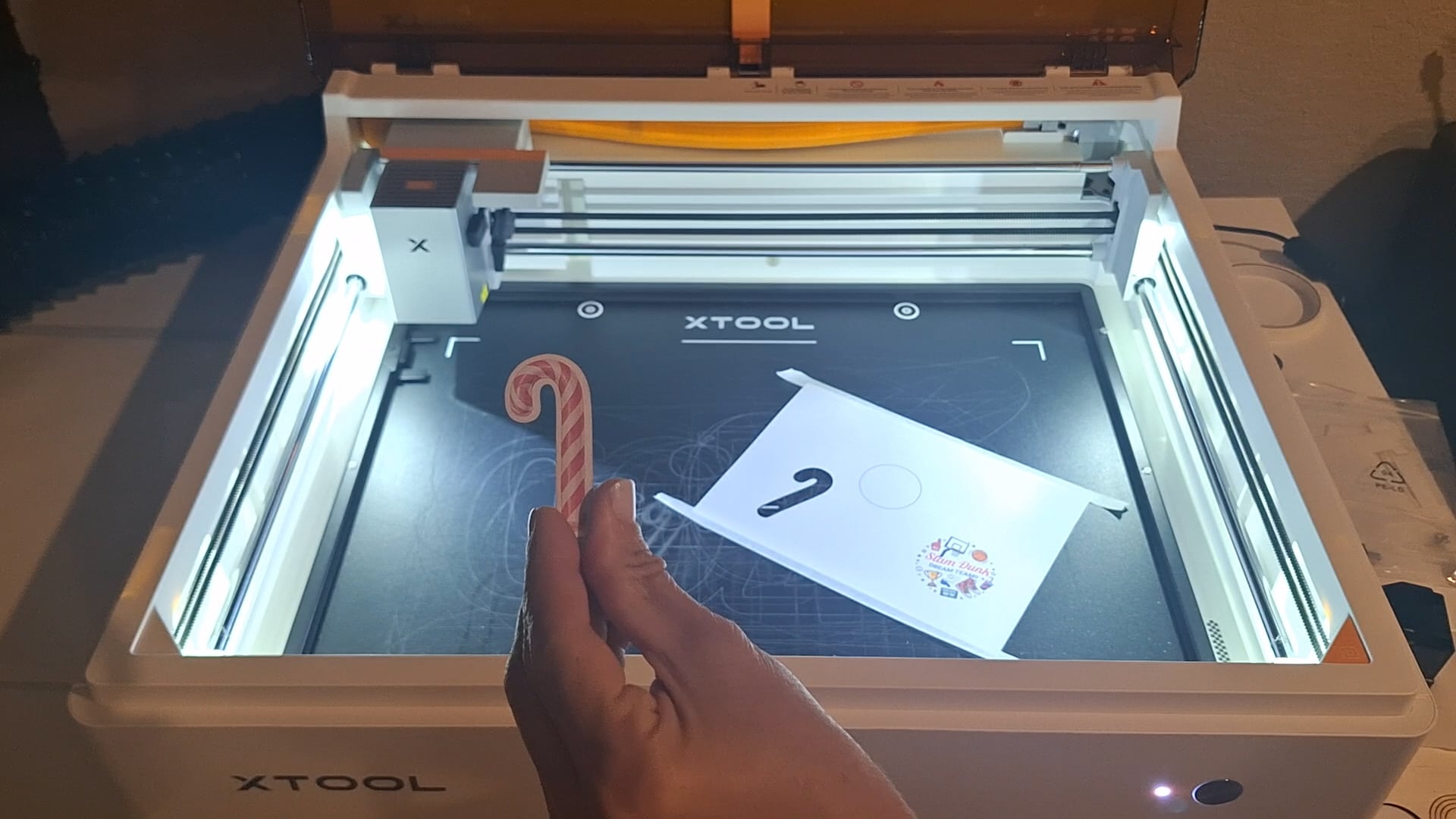
And, look at that, you have the cutest little candy cane!
Printing on Wood with the xTool M2
Wood was a tough one to print on! I tried unfinished wood, finished wood, painted wood, and they all illicit different results, which is somewhat to be expected, but I did not expect the color variations! I also tried printing on the colored MDF from xTool and unfortunately, the color wiped right off, which was not the outcome I hoped for!
First up, the cherries in the picture were on raw wood, they bled quite a bit so I wanted to print them on white paint to see if they came out with more crisp lines and a brighter color since the wood wouldn’t absorb any of the color.
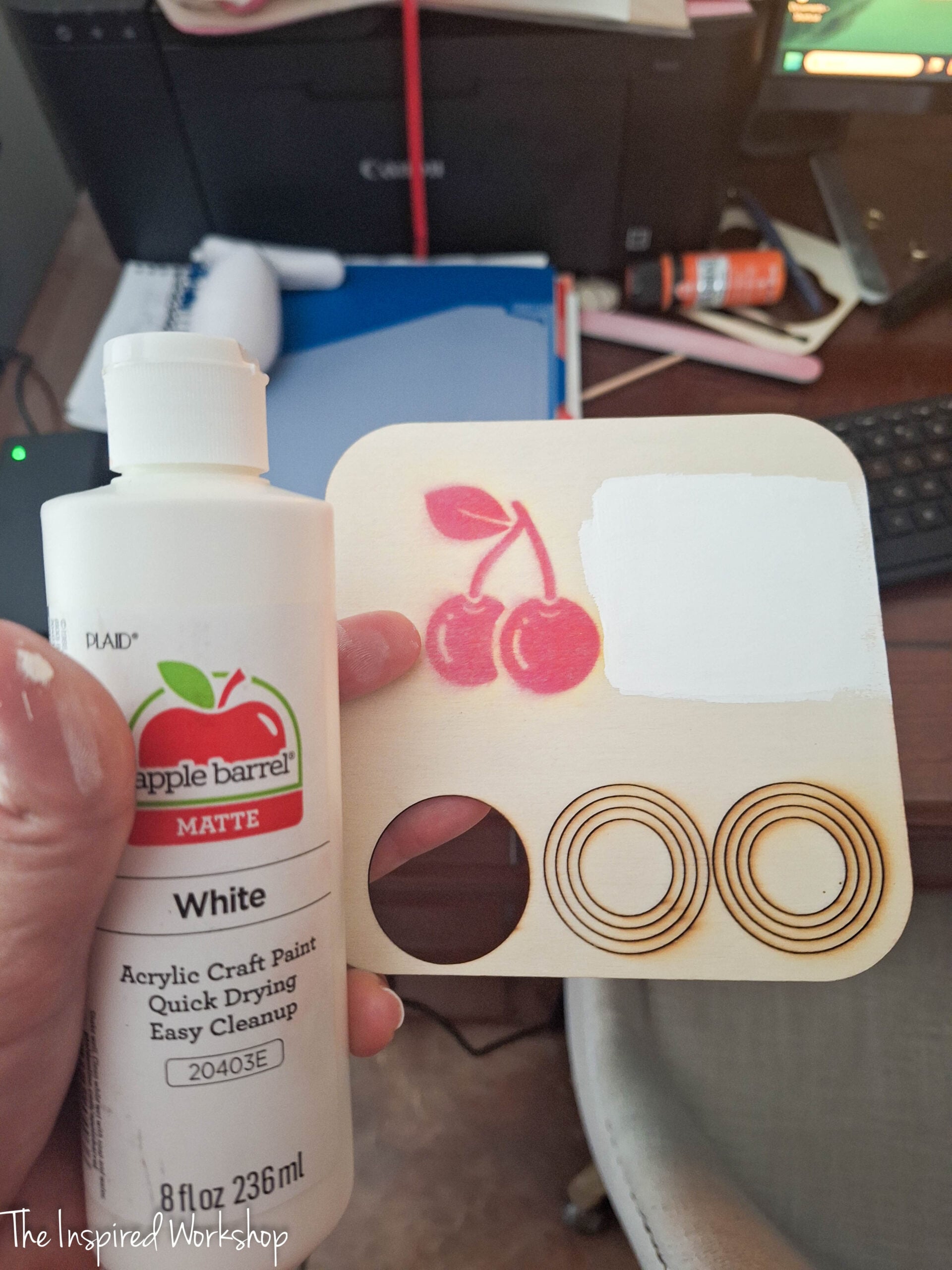
The opposite seemed to happen, they printed lighter on the white paint – the color in xTool Studio was not changed! The lines are more crisp though!
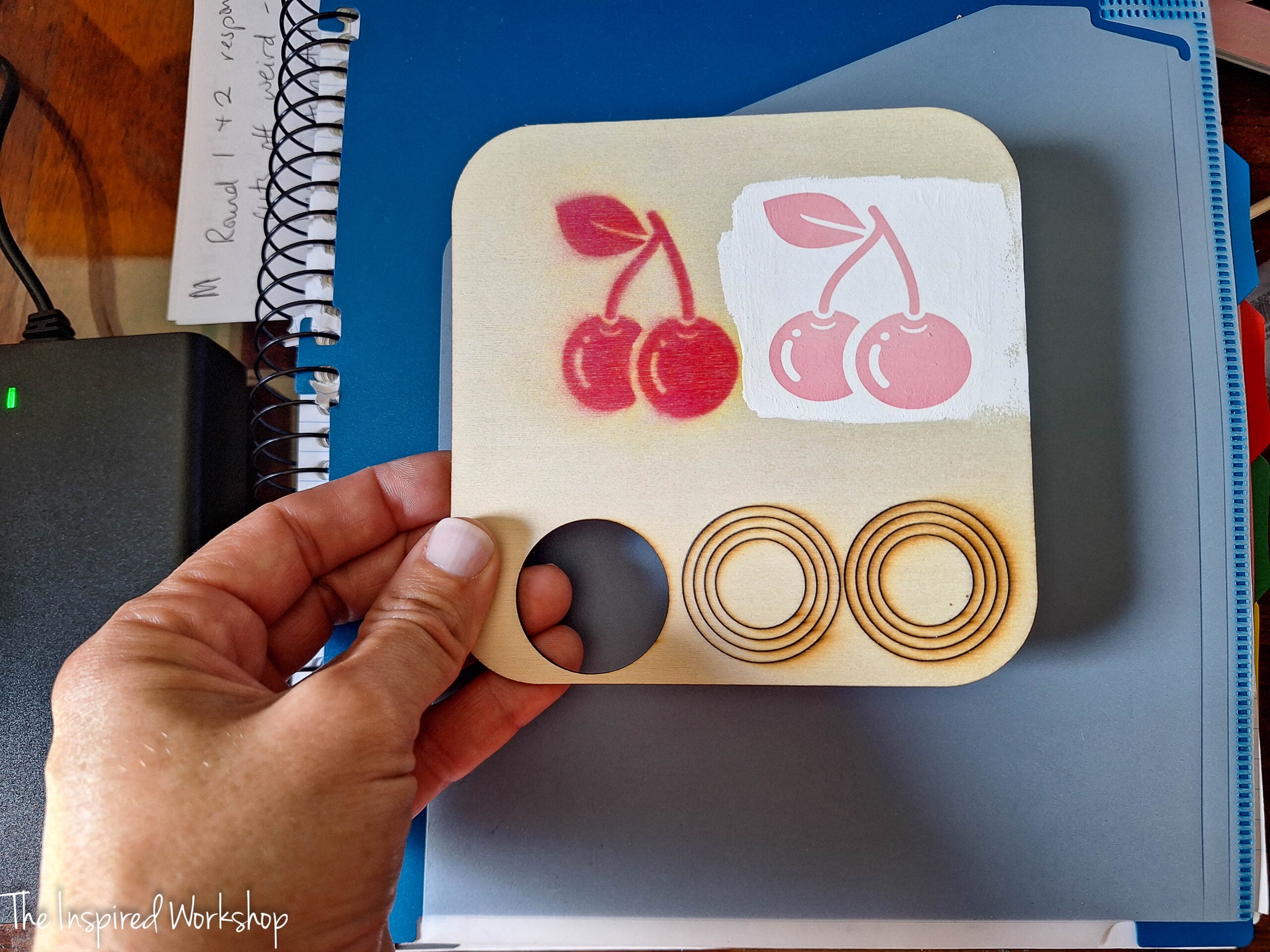
I flipped this test board over and sealed a spot (the cherries on the right) and printed the cherries on bare wood again as well. The color is brighter on the bare wood, but was not changed within the software, and they didn’t bleed as much. The sealed wood didn’t accept the ink, so it bubbled on top and would have wiped right off, but I did not touch it.
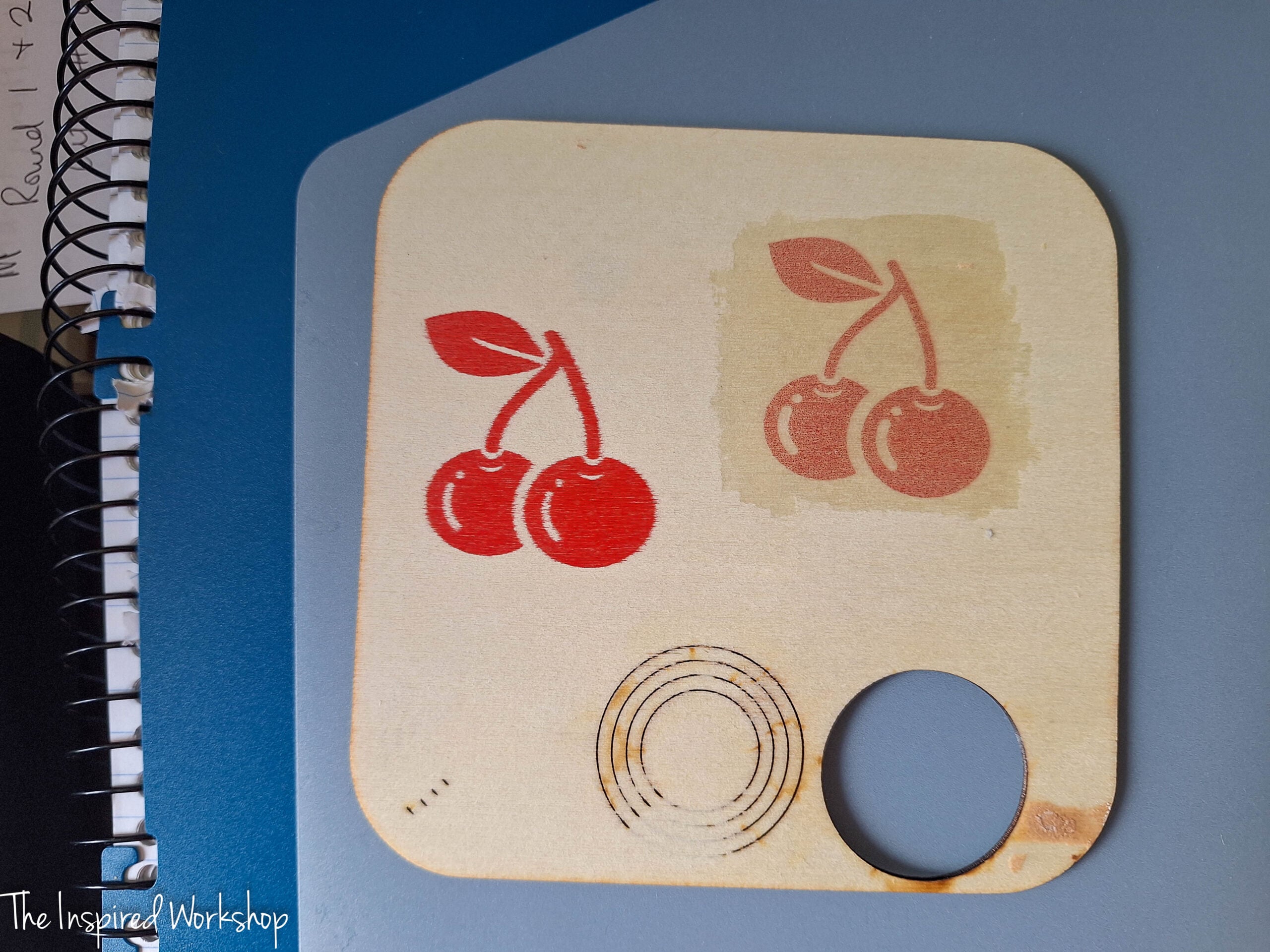
I will keep playing around with printing on wood, because I know there is bound to be a trick to it, and once I figure it out, I will not even need paper anymore! 🤭
Printing on Fabric with the xTool M2
I feel like the colors printed vs the colors I see on the screen are vastly different. I had issues with red being a lot lighter than the screen, and blues looking purple when printed. I researched a lot about this but still had issues even when altering my file colors to CMYK. I am going to continue working on this and I will update if I manage to get this figured out!
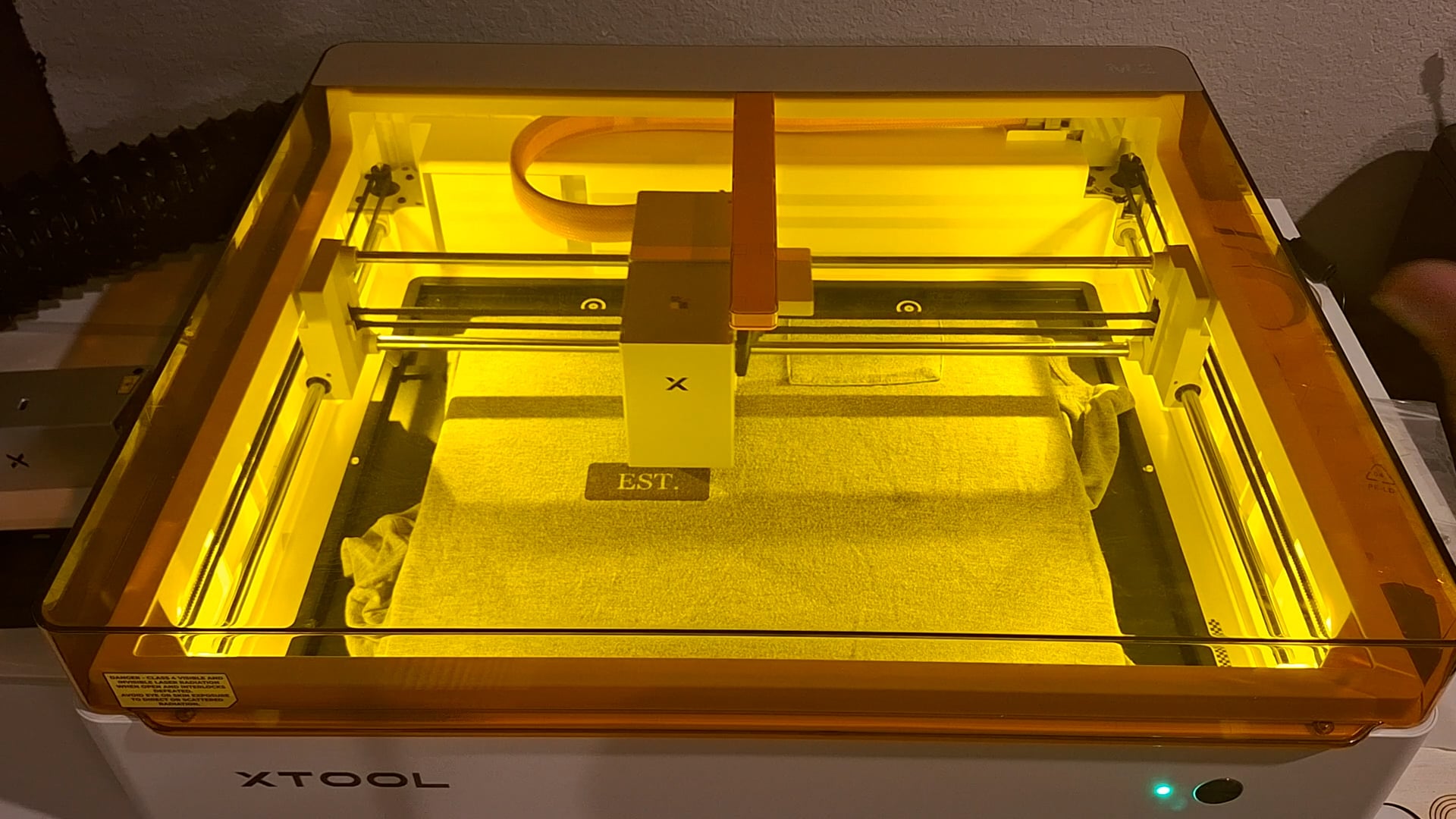
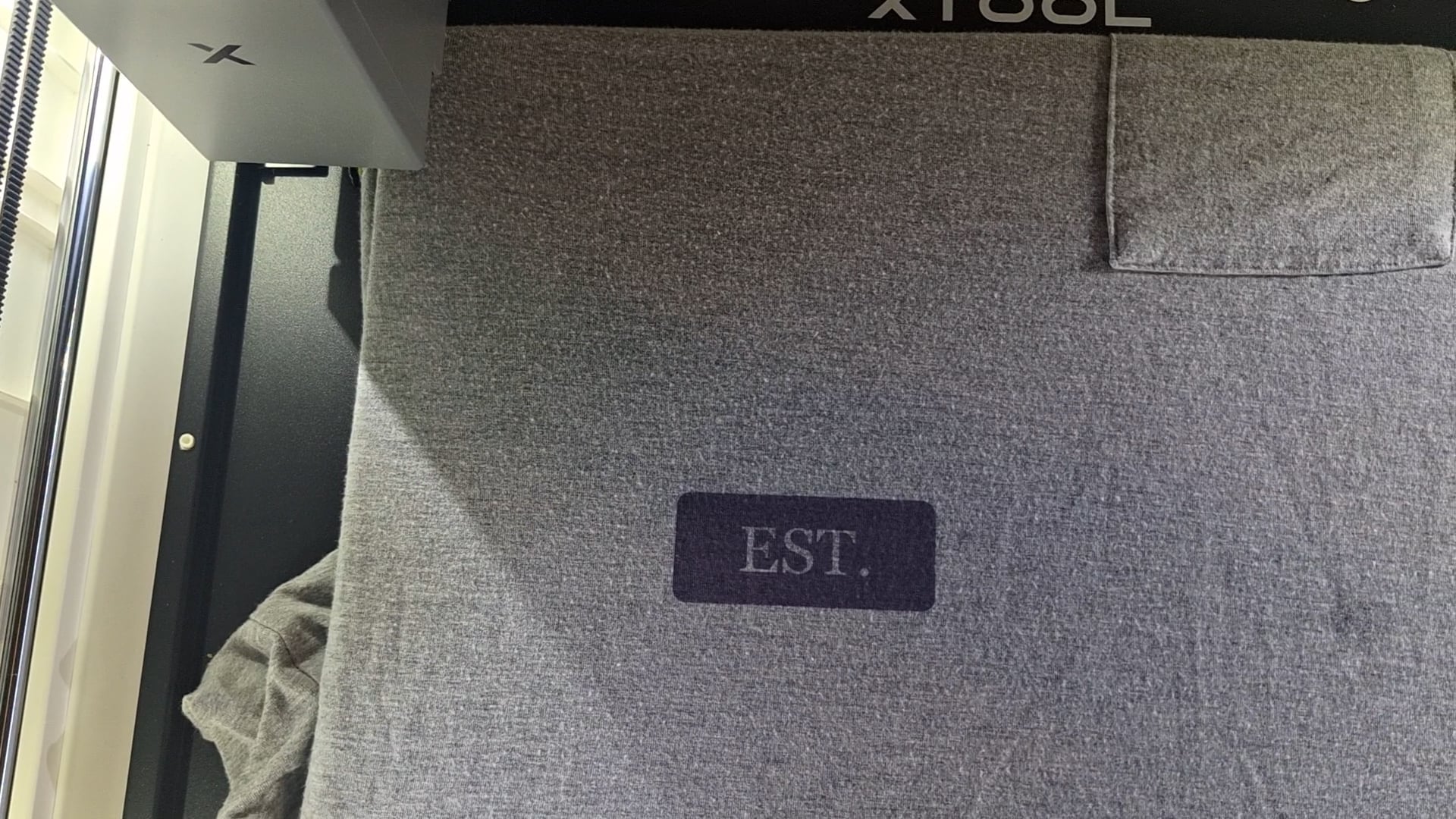
It looks far more purple in real life than in the image. I kept trying, I did not give up! LOL! Look at the prints vs my navy blue fabric to give you an idea of the difference in color! Now, inside the laser, all colors show up odd on camera, let me preface this with that — but the fabric helps you see how different they are!
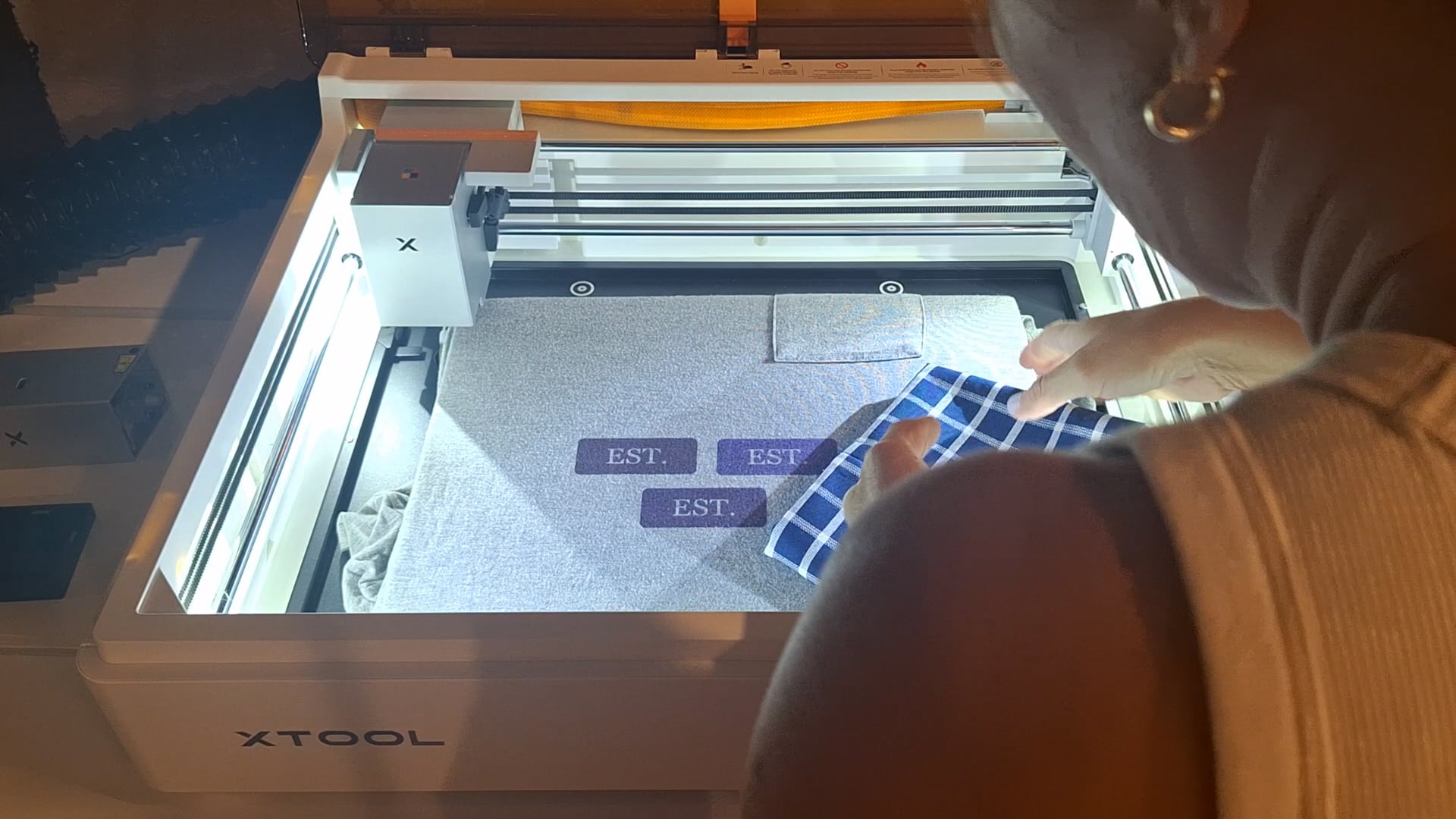
It was really neat how it printed on the shirt though, and if I could get the colors right, this could be a really freaking awesome feature of this machine! You would need to heat set the ink since it is not permanent ink and it isn’t meant for fabric that will be washed, but seeing as heat sets stains, I think you could make it work! Lol!
Printing on Canvas
I made this paint by number canvas and I was in HEAVEN because I love paint by number canvases but don’t want to spend $50 bucks a person every time we want to paint them! This solves that problem! Now, the largest you can print is a 9×12 canvas, so my image was far too detailed for how small of a canvas that is, but it could still be painted, VERY CAREFULLY! LOL!
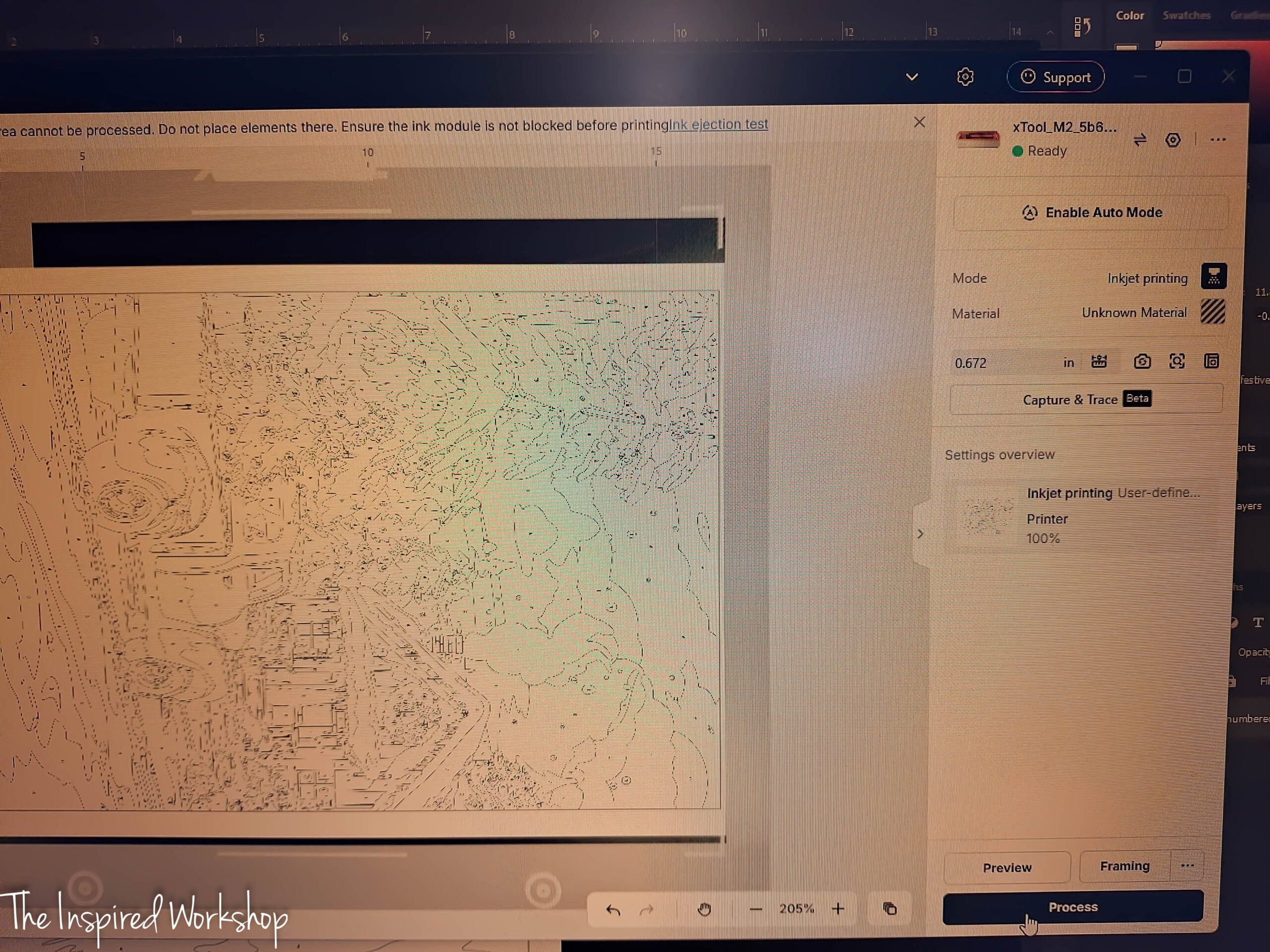
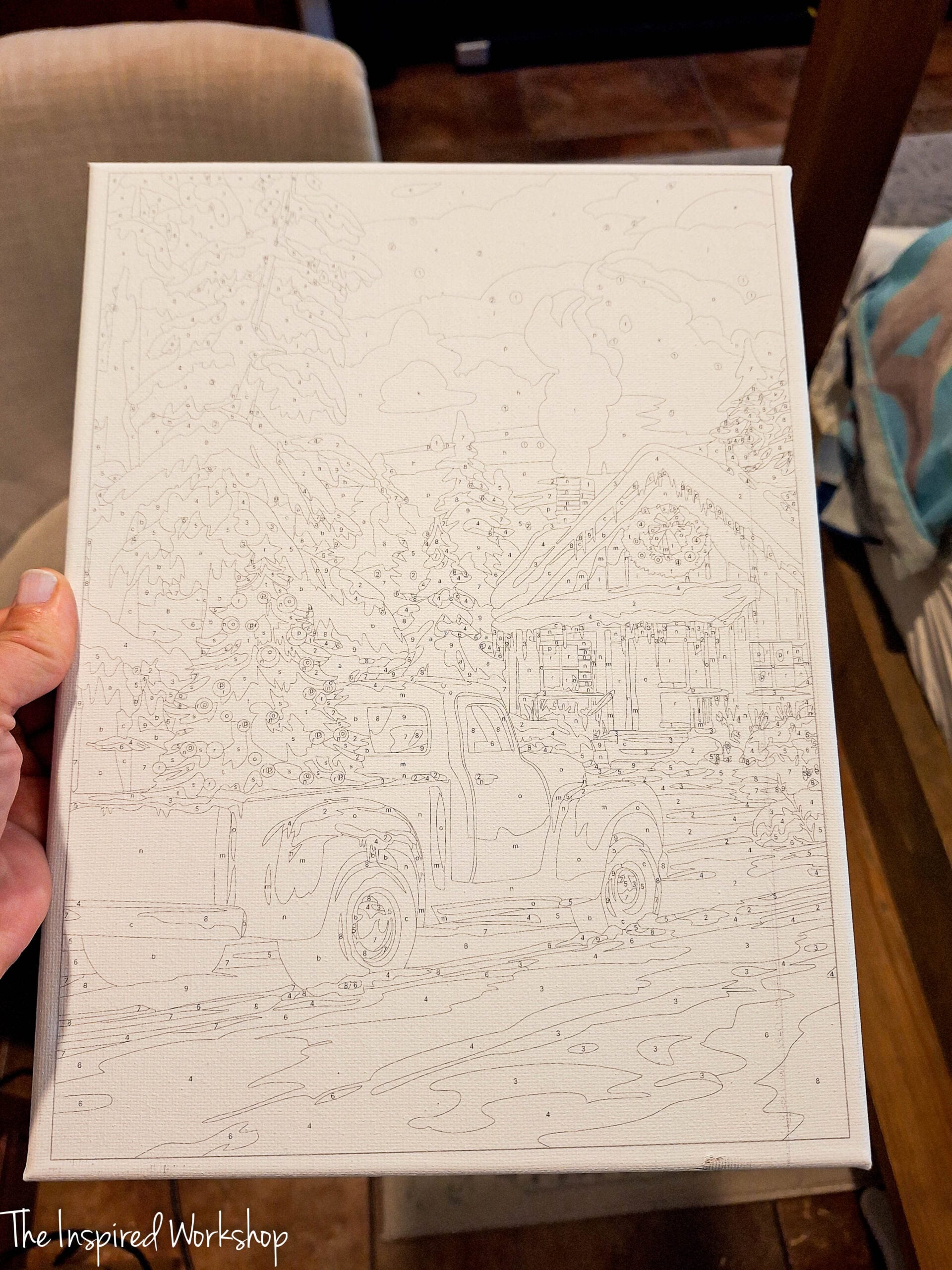
Don’t mind the streak on the right, that was from an earlier attempt to print on this canvas when something was not calibrated properly and the machine kept dropping the print head lower than the canvas, even though it had auto measured it correctly! So if you have this problem, a calibration is needed and did fix it, right away!
Final Thoughts
Well, that wraps up all the materials I tested, I had a really good time testing out this machine and I cannot wait to continue making some really fun stuff to share with you all! Overall, this machine is a true contender in the laser world! I am honestly impressed with the xTool M2 and even though there were a few hiccups, I could not in good conscience tell someone not to purchase it at this amazing price point!
Just make sure to check that the machine you purchase can do the things you want it to do, as I feel this is where disappointment happens! A lot of people (me included in the beginning) have no idea that there are so many different types of lasers, and each one being good at certain things, and not so good at others! I was so upset when I realized I could not cut all acrylic with a diode, as I was so excited to cut clear glitter acrylic…womp, womp, womp…I found out I couldn’t cut it after I already had the machine!
Knowing what to expect from your machine will save you from this! Feel free to ask questions in the comments below, especially if you need help picking a machine, or reach out to xTool, they are so helpful and knowledgeable!
Well, I better get off here, I have so many ideas in my head that I want to create but just don’t have enough time to create them because I am doing other things than what I need to be! Lol! Make sure and check out all of my laser projects that I have already created while you wait for the new ones, all the SVG files are FREE to download! LASER CRAFTS
Hope this helps you make the best decision for purchasing a laser engraver/cutter/printer for yourself or your business!
Happy Laser Crafting!

Want to save this review for reference at a later date? PIN IT!